Where to find it: Administration → Attendance schedule → Calendar templates
A calendar template determines how shifts rotate regularly for people, for example morning – afternoon – night in a repeating cycle. People who have a template assigned in their attendance rule follow its shift schedule. The number of templates may be limited by your license.
The Attendance schedule item in the Administration menu groups three sections into tabs: Shift schedule, Calendar template schedule and Calendar templates. You will see only the tabs for which you have permission. If you have permission for only one of them, it opens directly without tabs. The next time you open it, the tab you worked with last will be displayed.

The Calendar templates tab contains a list of all templates with the columns Template name, Local calendar, Cycle length and Note. When you select a row, a panel appears on the right with the template's basic details and a preview of its shift schedule. Click the template name to open its details. The ⋮ menu at the end of the row contains Details, Edit, Record history and Delete.
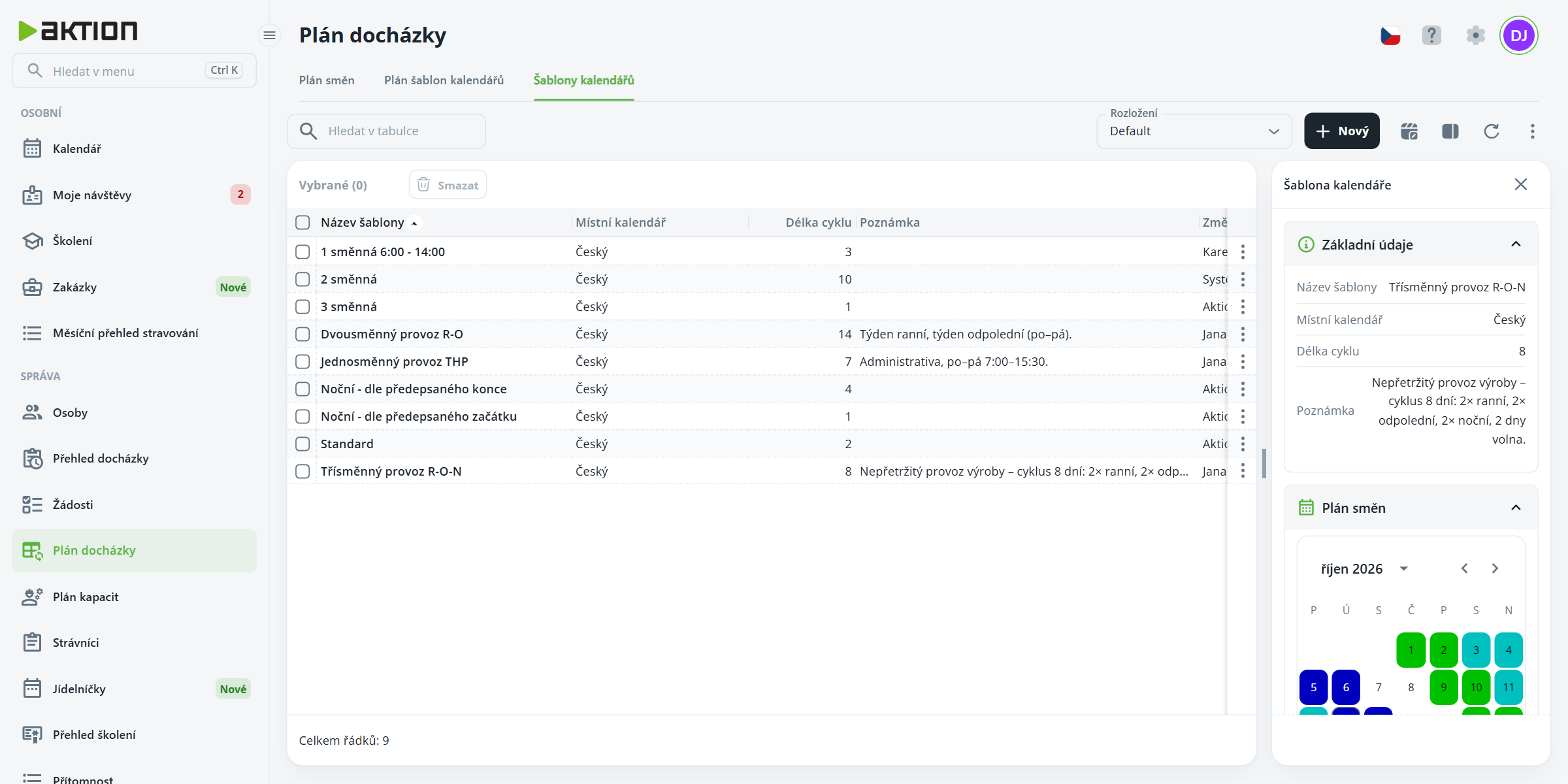
In the list of templates, click New.
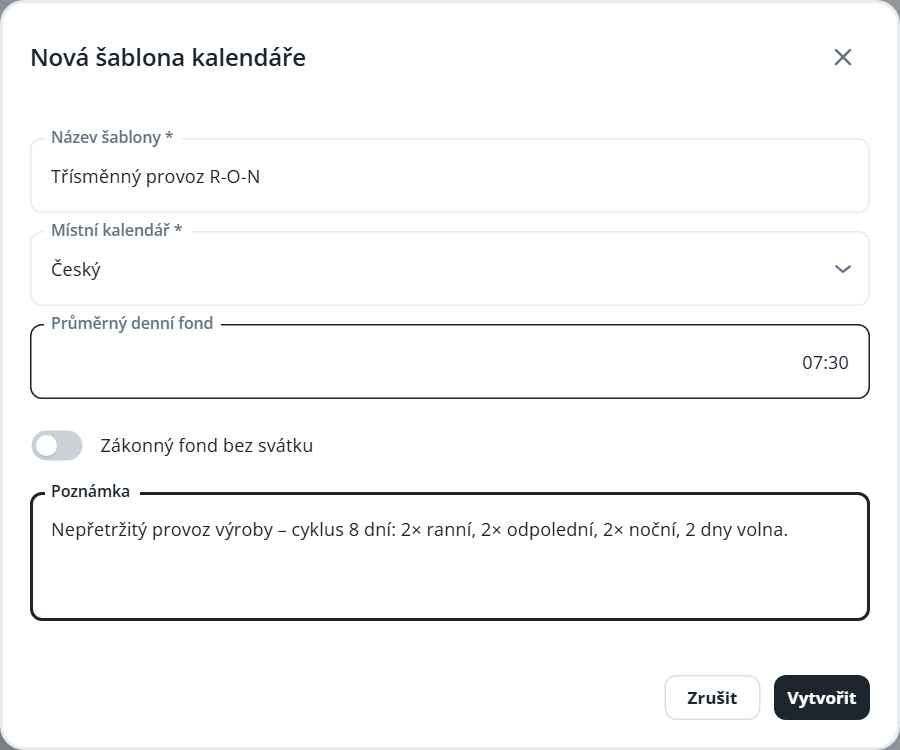
In the New calendar template dialog, enter the Template name and select Local calendar.
Optionally, enter the Average daily hours, enable Statutory hours excluding holidays and add a Note.
Click Create. The details of the new template will open.
The entire template is on one page. On the left are the sections Basic information (the Edit information button), Cycle settings, Cycle days and Cycle repetition preview. On the right is the generated Shift plan.
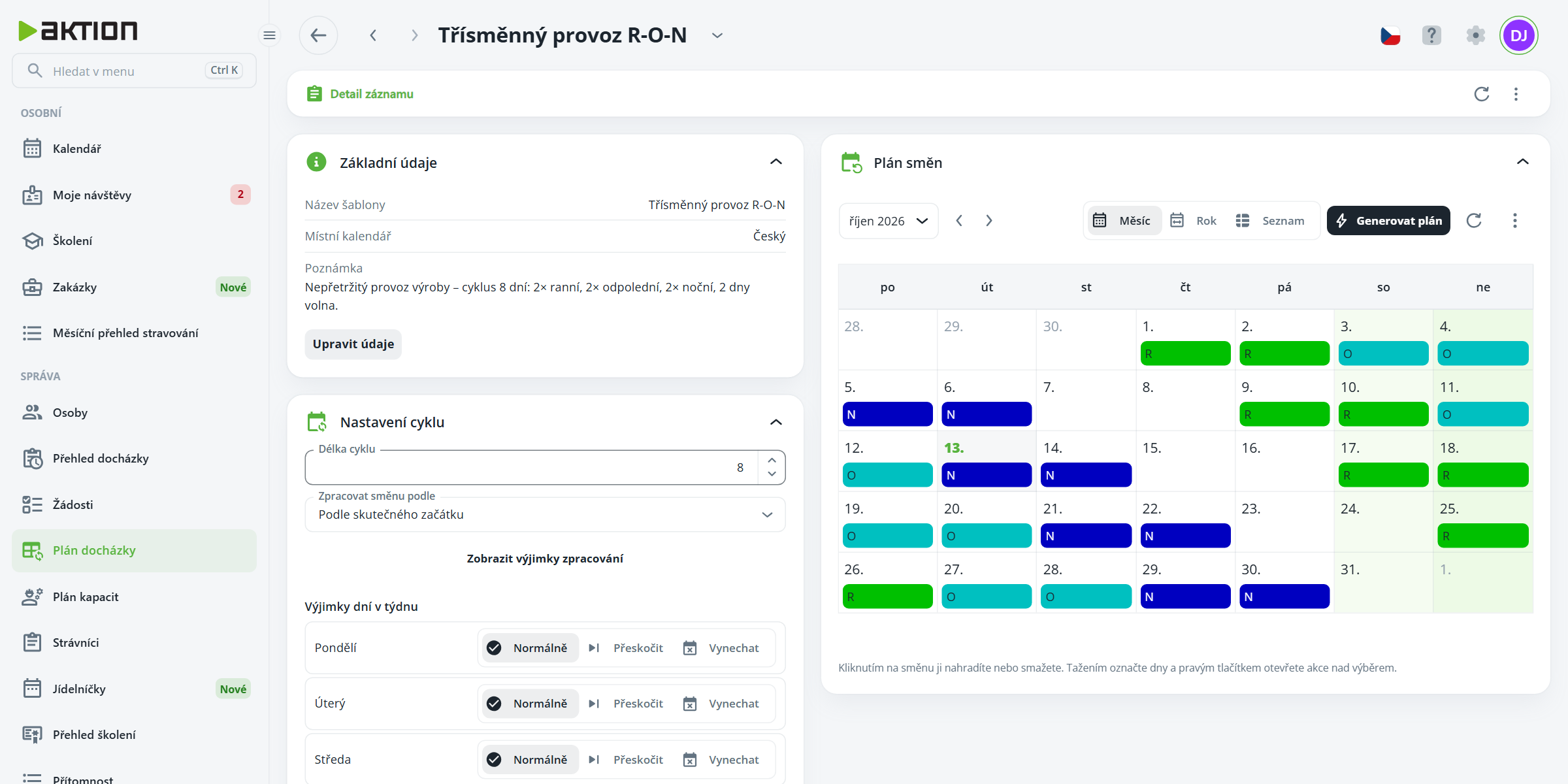
In the Cycle settings section, configure:
Cycle length – the number of days after which the cycle repeats,
Process shift based on – for example, Actual start, Scheduled end or Split across midnight.
Use the Show processing exceptions button to set different processing for Saturday, Sunday, public holidays, and month transitions (the Process shift - Saturday field, etc.), or leave it as Same as default.
In the Days of the week exceptions section, specify how the cycle behaves for each day of the week and for public holidays:
Normal – the day is processed according to the cycle,
Skip – the day is omitted from the generated plan and the cycle does not advance,
Omit – the day is omitted, but the cycle continues.
Changes to the cycle settings are saved automatically.
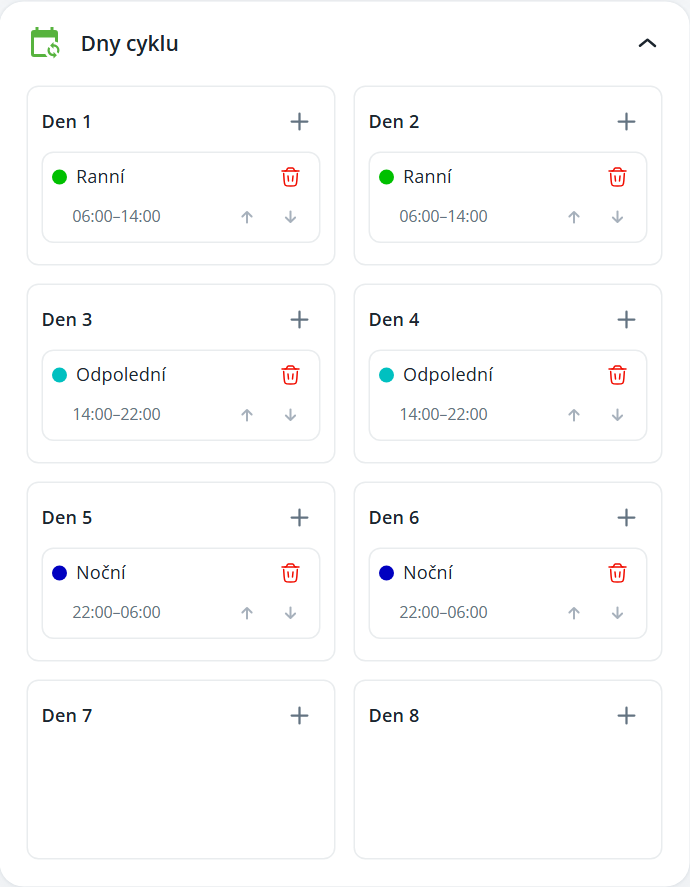
In the Cycle days section, there is one box for each day of the cycle (Day 1, Day 2…). Use the + button next to a day to select a shift from the list and assign it to that day. You can also add multiple shifts to one day; change their order using the arrows, or remove a shift using the trash icon. A day without a shift means a day off.
In the Cycle recurrence preview section, you can immediately see how the cycle will appear in the calendar. The Preview from field determines the date from which the preview starts as day 1 of the cycle. This is only a sample pattern, not an actual schedule.
In the Shift schedule section, click Generate schedule.
In the Period step, enter From and To, or select the Cycle start day (the default is From cycle start). Click Next.
In the Preview and conflicts step, check the generated shifts—the color of the day corresponds to the shift color. Days that conflict with an already scheduled shift are highlighted with an icon.
If you want to replace conflicting shifts, check Overwrite conflicting shifts.
Click Generate schedule. The application will show the number of shifts generated (for example, “70 shifts generated.”).
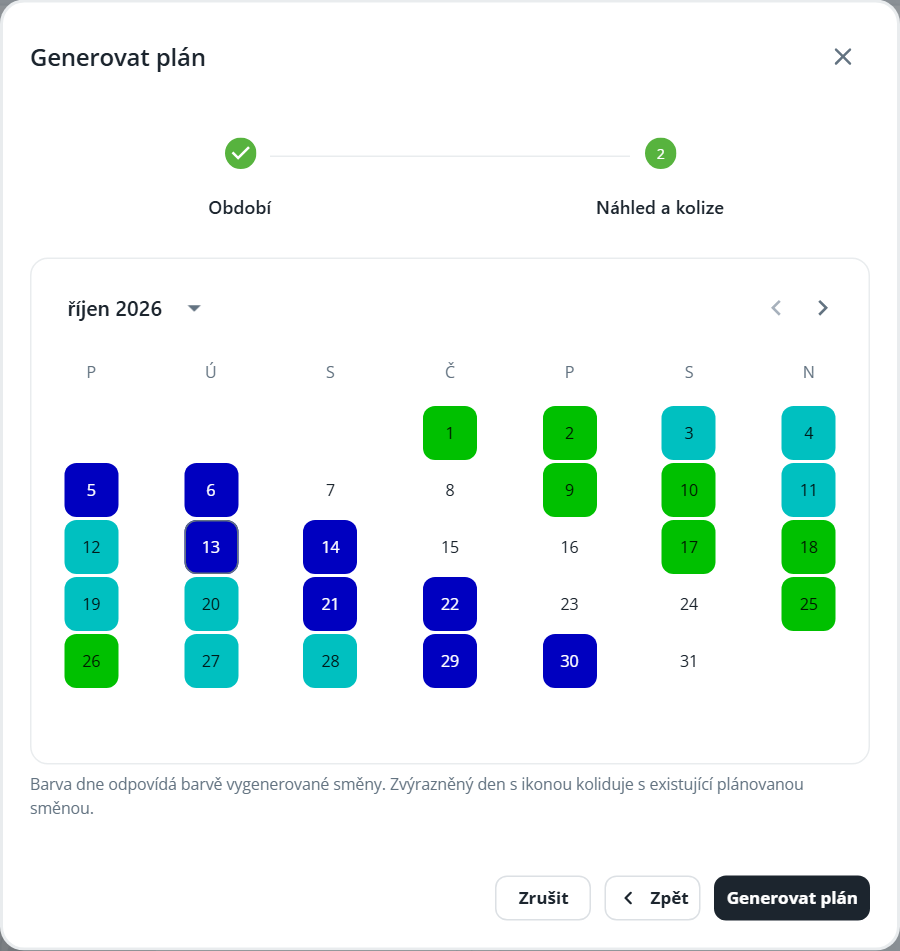
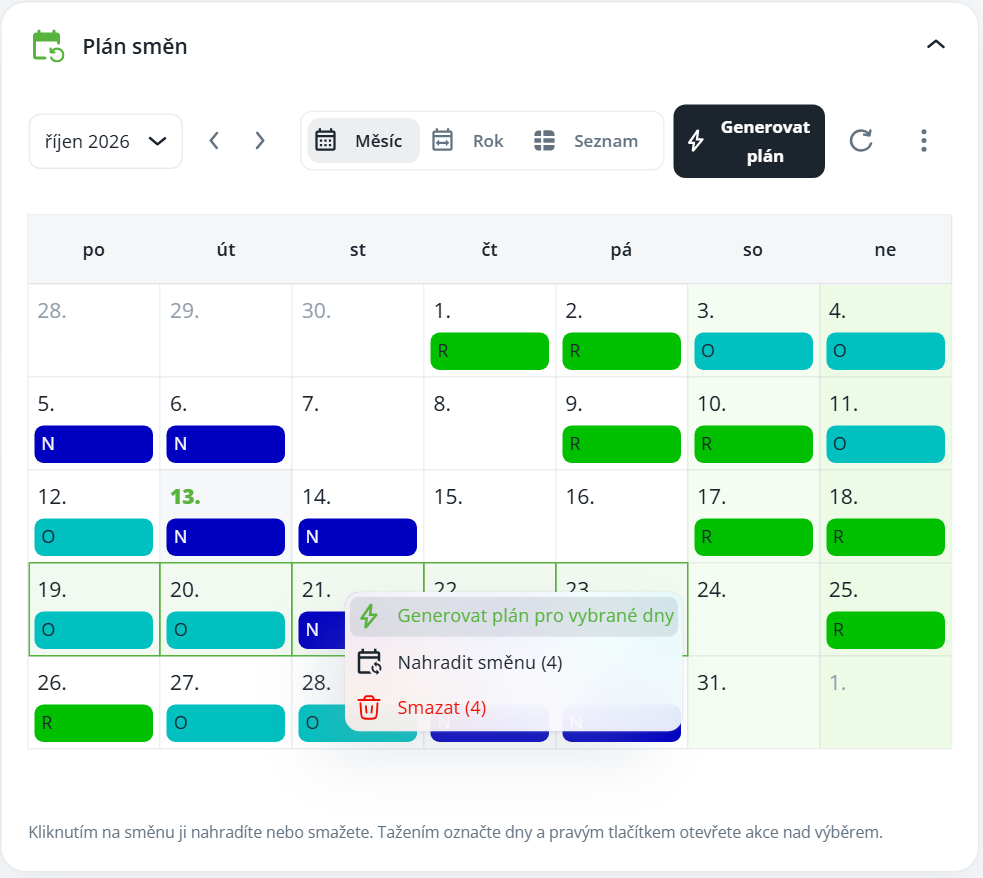
In the Shift schedule section, switch between the Month, Year and List views. Hover over a shift to see its time and source.
Click a shift to open the Replace shift / Delete menu.
To select multiple days, drag across them and right-click. The menu contains Generate schedule for selected days, Replace shift (count) and Delete (count).
When replacing, select a new shift; replacement is done by day—if there are multiple shifts on the selected day, one will remain after replacement.
After saving the template or generating its schedule, the attendance and schedule of the affected people are recalculated automatically.

