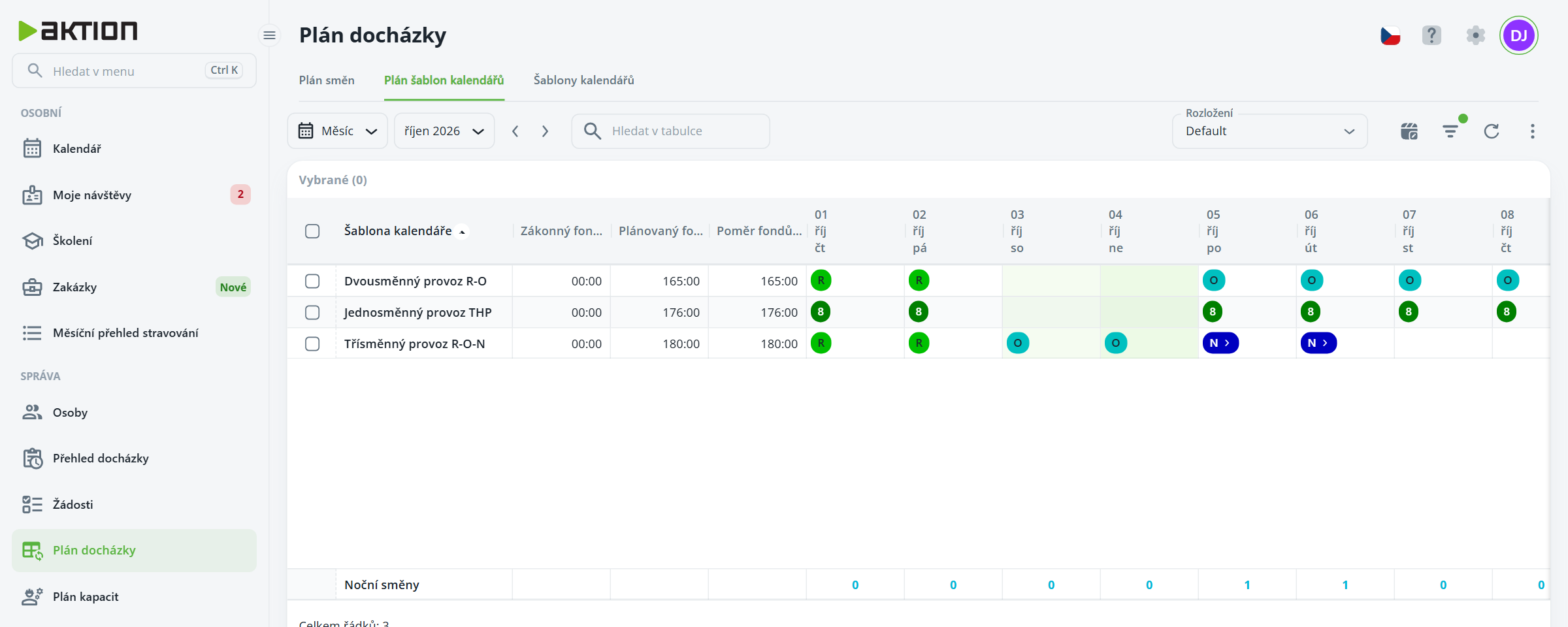
In the bar above the table, select the period type (Month…), the specific period, and use the arrows to move forward and backward. The Search in table field searches by template name. Click a template name to open its details.
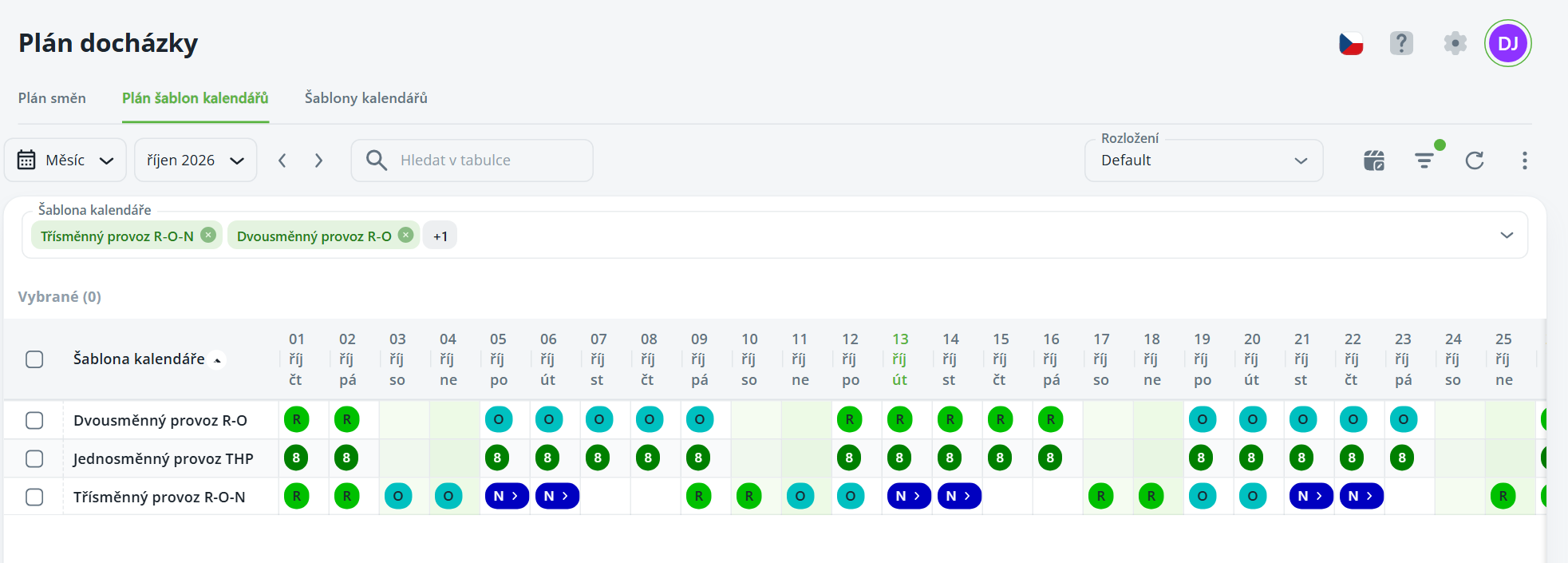
Filter the templates to narrow down the selection: click the Data filtering icon, then select one or more templates in the Calendar template field.
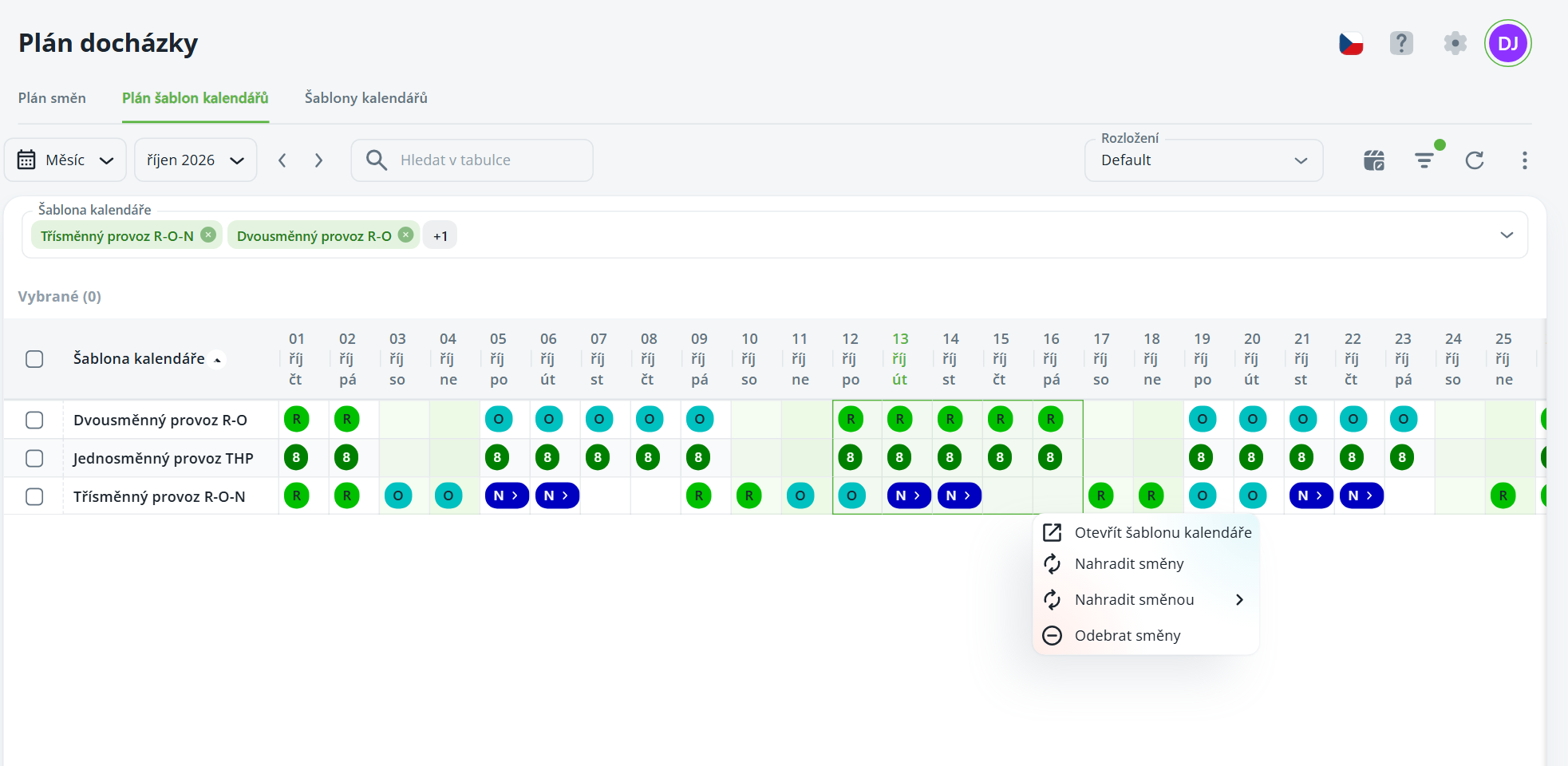
Right-click a day, or first select multiple cells (click the first one, then hold Shift and click the last one) and right-click the selection. The menu contains:
Open calendar template – opens the template details; use the back button to return to the plan,
Replace shift (when selecting Replace shifts) – opens a list of shifts; click Add next to the desired shift,
Replace with shift – quickly select a shift from the submenu of shifts used in the plan,
Remove shift (when selecting Remove shifts).
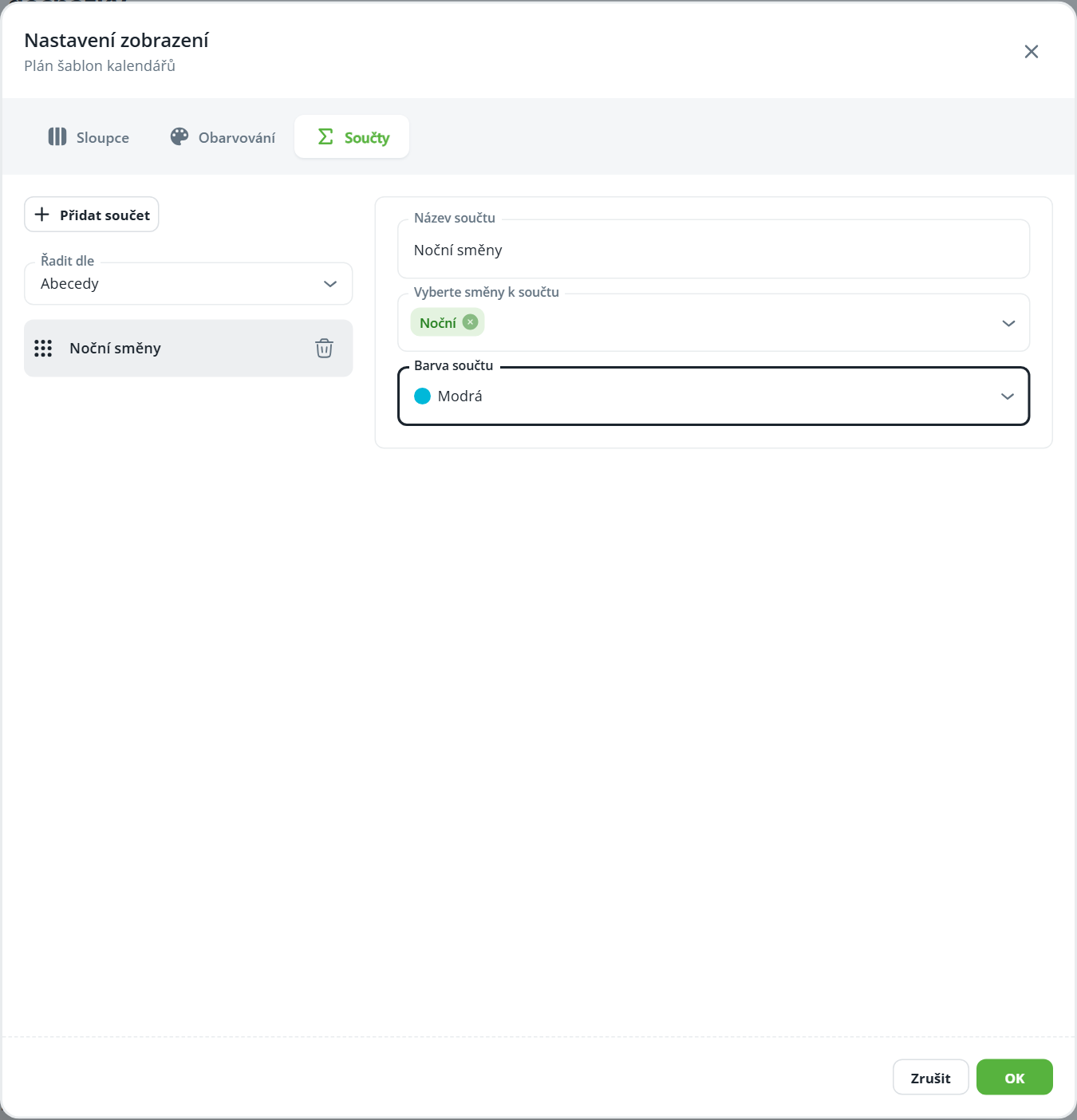
Tlačítkem Nastavení zobrazených sloupců, obarvování a součtů otevřete dialog Nastavení zobrazení se záložkami Sloupce, Obarvování a Součty.
Na záložce Sloupce rozbalte skupinu Plán šablon kalendářů a zapněte požadované součtové sloupce:
Zákonný fond pracovní doby - Čas / - Dny,
Plánovaný fond pracovní doby - Čas / - Dny,
Poměr fondů - Čas / - Dny.
Na záložce Součty klikněte na Přidat součet, vyplňte Název součtu, v poli Vyberte směny k součtu vyberte směny, které se mají sčítat, a zvolte Barva součtu. Nastavení potvrďte tlačítkem OK.
Sum columns are displayed after the template name, with the custom sum shown as a row below the table with the number of selected shifts on each day.
After you edit the template plan, attendance and the plan for people with this template are recalculated automatically.