The Personal Jobs section is used to record your own work on jobs – starting and stopping work, adding work entries retroactively, editing, copying, and deleting them. Only jobs you are participating in are available. The section has the tabs Overview, Calendar and List.
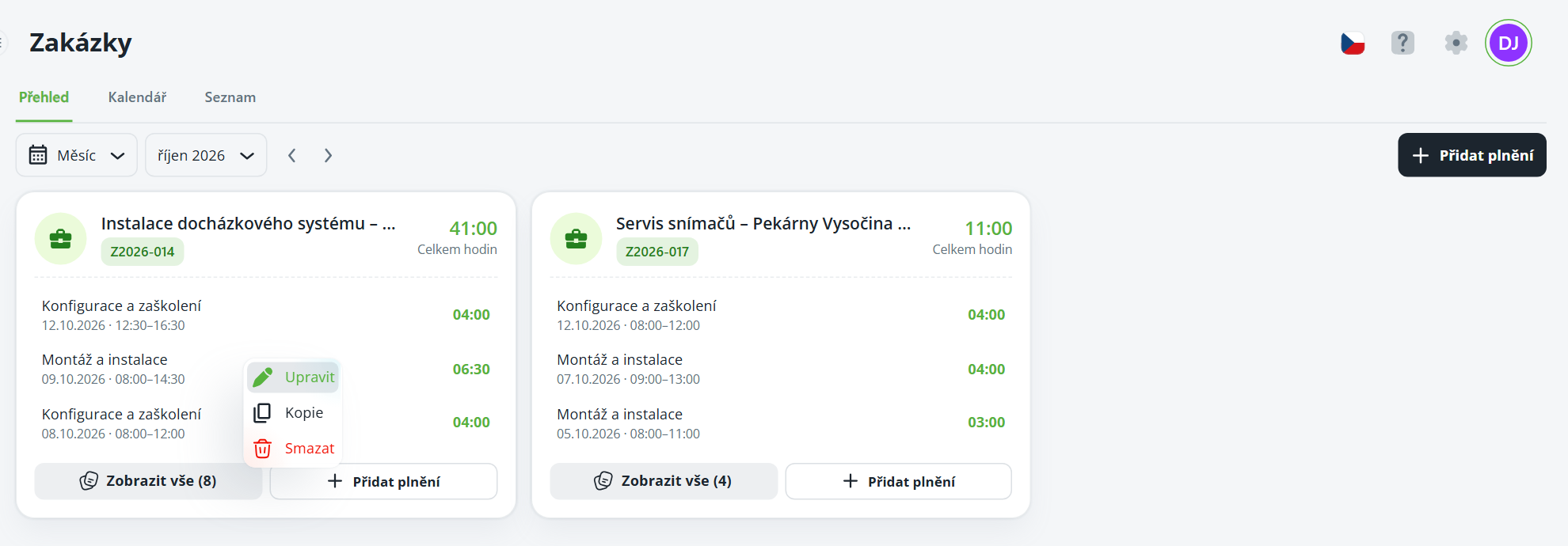
On the Overview tab, you can see a card for each job for the selected period, showing the total number of hours and the most recent work entries. Right-click to open the menu:
on a work entry – Edit, Copy, Delete,
on a job card – Show all (count), Add work entry.
Use the Show all button to display all work entries for the job in the selected period. Use the Add work entry button on the card to add an entry to that job. After editing an entry, the application displays a confirmation.
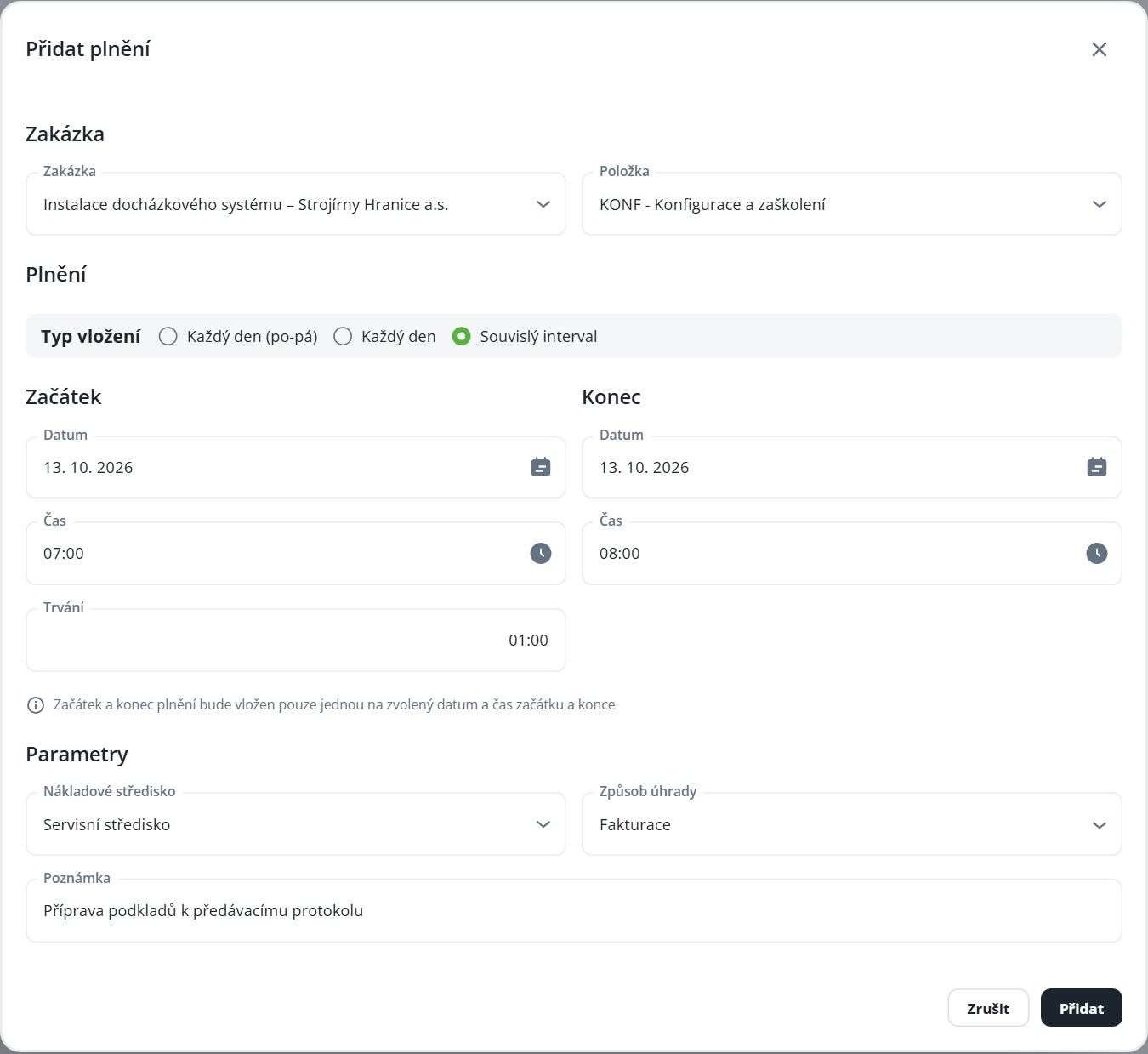
Click Add fulfillment (in the toolbar or on the job card).
In the Job section, select the Job and Item.
In the Fulfillment section, select the Entry type – Every day (Mon–Fri), Every day or Continuous interval – and enter the start and end date and time (or Duration).
In the Parameters section, check the Cost center and Payment method, and optionally add a Note.
Click Add. The application displays the result, possibly with additional information.

On the Calendar tab, click a work entry – the Details side panel displays the selected day's work entry with the job, item, time, and note, along with the Edit, Copy, and Delete buttons.
Use the Previous and Next buttons in the panel to go to the previous or next day with a work entry.
Right-click a day to open the Add, Edit, Copy, and Delete menu. Right-clicking a work entry also gives you the Start option.
Use the Shifts, Actions and On-call toggles to also display the attendance plan in the calendar. The All person’s fulfillments panel tab displays an overview of all fulfillments.
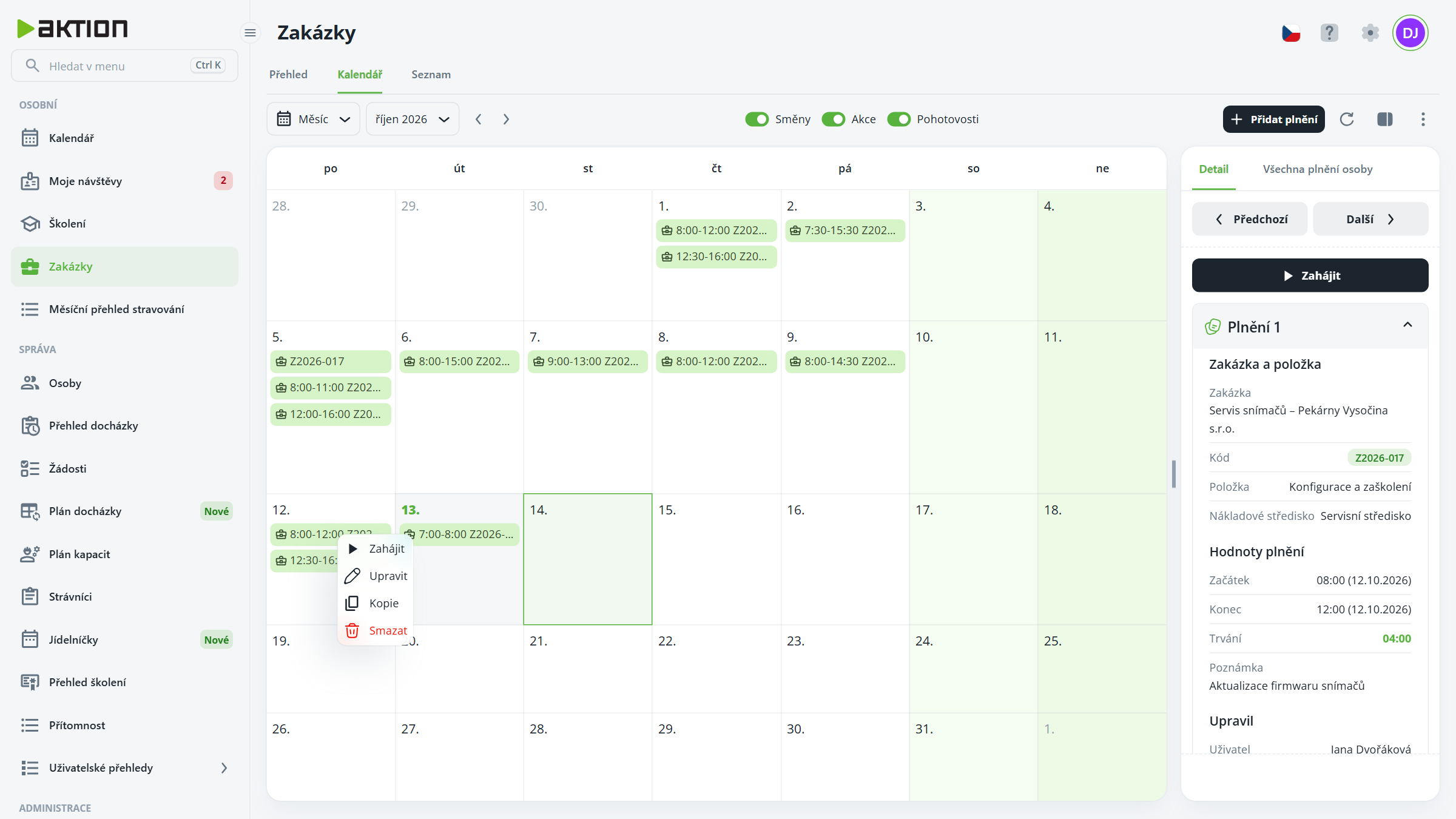
Click Start in the side panel.
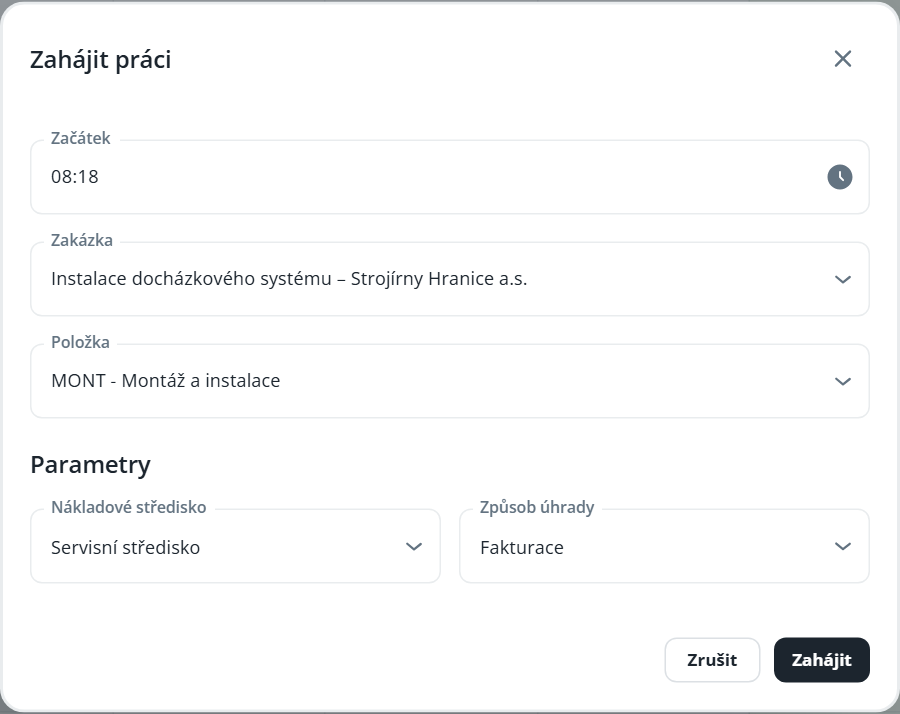
In the Start work dialog, check the Start time (pre-filled with the current time), select a Job and Item, and adjust the Cost center and Payment method if needed.
Click Start.
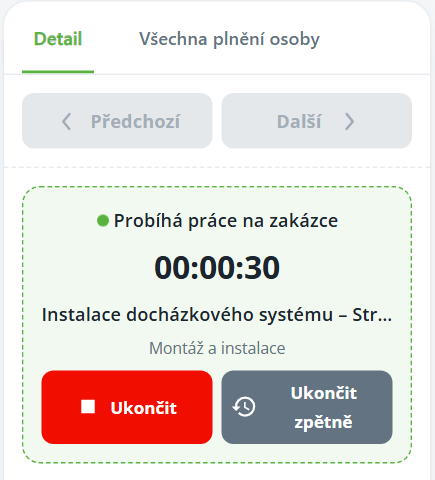
The ongoing work remains visible in the panel (“Work in progress on job” with a running timer). You can end the work using the End button, or the End retroactively button if you forgot to end it on time.
When starting work, only the job’s time item is prefilled; items in pieces or kilometers must be selected manually. If a job item requires a note, the entered note is saved when work is started as well.
The List tab displays work entries in a table with bulk deletion (Delete) and the same side panel.
You can start, end, add (including retroactively), and copy your own work entries if you are a participant in the project and have the permission View projects. To edit and delete work entries, you need the permission Edit project work entries.
