An opening mode exception temporarily changes the opening mode of selected sensors – for example, on holidays, during a company event, or on an open house day. For an exception, you set the course of the day, schedules (when the exception applies), and the sensors it applies to.
In addition to the name and note, the list displays the columns Used for sensors and Next application dates. Click a row to open the exception details.
Click New.
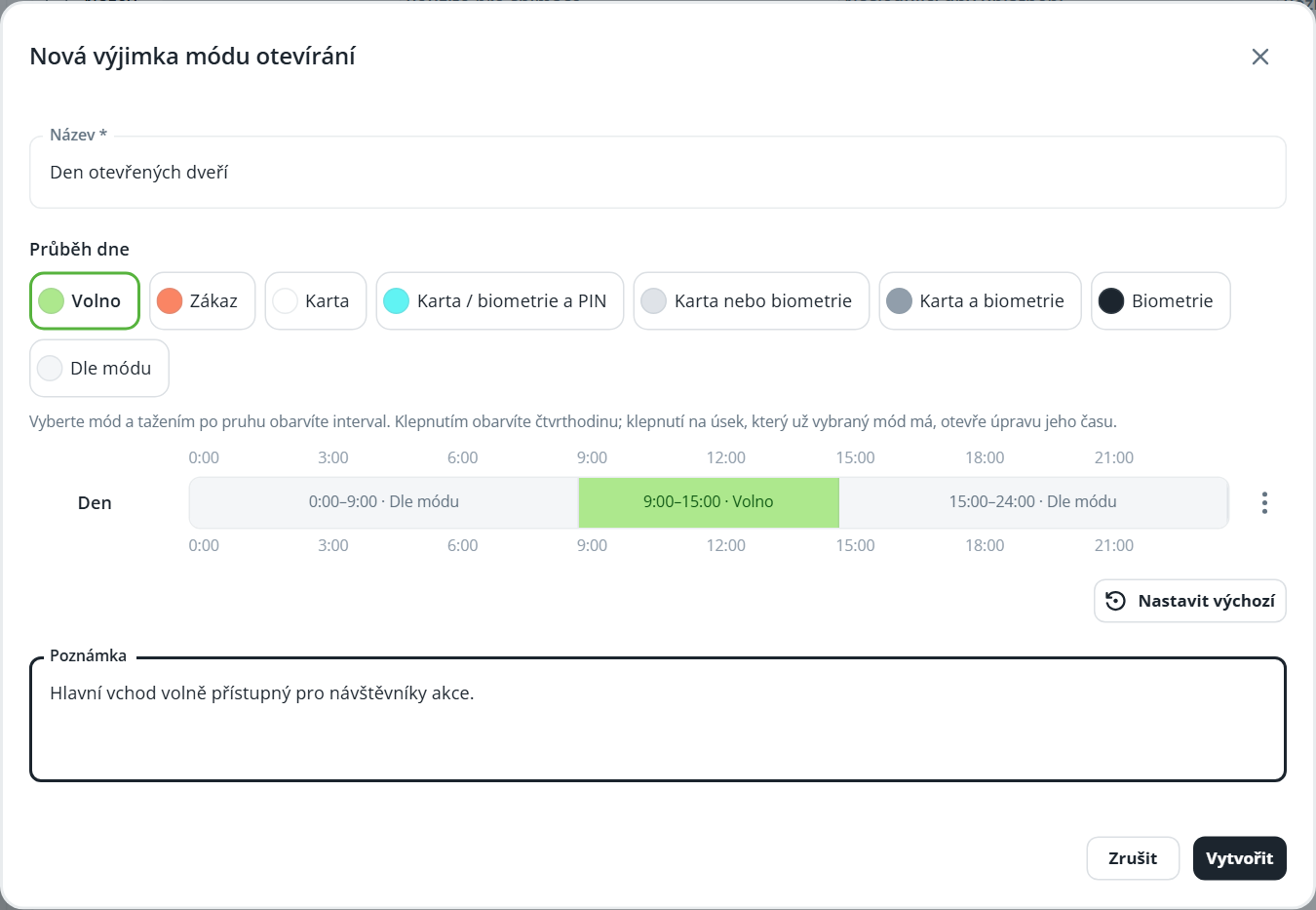
Enter a Name and, in Daily schedule, set which mode should apply during each quarter-hour. The editor has a single row, Day, and works the same way as the mode editor (see Time modes – schedule editor).
Quarter-hours set to Mode-based do not change the exception; the sensor’s regular opening mode applies. A new exception is entirely Mode-based.
Click Create. The exception details will open.
A time schedule determines which days the exception applies to. An exception can have multiple schedules.
In the exception details, on the Record details tab, click Add in the Time schedules card.
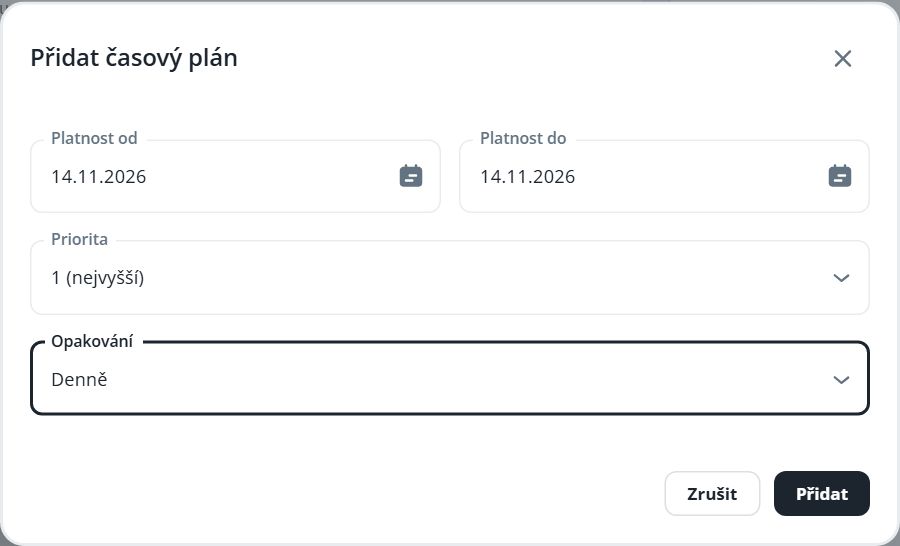
In the Add time schedule window, fill in:
Valid from and Valid until,
Priority – 1 (highest) to 10 (lowest); if multiple exceptions overlap on the same day, the one with the higher priority (lower number) applies,
Recurrence – Daily, Weekly, Monthly or Periodic; for Periodic, enter the Period in days (1–999).
Click Add.
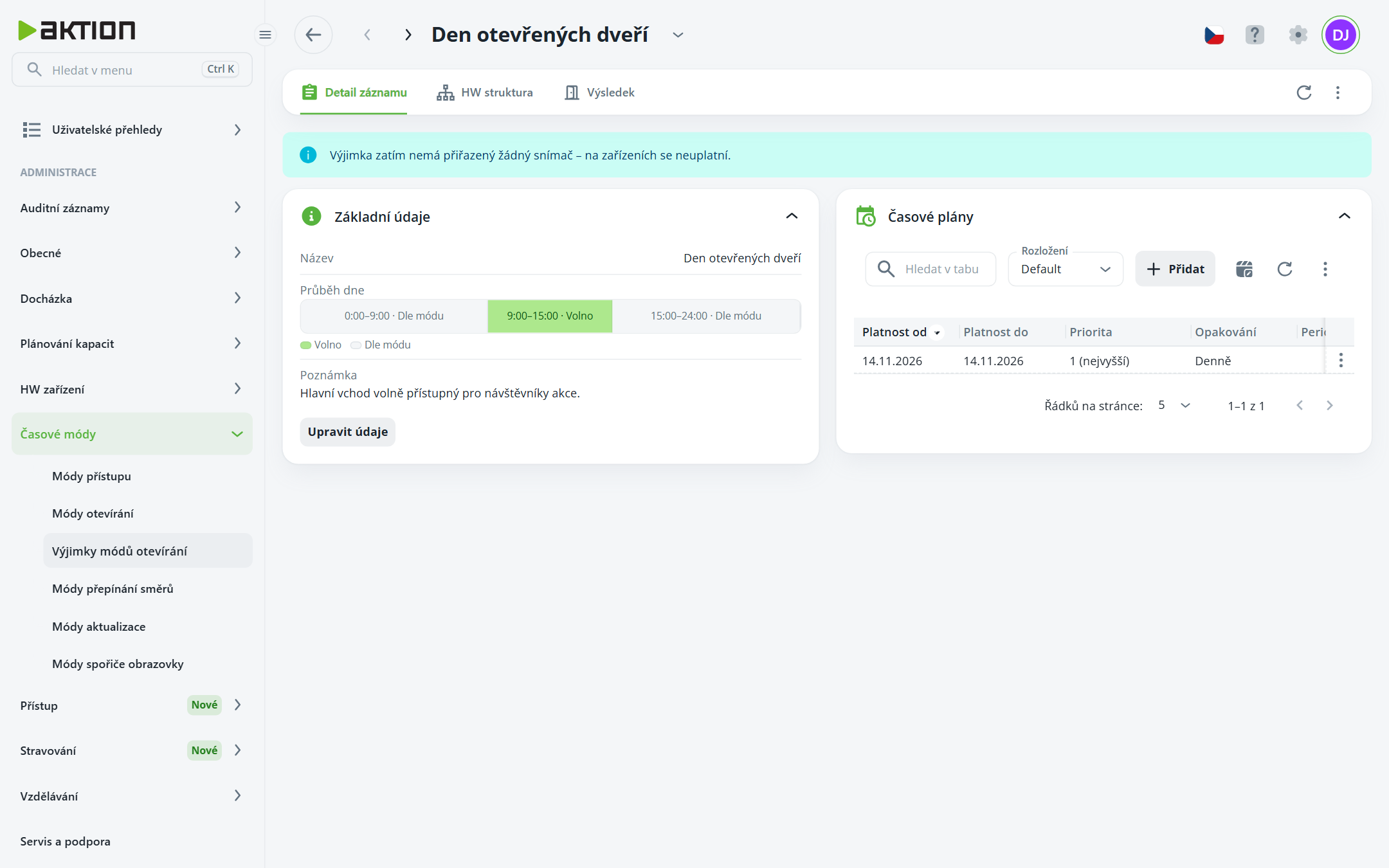
You can change the exception details (name, daily schedule, note) using the Edit details button.
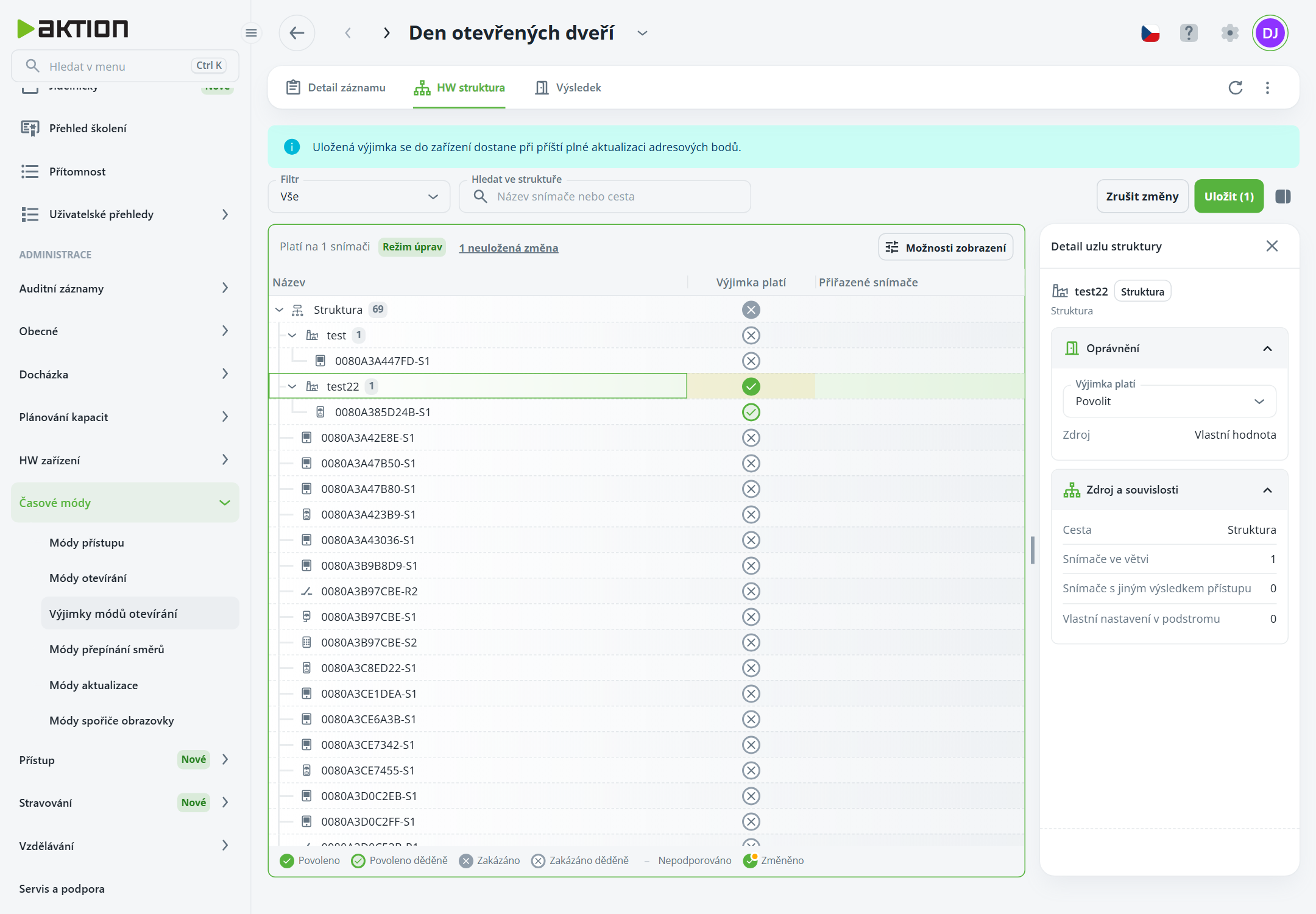
Open the HW structure tab and click Edit HW structure. The table switches to edit mode.
In the Exception applies column, click to select branches or individual sensors. The value is inherited through the tree in the same way as access—the selected branch applies to all sensors beneath it.
The Structure node details panel on the right shows the selected node’s settings and where they are inherited from.
Click Save. Click Discard changes to discard your edits.
Above the table is a summary of Applies to … sensors. Use the filter and the Search structure field to narrow the view.
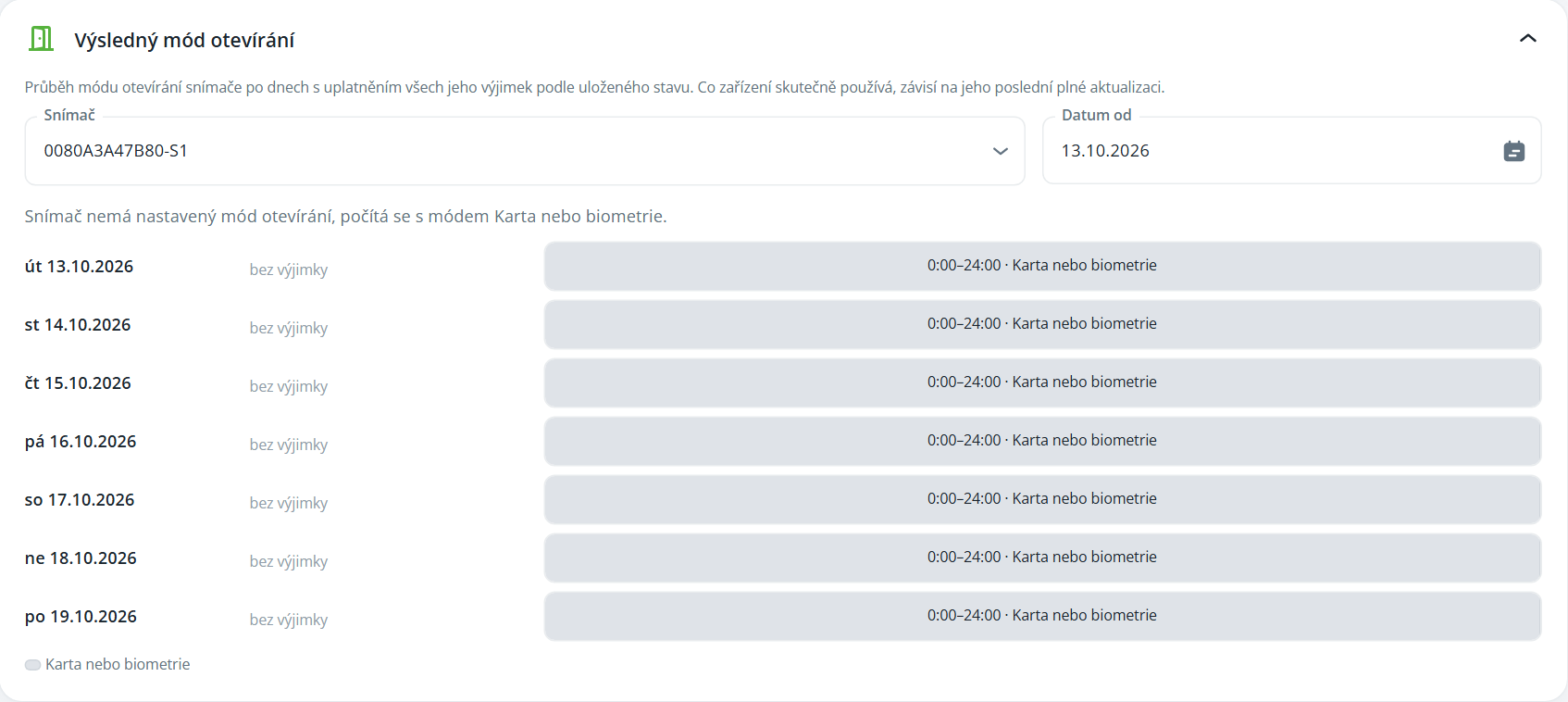
On the Result tab, select Sensor and Date from. The resulting sensor opening mode for that day and the next six days will be displayed, including any other exceptions that apply to the sensor. Each day shows which exception governs it, or no exception.
An exception without a time schedule or without an assigned sensor does not apply to devices—the details will indicate this. A saved exception is sent to the device during the next full update of access points.
