The access calendar specifies the days that follow the Holiday or S1–S3 row in the time mode schedule instead of the day of the week—for example, public holidays, company-wide vacation, or inventory. The calendar is assigned to a device in its properties in the HW structure (the Access calendar property).
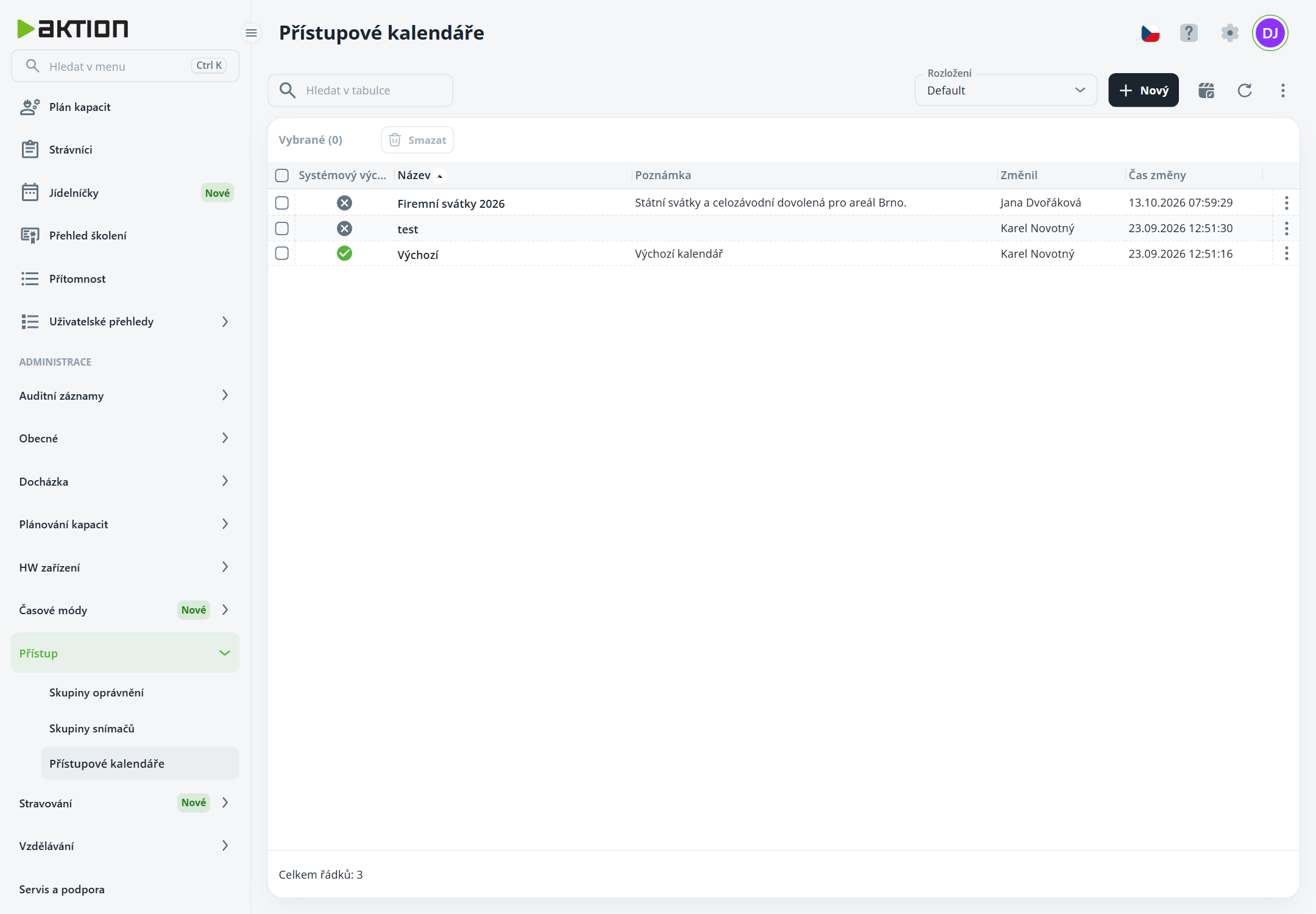
The list shows the System default flag, Name, Note, and who changed each calendar and when. To create a new calendar, click New—in the Create access calendar window, enter the Name and Note, then click Create. Click a row to open the calendar details.
The detail view contains a Basic information tab (edit using the Edit details button) and a Calendar entries tab for the selected year. The tab contains a table of entries (Date, Day type, Meaning, Floating date) and below it a full-year calendar in which marked days are distinguished by color according to day type.
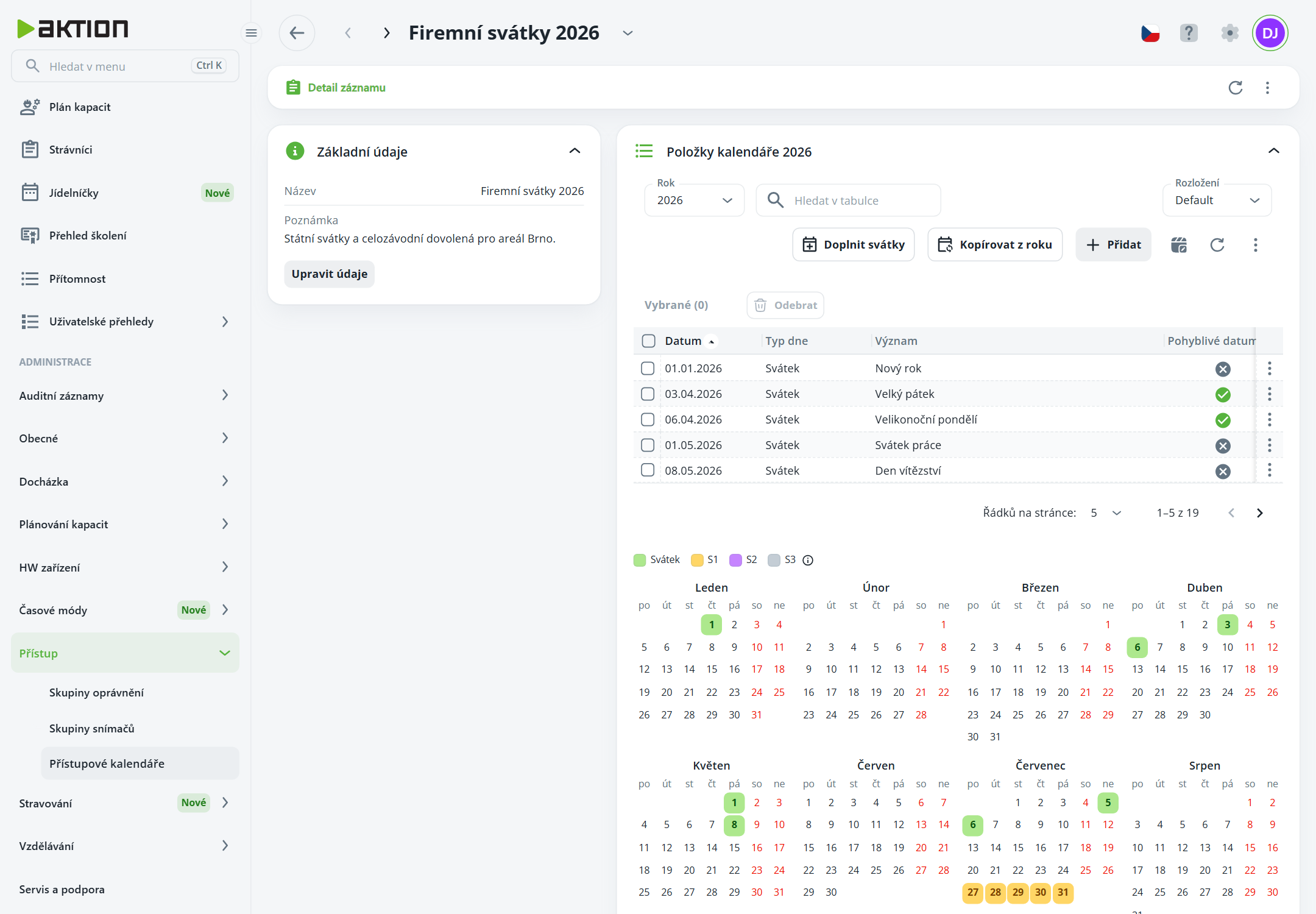
In the Year field, select a year.
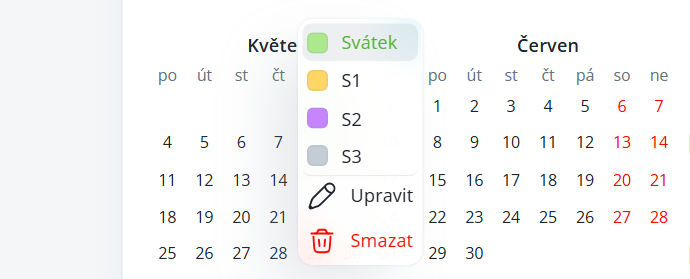
Click a day in the calendar. A menu of day types will open: Holiday, S1, S2, S3.
Select a day type. The day will be highlighted in the calendar and added to the table.
For a marked day, the menu also includes Edit (change the date, day type, and the Meaning field) and Delete.
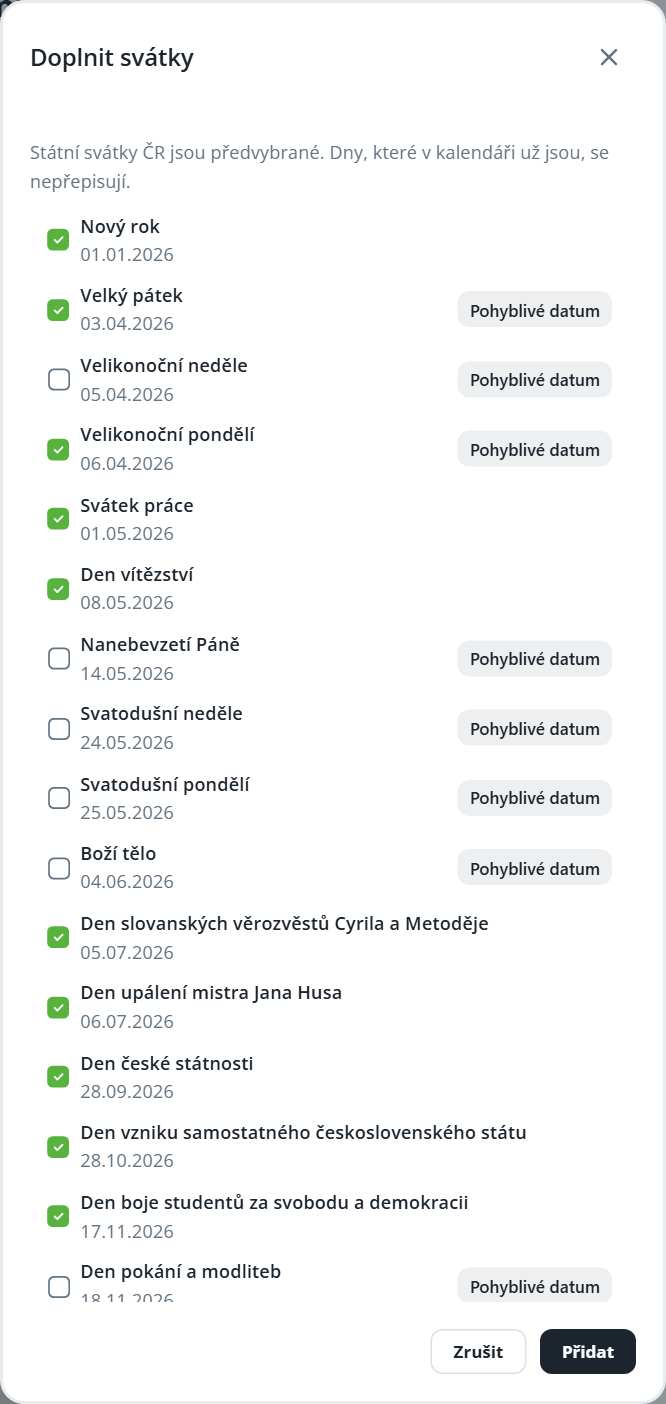
Click Add holidays.
The window shows the Czech public holidays preselected for the selected year. Movable holidays (Easter) have their dates calculated automatically and are marked Movable date.
Adjust the selection and click Add. Days that are already in the calendar are not overwritten.
Copy from year – the entries for the selected year will be replaced with the entries from the Source year; the dates of movable holidays will be recalculated.
Add – adds one day using the Add day dialog (Date, Day type, Meaning).
In the table, you can edit or remove an entry using the ⋮ menu on the row (Edit, Remove), or select multiple rows and click Remove.
The calendar marked System default is part of the system.
