A permission group is a shared access definition—it determines which sensors the holder has access to and attendance at, as well as the access mode and validity period. You can assign a group to people, vehicles, or nodes in the organizational structure. A change to a group affects everyone it is assigned to—directly and through a higher-level node.
The list shows the Name, Note, who last Changed the record, and the Change time. After selecting rows, the bulk actions Change permissions and Delete appear above the list. The row menu (three dots) offers Details, Edit, Copy, Record history and Delete.
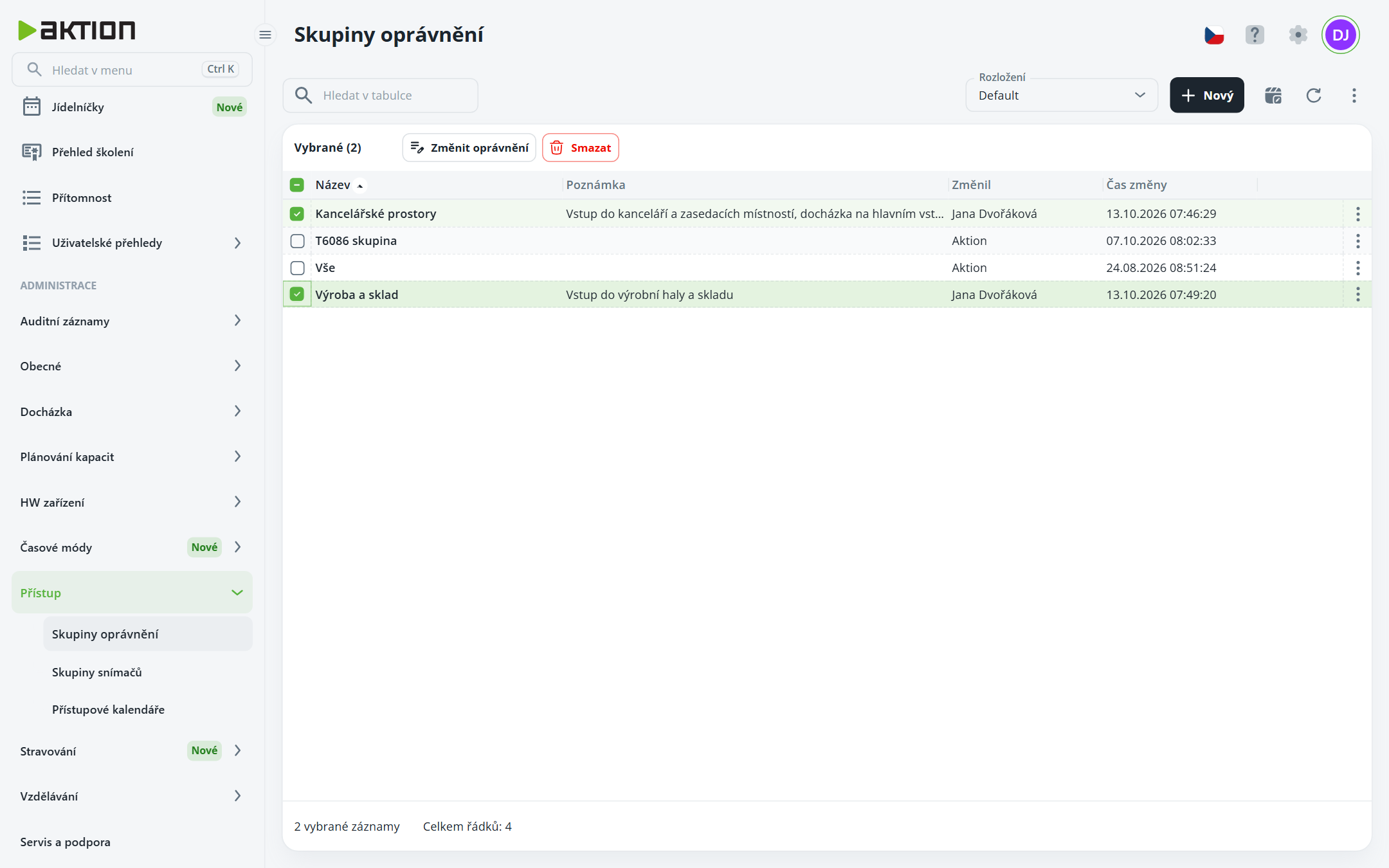
Click New.
In the New permission group window, enter the Name, optionally add a Note, and click Create.
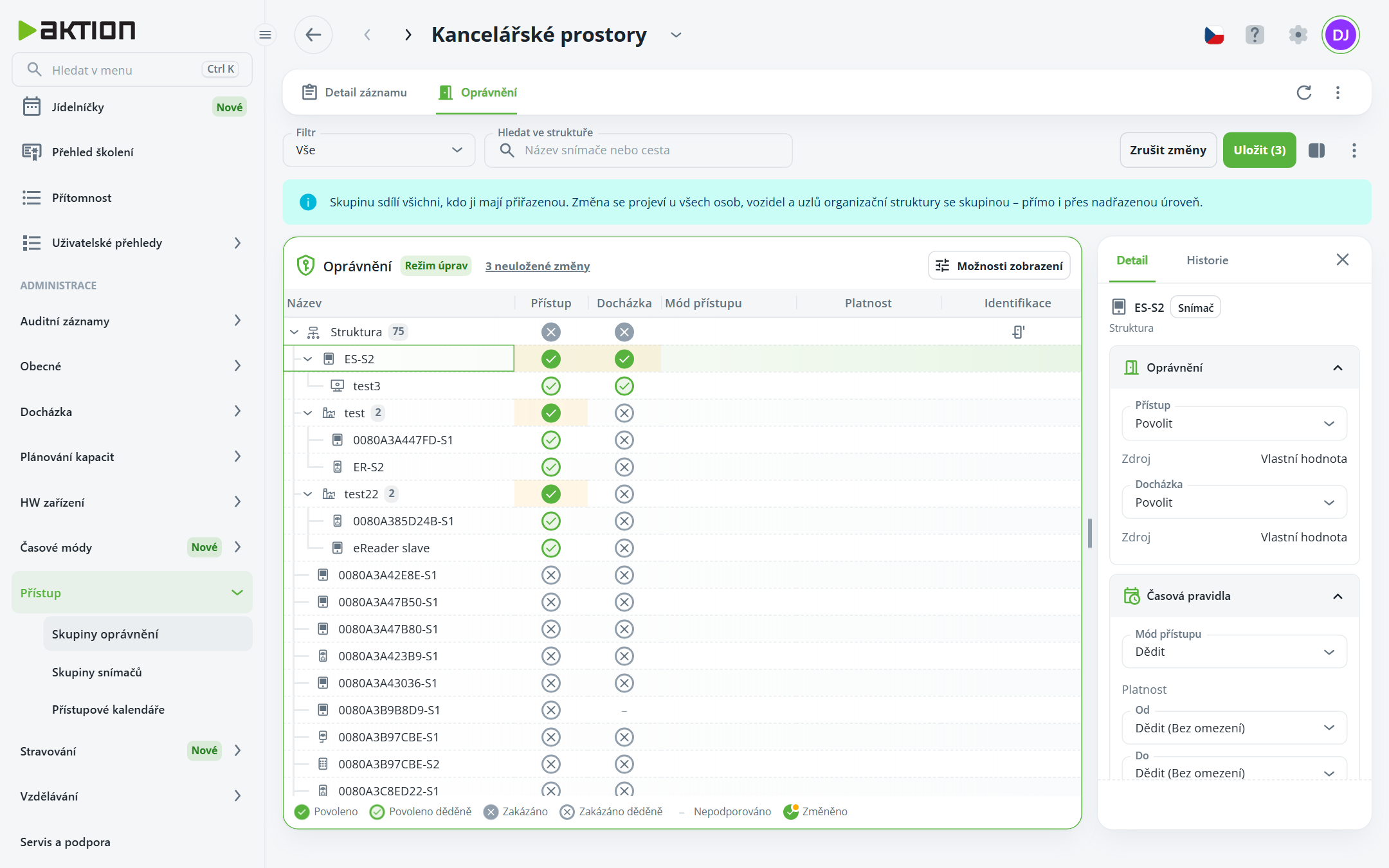
The details of the new group will open. Go to the Permissions tab and click Edit permissions.
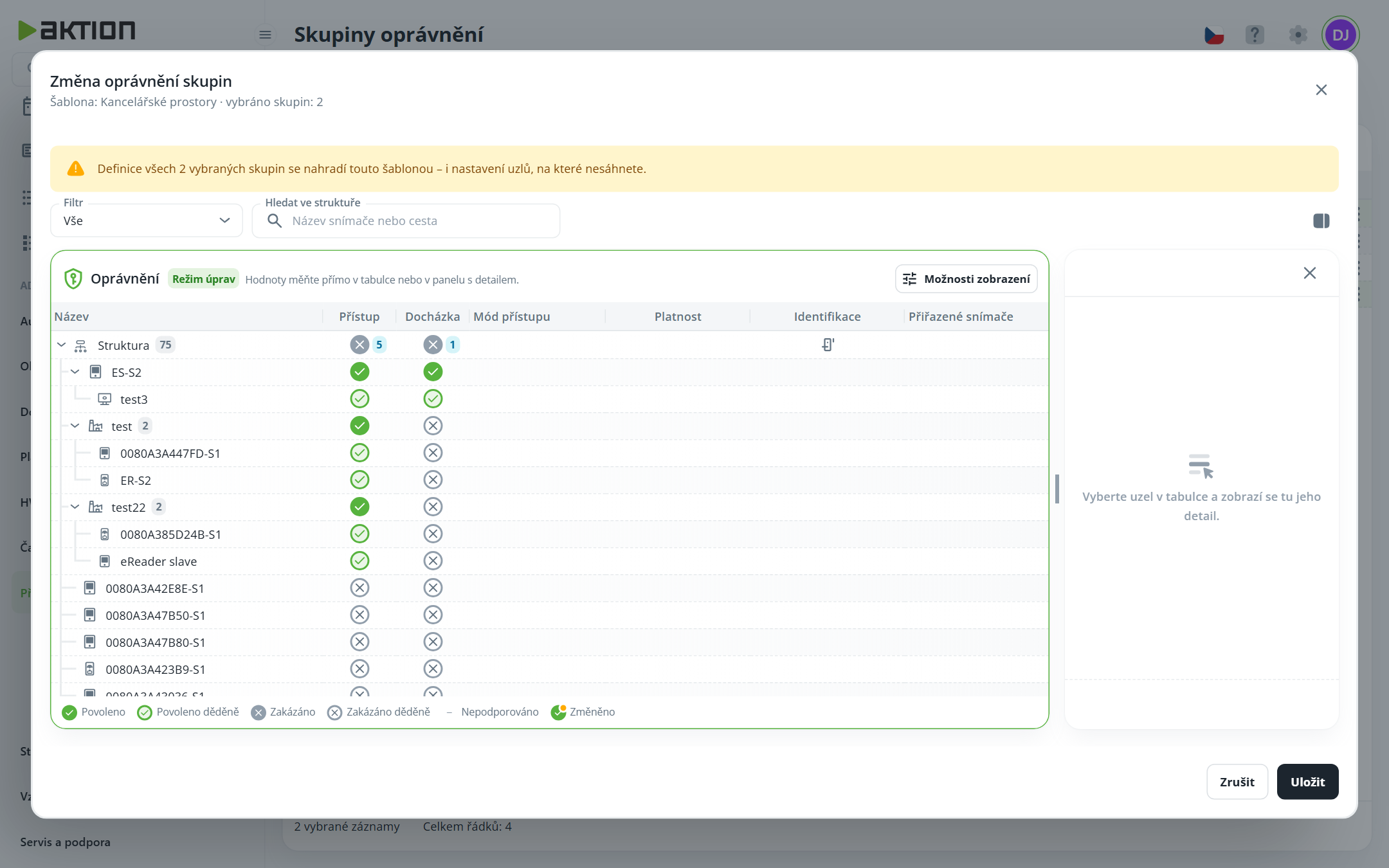
In the HW structure tree, click the icons in the Access and Attendance columns—the icon toggles between allowed and denied. Node settings are inherited by child nodes (displayed as “inherited”). You can set the access mode, validity, and node identification in the right-hand panel, which opens when you click a node name.
The number of unsaved changes is shown next to the Edit mode label. Click Save, or discard the changes using the Discard changes button.

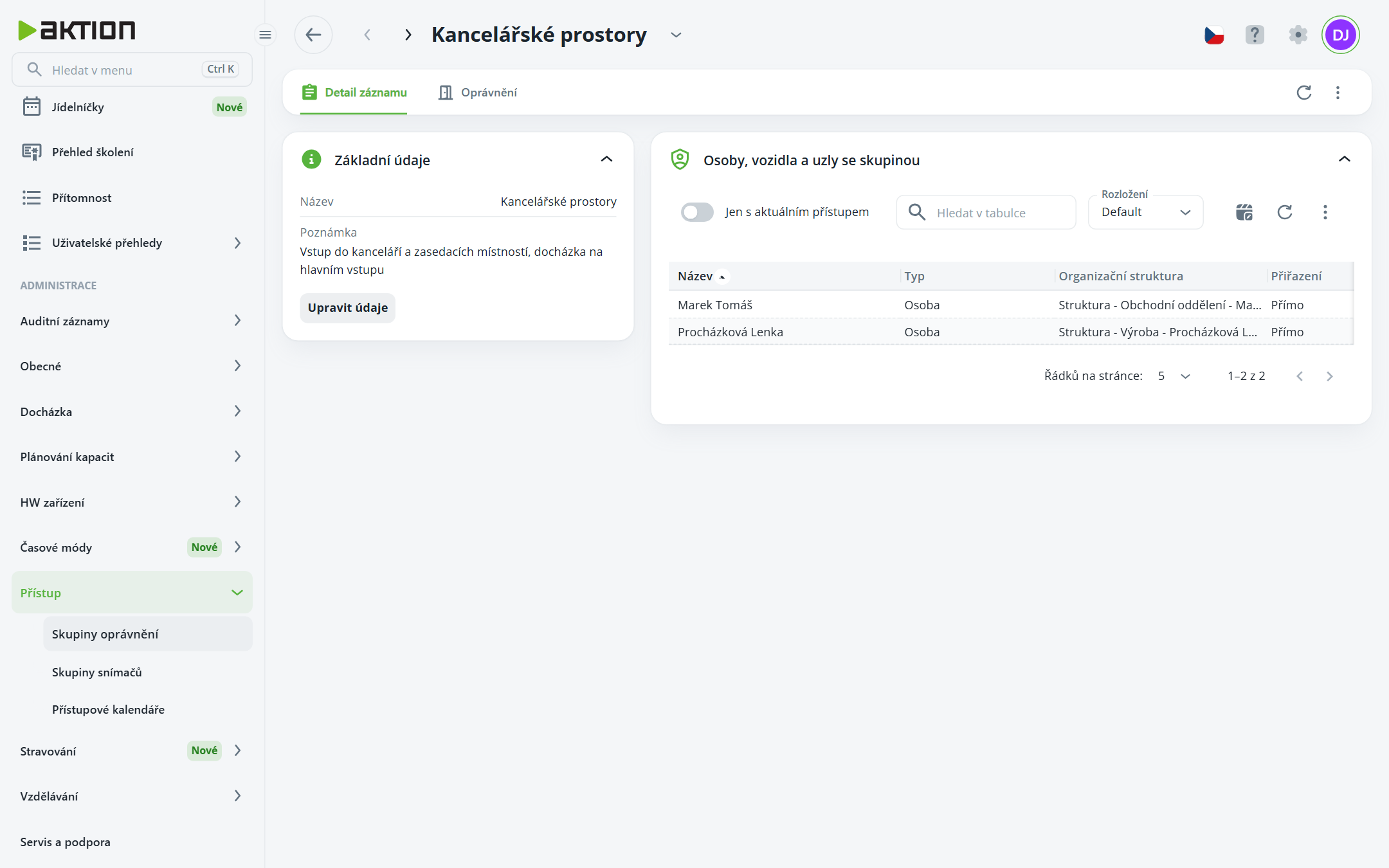
On the Record details tab, next to Basic information, there is a table of People, vehicles, and nodes with the group. The Assignment column indicates whether the group is assigned Directly, or whether the holder inherits it from a higher level of the organizational structure. The Only with current access toggle shows only those who have both a valid authorization and a valid identifier as of today.
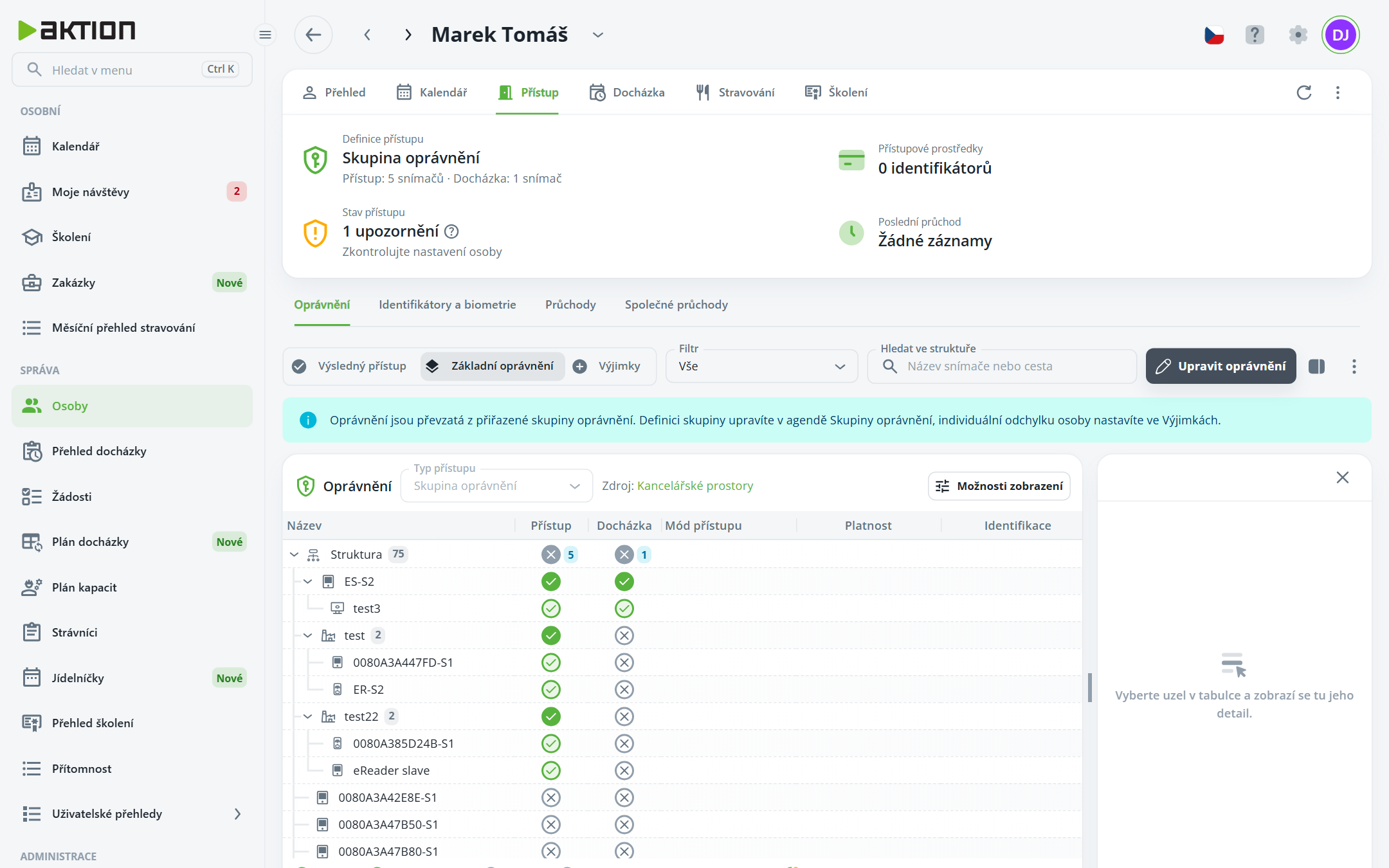
Open the person's details, the Access tab → Permissions and switch the view to Basic permissions.
Click Edit permissions.
In the Access type field, select Permission group and select a group in the adjacent Permission group field.
Click Save. In the tab header, Permission group appears as the Access definition with the number of readers.
The group name in the Source item is a link—it opens the group details. Set an individual exception for one person in the Exceptions section; this does not change the group definition.
In the list, select at least two groups and click Change Permissions.
The Change Group Permissions window opens. The first selected group serves as a template—you can edit its permissions before saving.
Click Save. The definitions of all selected groups will be replaced by the template in their entirety, including nodes you did not touch.
A group that is assigned to someone cannot be deleted. The application will list who it is assigned to, e.g. “The permission group cannot be deleted while it is assigned—to people: 2.”
