The activity type determines which data is required when entering an activity and which documents are generated for activity owners. Types are offered when creating activities and in the quick selection for people.
The list shows the name, abbreviation, description, and the Start date, End date, and Simplified entry indicators. Use the row context menu (right-click or ⋮) to open a type (Detail), edit it, copy it, view its history, or delete it.
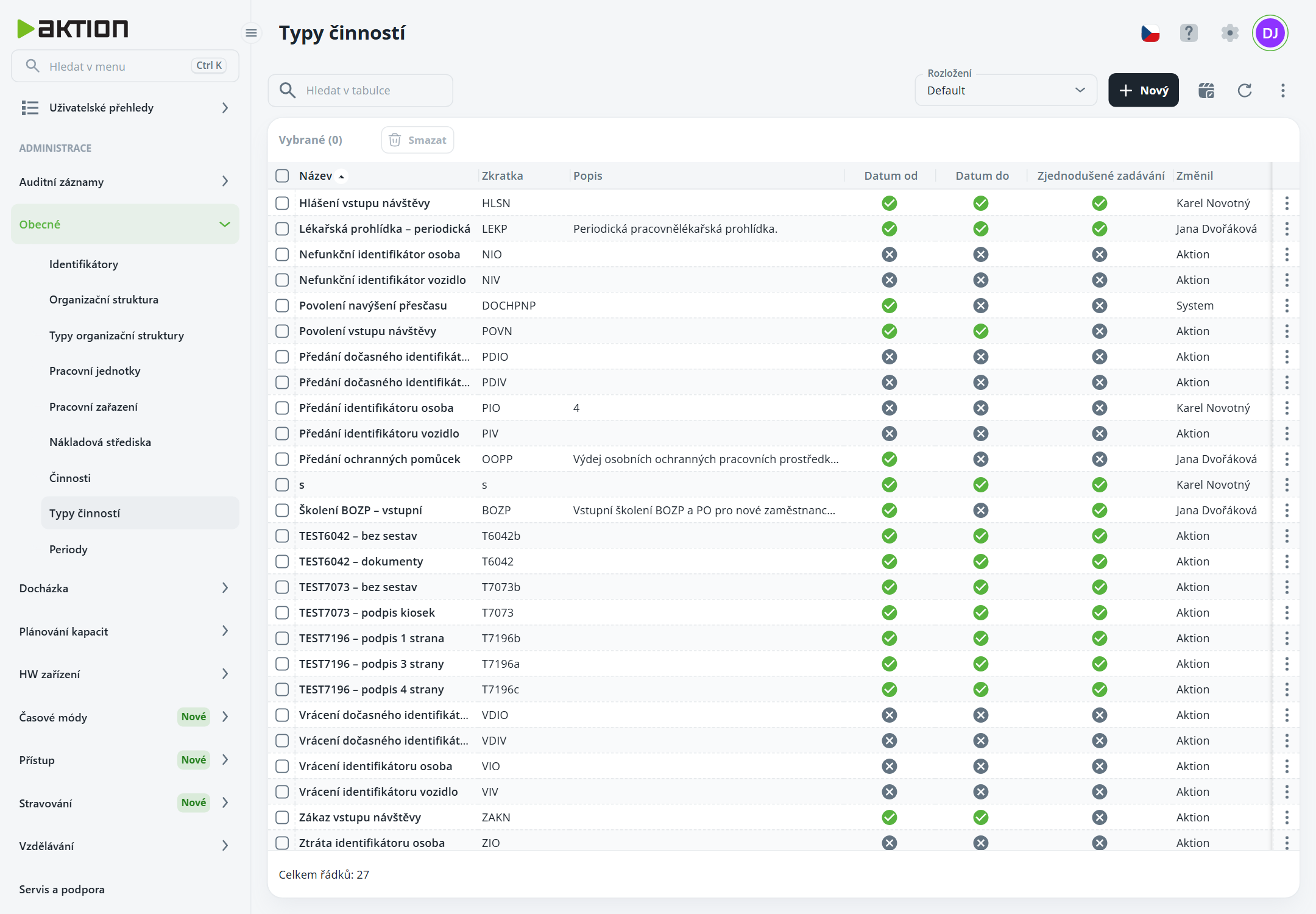
Click New. The Create activity type dialog opens.
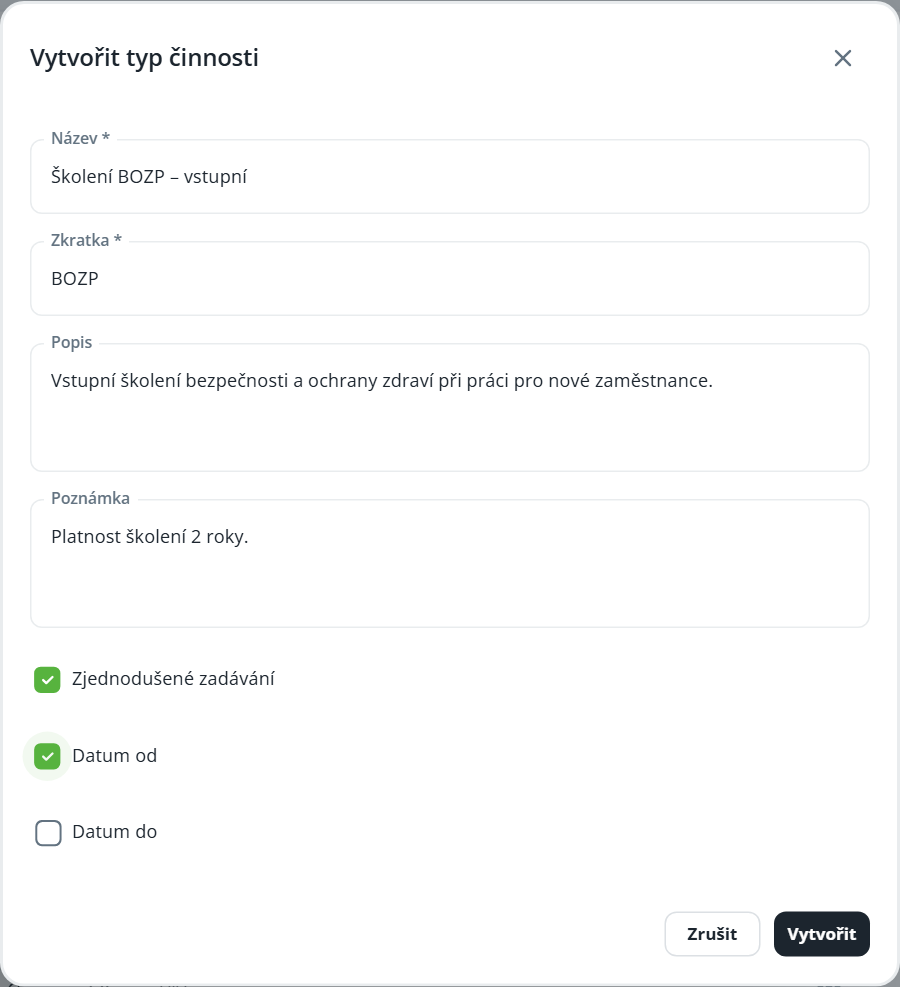
Fill in Name and Abbreviation (required), and optionally Description and Note.
Check the options as needed:
Simplified entry – the type is available in the quick selection for people (the arrow next to the Add activity button); entering the activity itself then works the same as selecting it from the list of types,
Date from / Date to – when entering an activity of this type, a date from / to will be required.
Click Create.
The type abbreviation is part of the activity number (e.g. BOZP20260001).
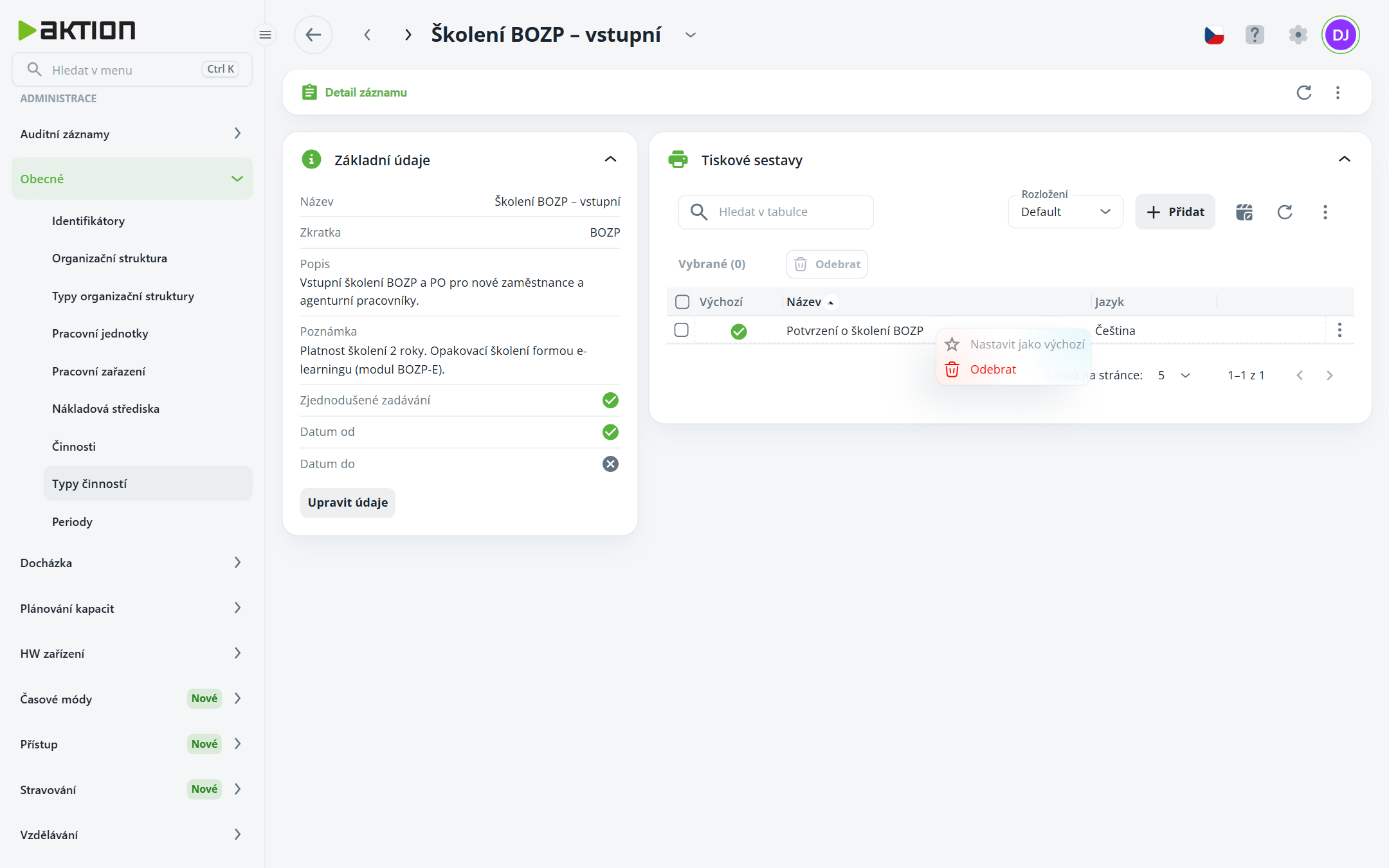
Open the type details from the context menu by selecting Details. On the left is the Basic information section (edit using the Edit information button), and on the right is the Print templates section. Documents are generated for activity owners based on the templates in this section.
In the Print templates section, click Add.
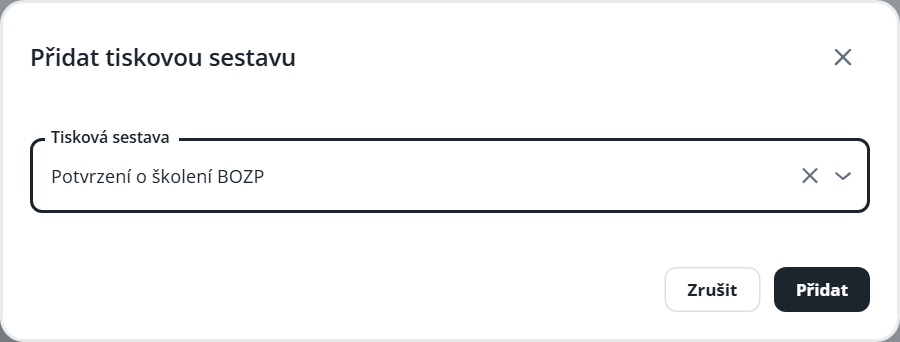
In the Add print template dialog, select a template and click Add.
In the template's context menu, select Set as default. The default template has a green indicator in the Default column.
Remove a template by selecting Remove from the context menu, or remove multiple selected templates at once using the Remove button above the list.