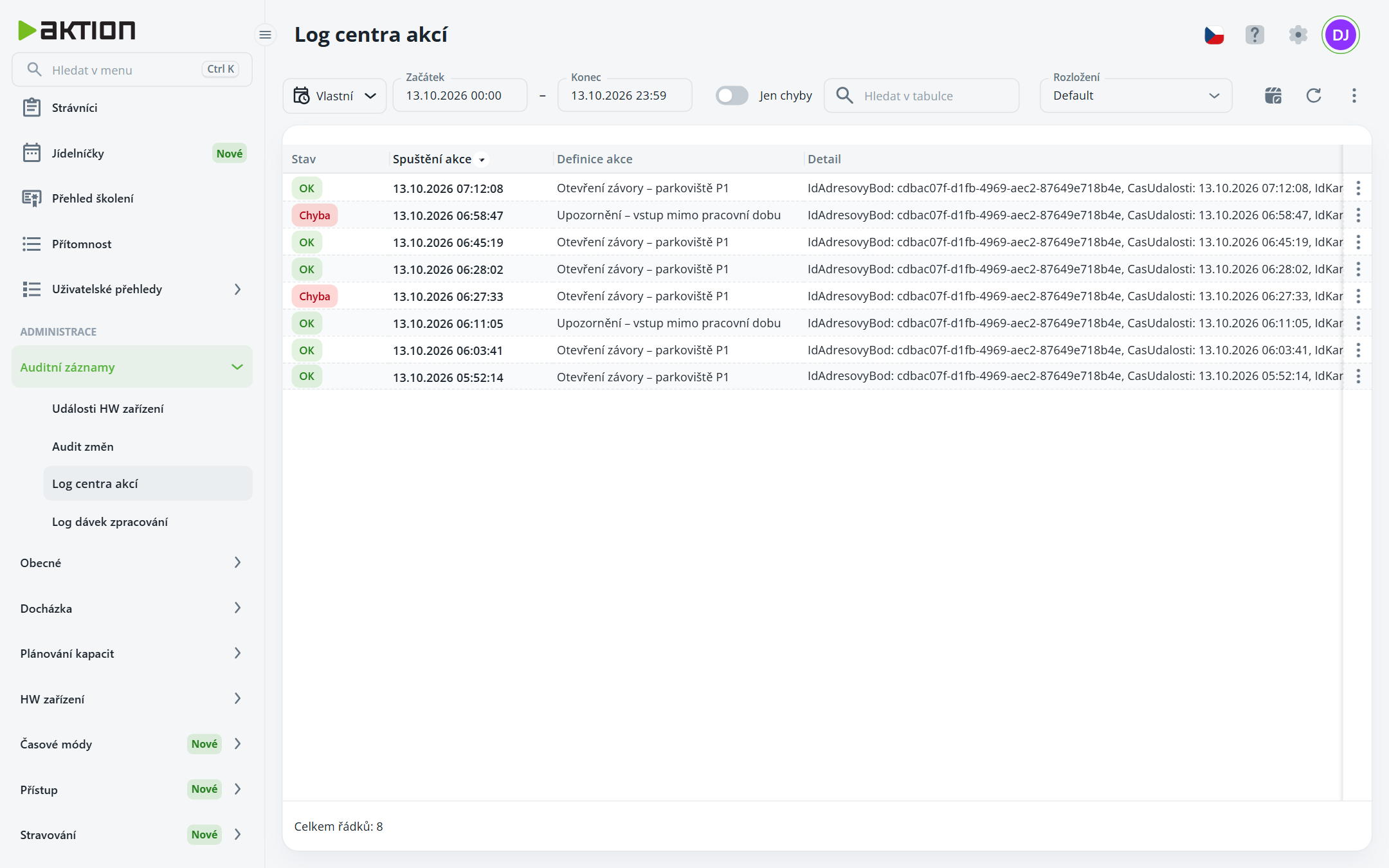
The agenda displays an overview of action center action executions (in the Windows application, “Action Log”)—when an action was executed, which action definition it was, and how the execution turned out. The agenda is visible to users with permission to access the Action Log agenda and is read-only.
Execution list
Select a period: Day, Week, Month, Year, Custom (a range with date and time in the Start and End fields) or Unlimited. The current day is selected by default. The latest executions are at the top.
Turn on the Errors only toggle if you want to see only executions that ended in an error.
The Status column lets you see the result at a glance: OK in green, Error in red. The Detail column contains event details (access point, time, card, direction) and the action result. You can add additional columns (e.g., Execution error, Changed by) in the displayed columns settings.
The list loads a maximum of 10,000 rows. A warning appears if this limit is exceeded.
Execution details
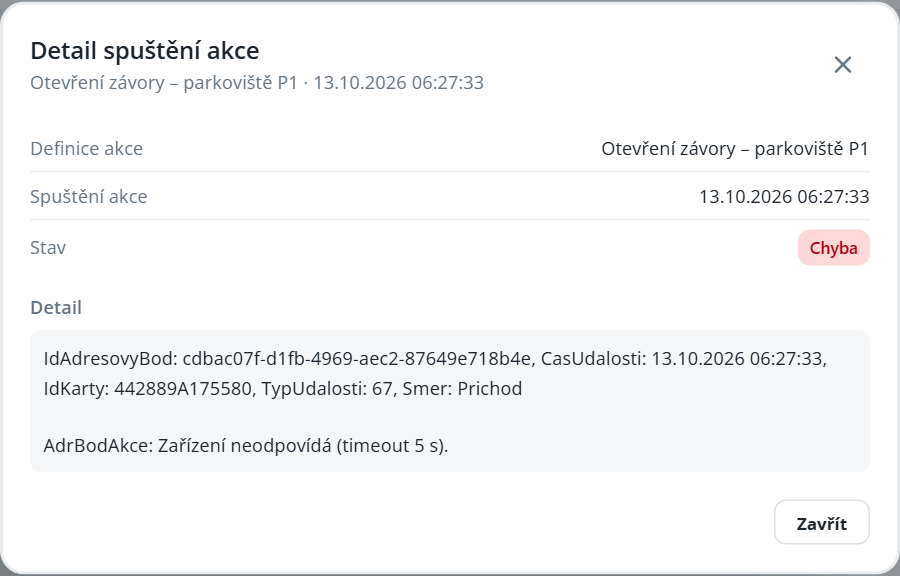
Click the execution time (or ⋮ → Details). The Action execution details dialog opens, showing the action definition, execution time, status, and details, including the error message.