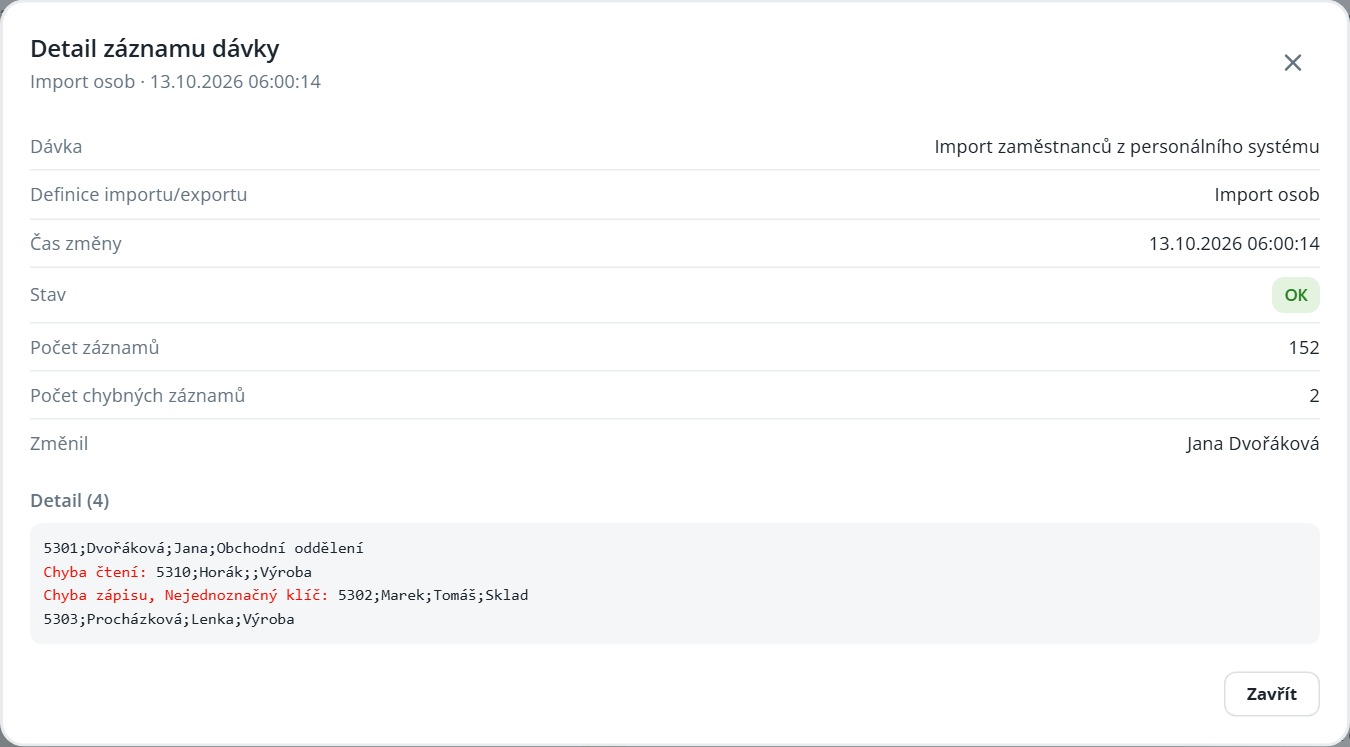
The agenda displays an overview of imports and exports launched by processing batches—when they ran, how many records they processed, and whether they ended with an error. The agenda is visible to users with permission to access the Processing Batch Log agenda.
Batch Record List
The period, the Errors only toggle, and the Status column work the same as in the Action Center Log. The Error status indicates a row with an error entered in the Error column.
The Number of records and Number of failed records columns show the result of processing the definition.
The Group by run toggle groups imports and exports under the batch run in which they ran. The group row shows the run status, time, batch, and number of records. A run is identified by the batch, user, and order of definitions over time.
When exporting to CSV or XLSX, group rows have a run label.
Batch Record Details
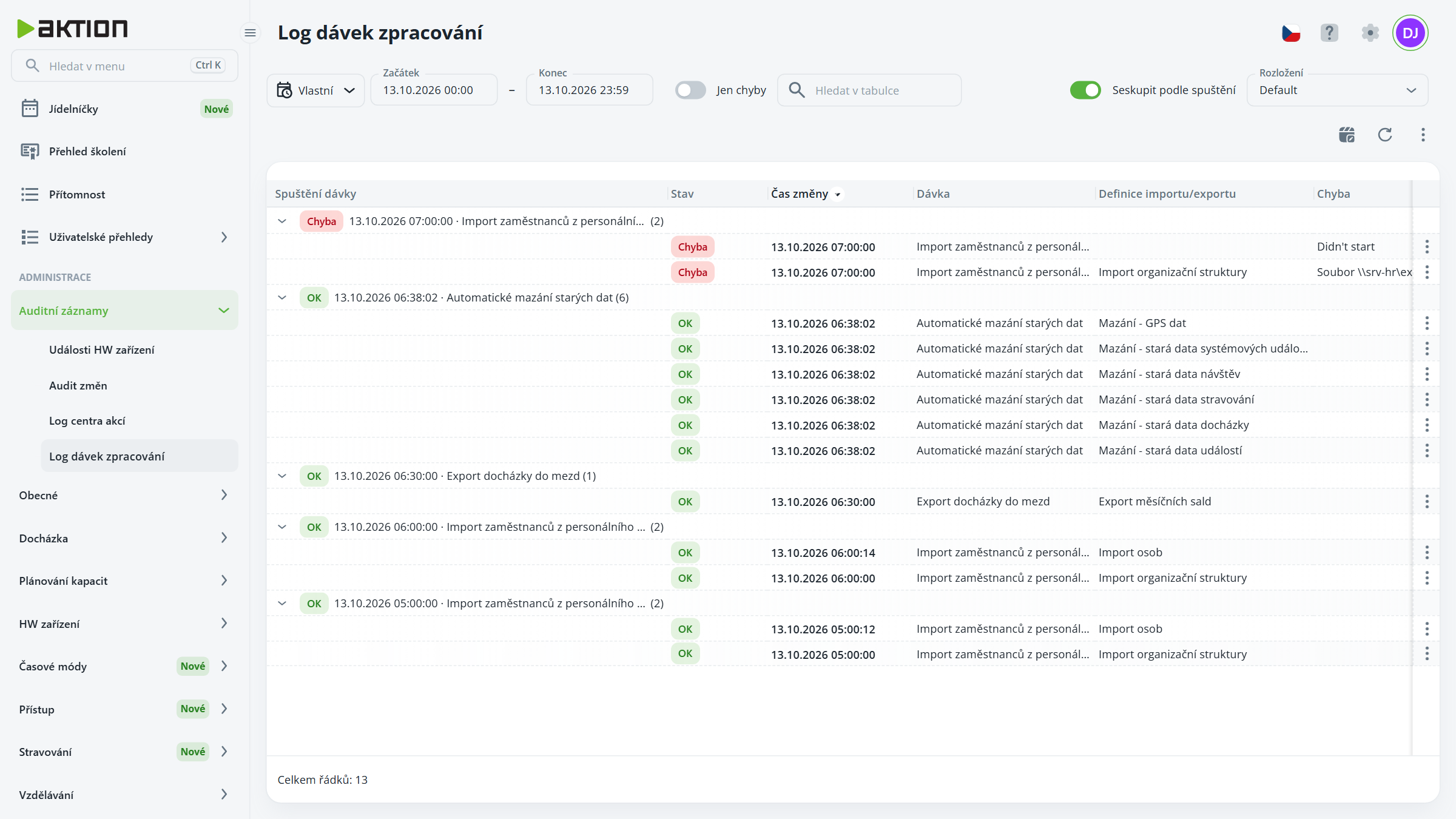
Click the change time to open the Batch Record Details with the batch, import/export definition, time, status, record counts, user, and records from the log details (Details). Failed records are highlighted in red with the error type (e.g. Read error, Write error).