The HW Device Events agenda displays everything that attendance terminals, readers, and other devices have sent to the system: people and vehicles passing through, terminal button presses, alarms, and system events (communication outages and restorations, diagnostics). It is used to check who passed where and when, and to troubleshoot device issues. The agenda is read-only.
Select a period at the top – Day, Week, Month, Year or Custom (with date and time). Use the arrows next to the date to move to the previous or next period. The newest events are at the top.
The default layout has the columns Event time, HW structure (the device where the event occurred), Event, Identifier, Holder and Direction. The colored dot next to an event distinguishes its type – for example, green for a passage, red for an alarm, and gray for a system event. Add more columns via Displayed columns and coloring settings.
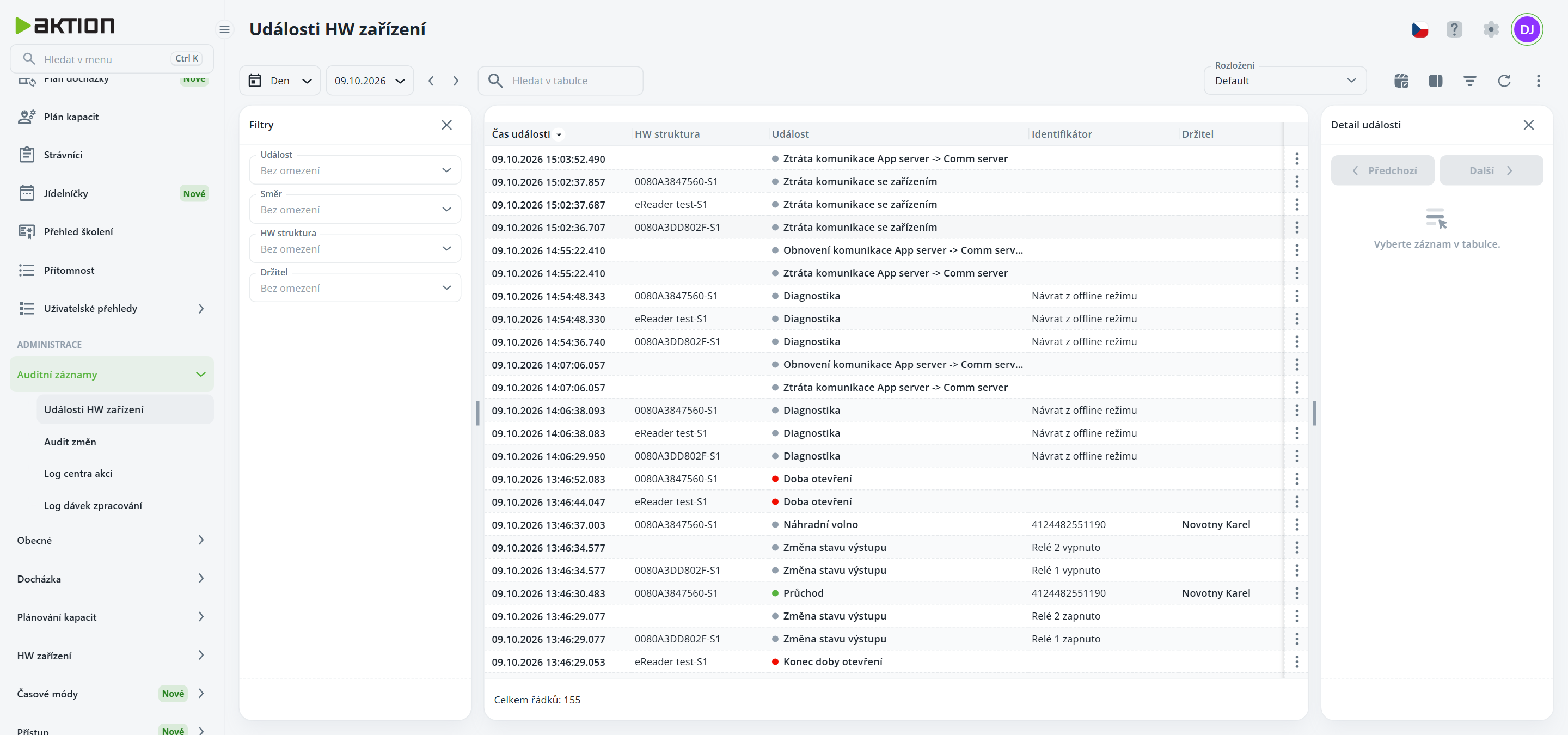
Open the Filters panel using the filter icon in the toolbar. It offers:
Event – event types grouped into Passages, Alarms, System and Button presses (terminal buttons pressed, grouped by their text). Select a group to select all its events.
Direction – Arrival, Departure, Passage, Interruption start, Interruption end, Function button.
HW structure – only events from selected devices or parts of the HW structure.
Holder – people and vehicles in the organizational structure tree. Use the All / People only / Vehicles only toggle to limit the options to people (including visitors) or vehicles (including visitor vehicles). You can start typing a name in the field.
Confirm your selection by clicking Filter. The No restriction button clears the filter, while Clear filters in the panel clears all filters at once. The filter icon in the toolbar has a green dot when a filter is set.
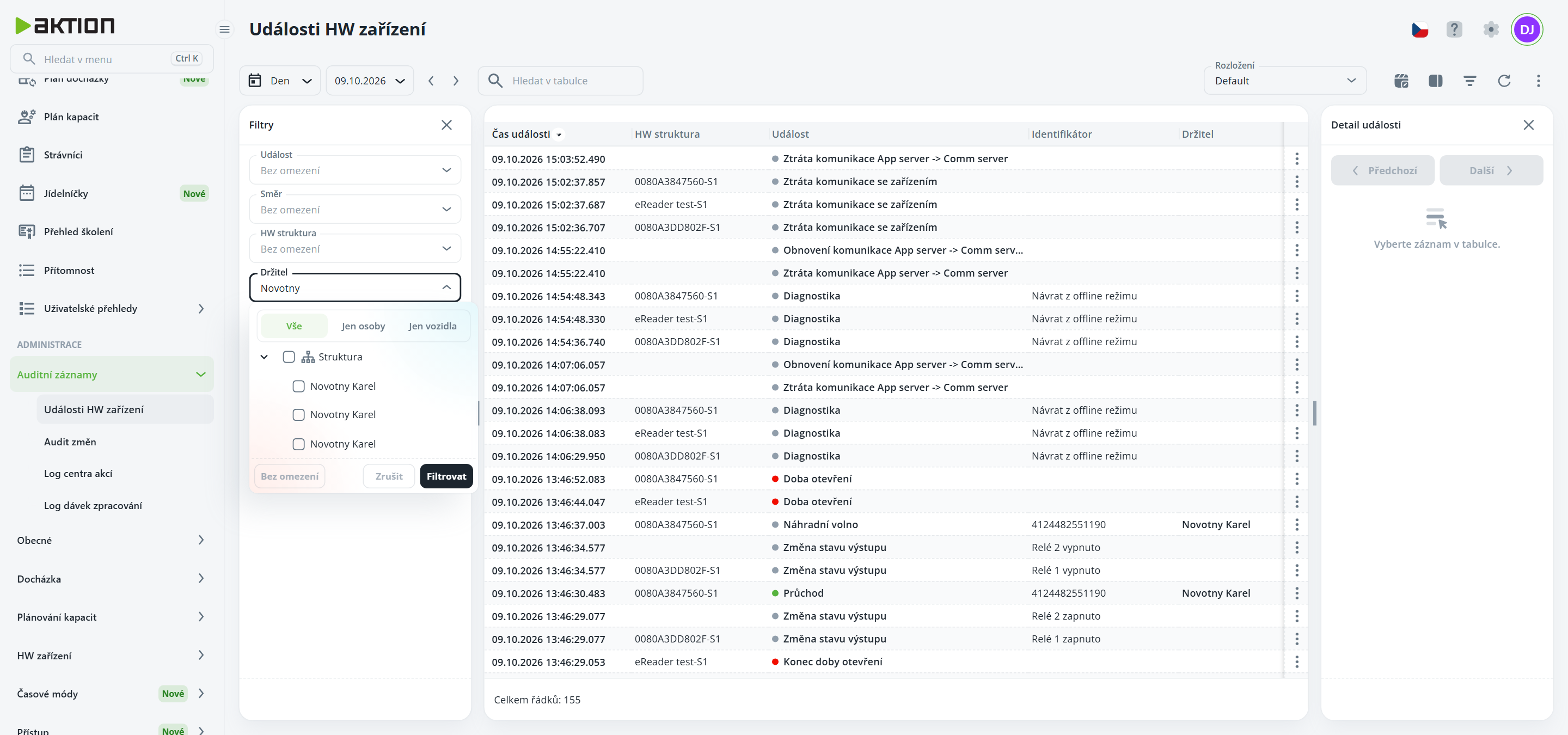
The Holder filter only lists people and vehicles for which you have the Monitor data permission, meaning those whose events you are allowed to see. All visitor people and vehicles are listed.
Click a row to display its details in the Event details panel on the right. Use the Previous and Next buttons to move between events. Click the event name to open its details in a window.
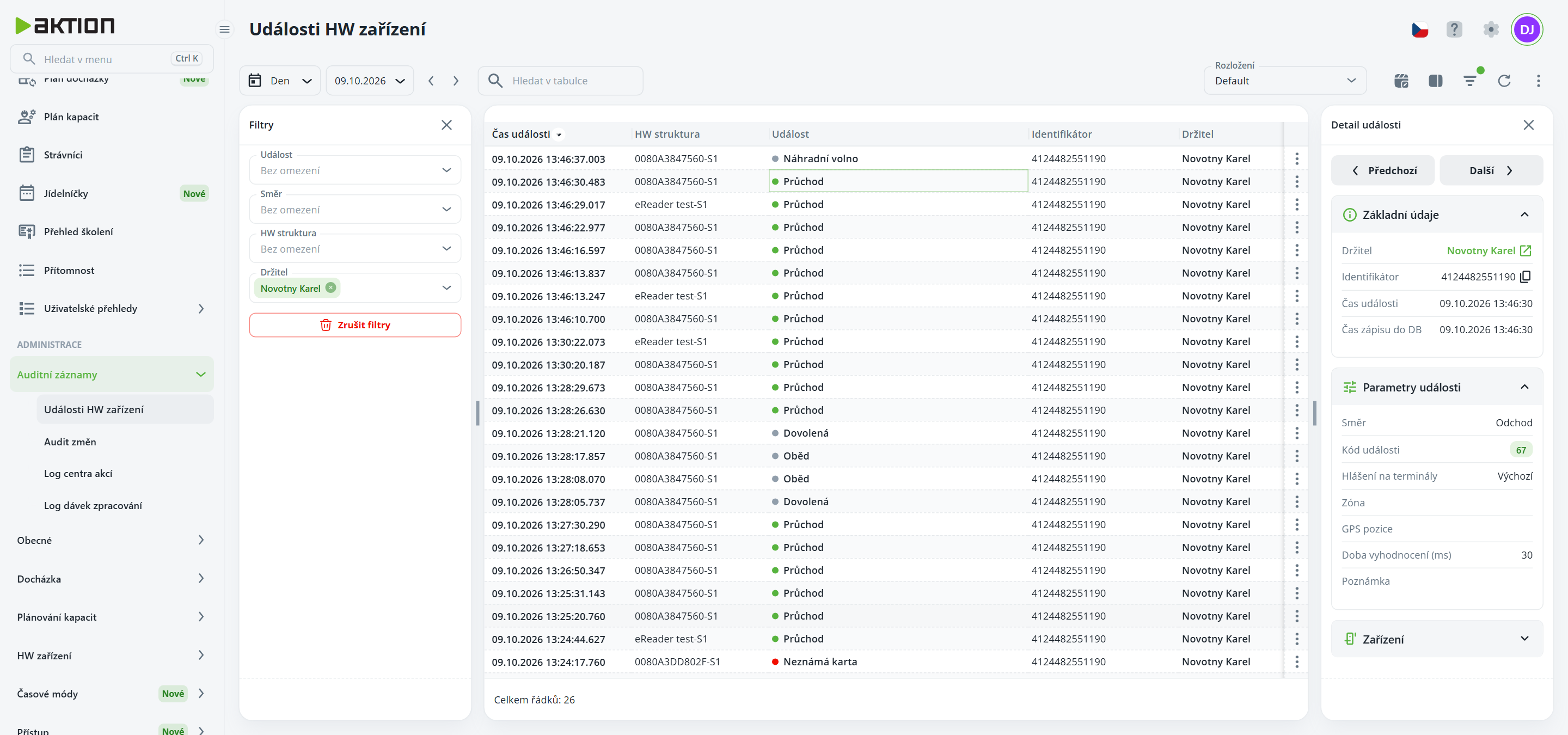
The detail contains:
Basic information – Holder (click the icon next to the name to open the details of a person or vehicle), Identifier (click the icon to copy it), Event time and Time recorded in DB.
Event parameters – Direction, Event code, Notifications to terminals, Zone, GPS position, Evaluation time (ms) and Note.
Device – Address point, HW structure, Communication line and Device administrator.
For an event with a GPS position, there is a link to the map and, with the relevant permission, also the Delete GPS option. For events from the ATEAS camera system, the panel also includes an ATEAS recording tab.
