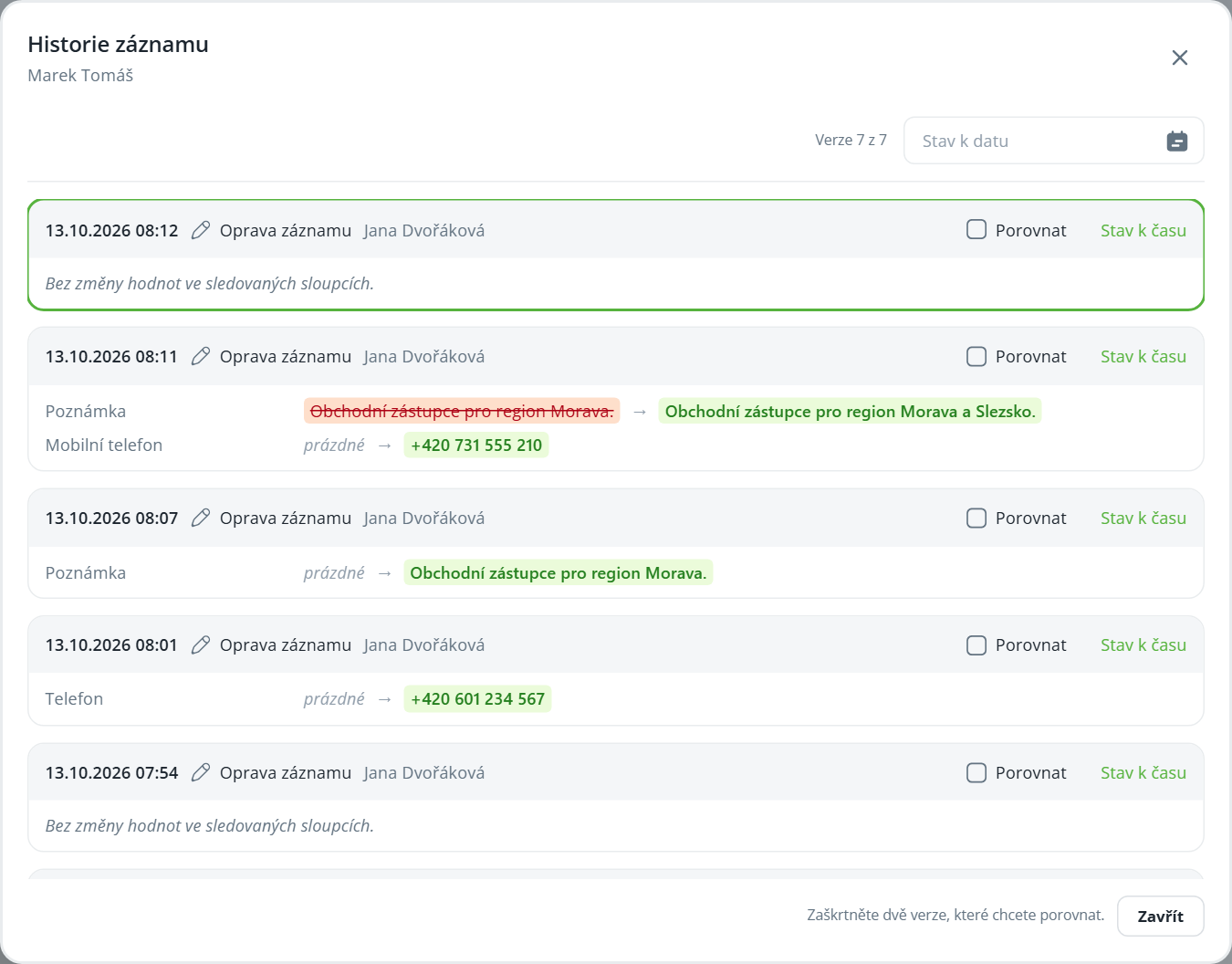
The change audit is a log of operations: who created, edited, or deleted a record, when, and in which section; who logged in, sent an email, set their availability, and so on. It helps you trace where a change came from. This section is read-only. For a detailed comparison of values before and after a change, open Record history from the audit with one click.
Select a time period at the top – Day, Week, Month, Year or Custom (with date and time). The newest changes appear at the top.
The list has the following columns:
Column | Meaning |
|---|---|
Area | Area in which the change occurred, e.g. People, Identifiers, Users. |
Operation | Type of operation with an icon – New record, Edit record, Delete record, Login, etc. |
Record description | Which record changed (e.g. a person's name). The description highlighted in green is a link – it opens the record details. |
Change details | Details of the change, e.g. the parts of the record that changed or the activity performed. |
Changed by | The user who made the change. |
Change time | Date and time of the change. |
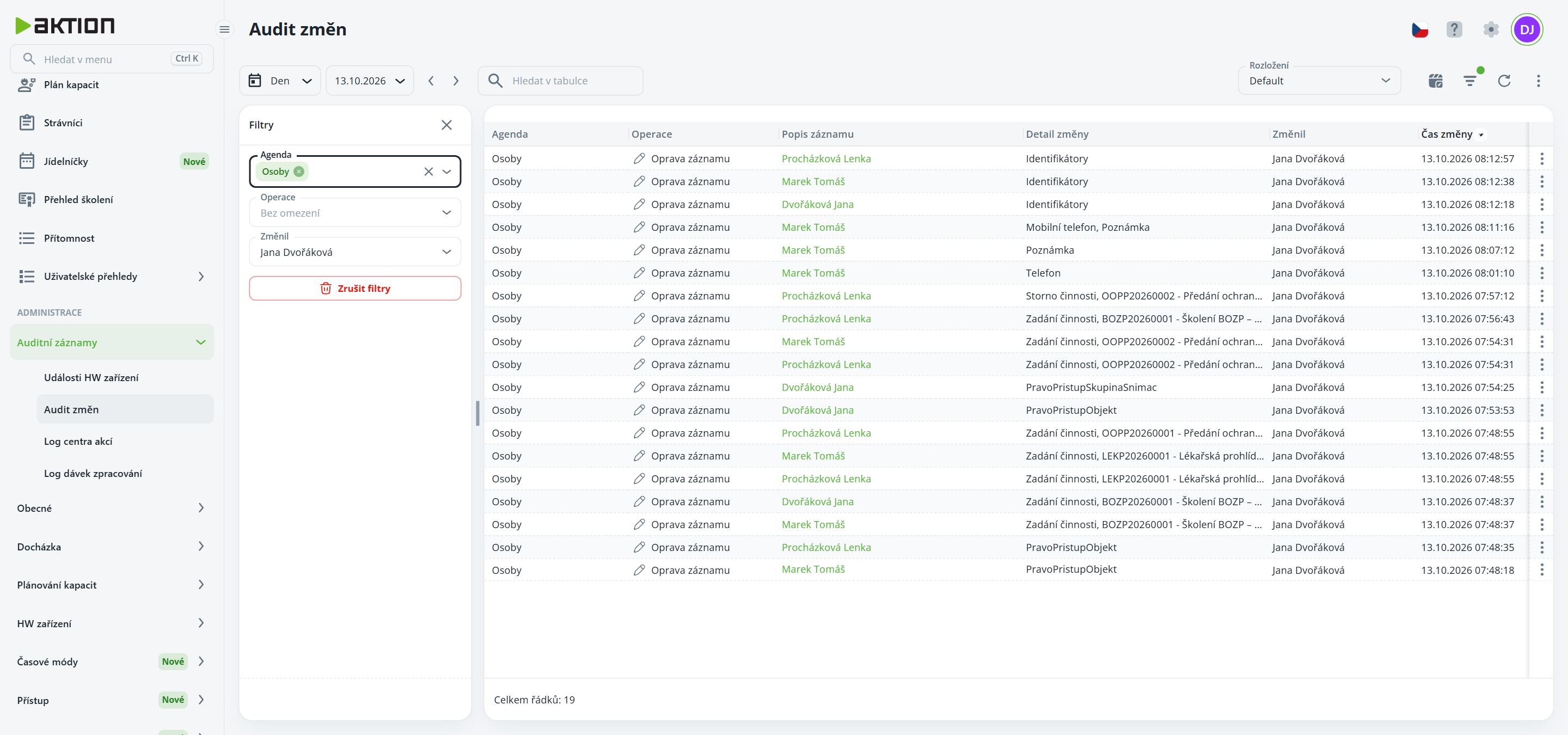
For deleted records and for agendas that do not have a detail view in eNext, the record description is plain text. If there are too many records in the period, the application displays “Too many records, select a shorter period.”
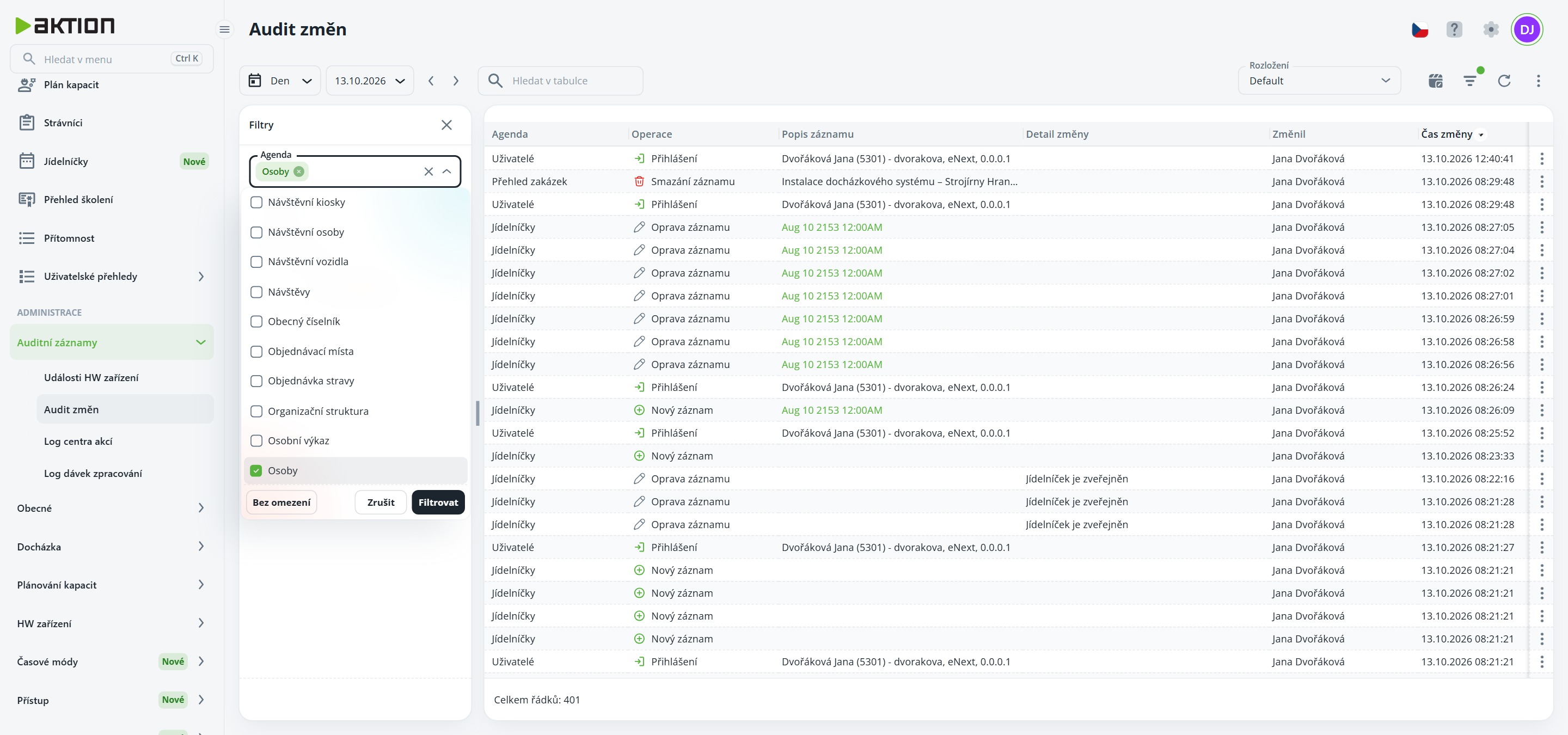
Open the Filters panel using the filter icon in the toolbar. It offers:
Agenda – one or more agendas; you can start typing a name in the field.
Operation – e.g. New record, Edit record, Delete record, Restore record, Log in, Log out, Login error, Blocked after failed login, Email sent, Email sending error, Set presence, Cancel presence.
Changed by – the user who made the change.
Confirm your selection using the Filter button; Clear filters removes all filters.
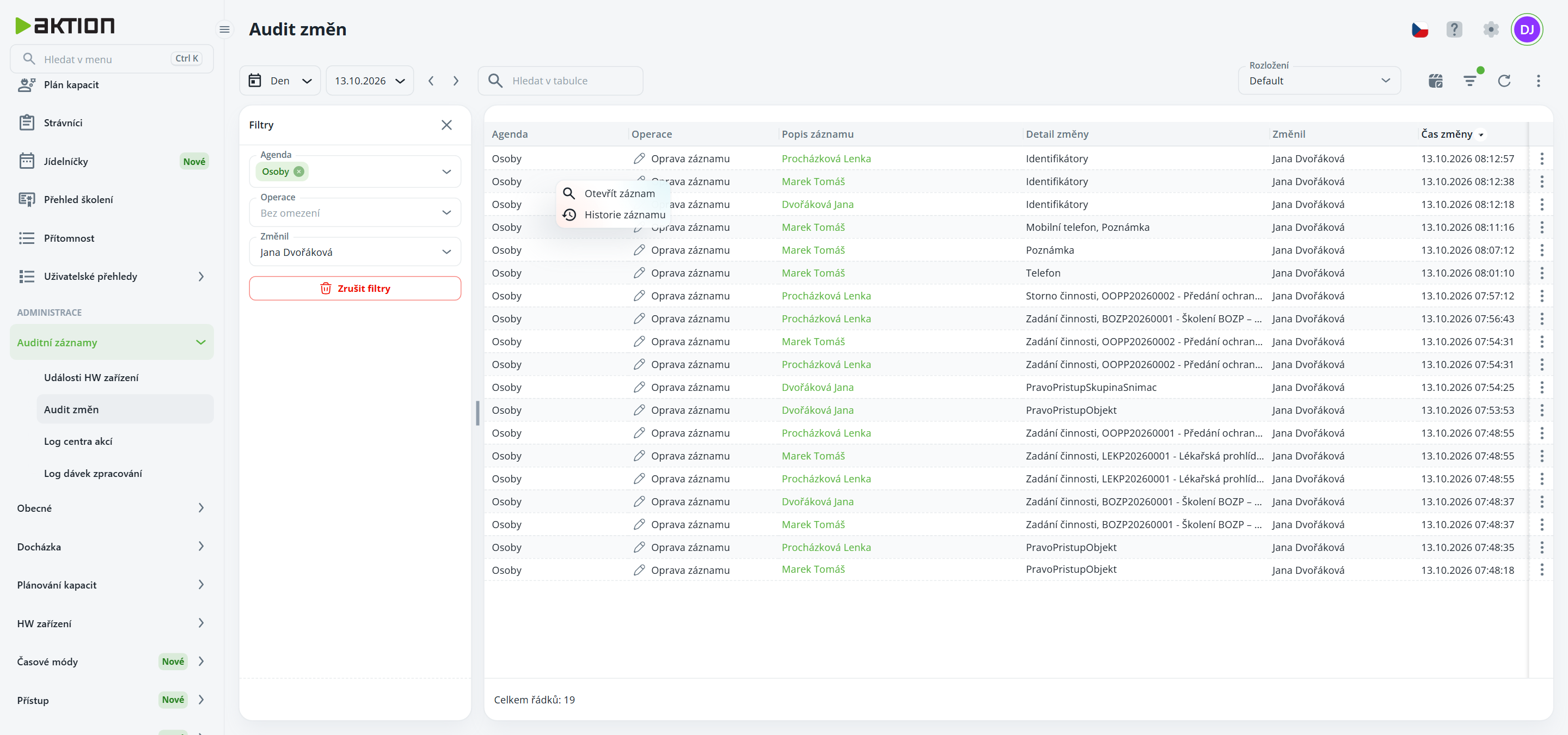
Right-click a row (or click the ⋮ button at the end of the row) to open the menu:
Open record – opens the details of the changed record,
Record history – opens the record history and highlights the version corresponding to the selected change.
In the Record history, you can see the fields changed in each version, with the original (struck-through) and new values. You can compare two versions side by side or view the state of the record on any date – see the Record history article.