This section serves as a guide to the Overview of Persons tab in the Training Overview agenda. It explains how to track the validity of training for individual persons, how to work with training plans, and how to register persons for scheduled dates.
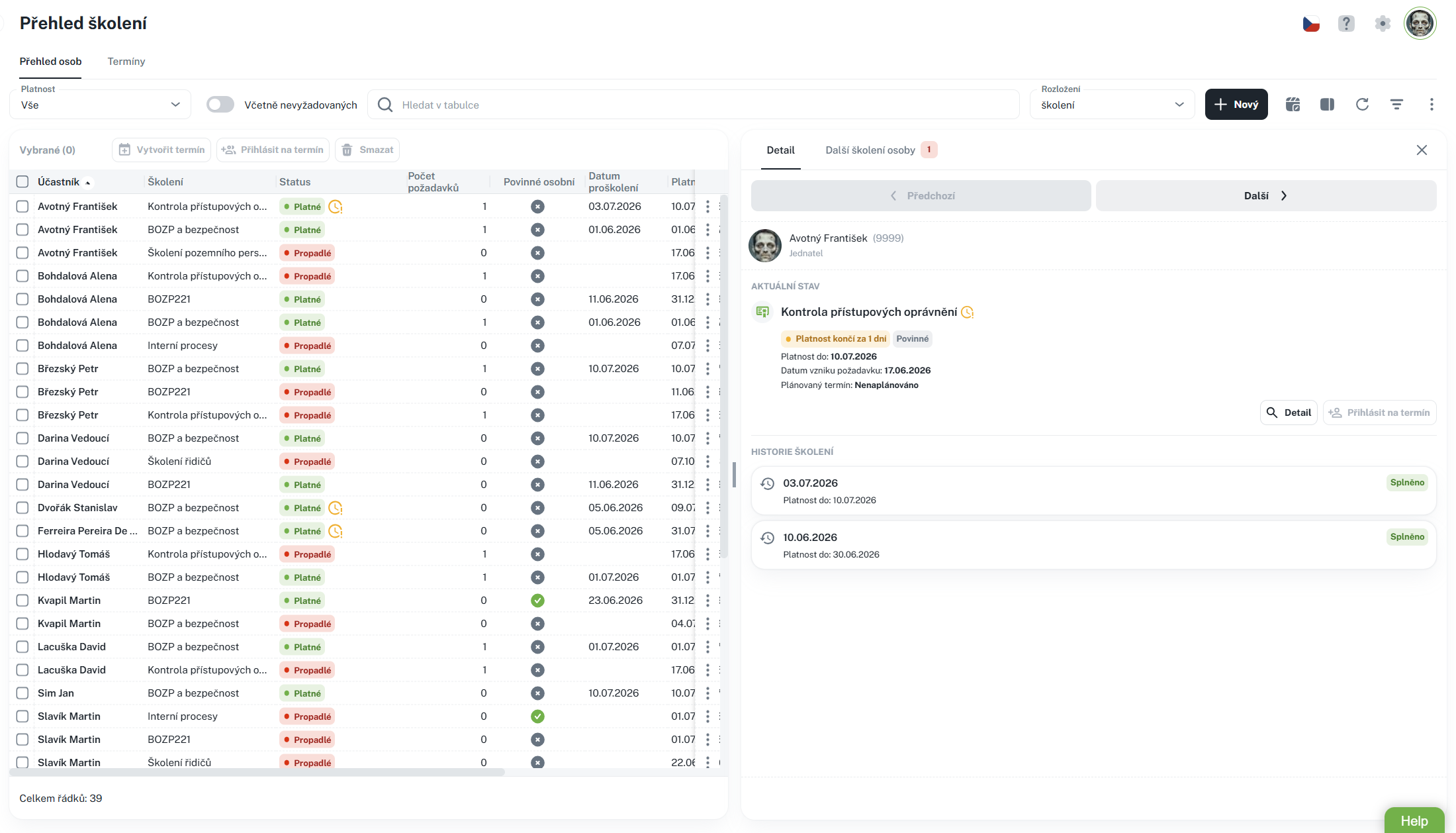
The agenda can be found in the left menu under Training Overview (certificate icon). The screen is divided into two tabs – Overview of Persons and Scheduled Dates. This section addresses the first one; the second is described in Part 2 – Scheduled Dates.
• How to read the training plans overview – what the individual columns and color-coded validity statuses mean.
• How to filter persons by validity – quick identification of expired training or training nearing expiration.
• How to assign training to persons – creation of a training plan (qualification requirement).
• How to register individuals for time slots – individually or in bulk, including creating a new time slot directly from the overview.
This manual is intended for individuals responsible for training administration – typically human resources specialists, occupational safety technicians, or supervisory personnel.
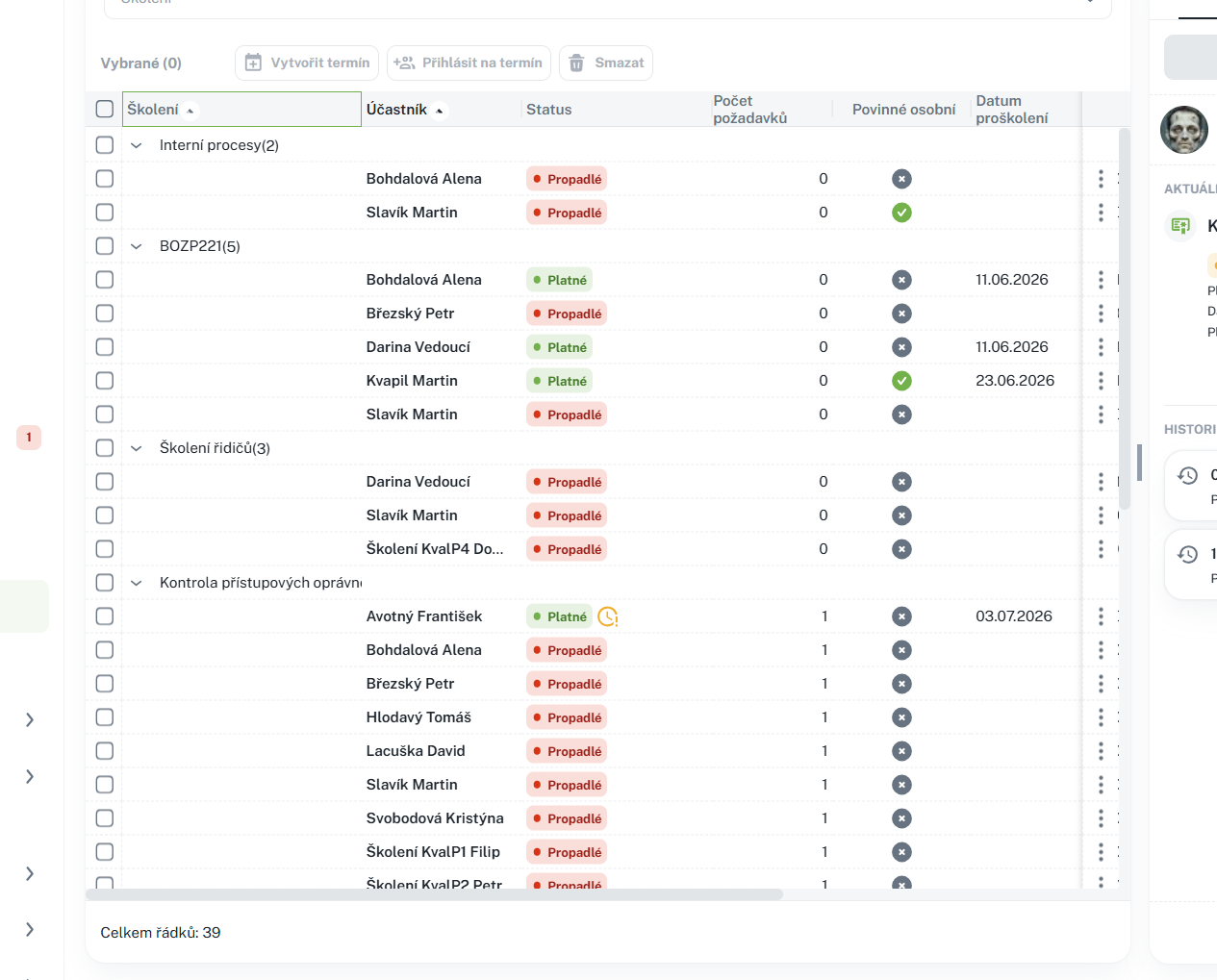
The Individual Overview tab displays training plans – that is, the relationships between an individual and a specific training course along with current validity. One row = one training course assigned to one individual.
Using the overview, you can easily determine whose training has expired, whose validity is expiring soon, and who is already registered for a time slot.
A status is a color-coded label that immediately shows the state of the training:
• Valid (green) – the training is completed and valid.

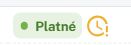
• Expiring Soon (orange) – validity will expire within 30 days; it is advisable to schedule a renewal.
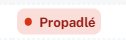
• Expired (red) – validity has expired and training is required.
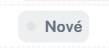
• New – training has been newly assigned and has not yet been completed.
Above the table you will find filters to narrow down the overview:
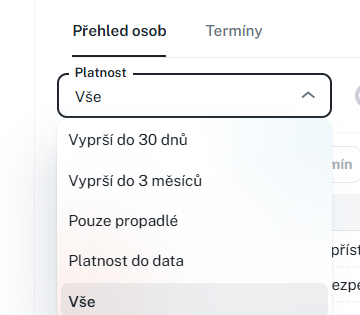
• Validity – dropdown selection:
◦ Expires within 30 days
◦ Expires within 3 months
◦ Expired only
◦ Valid until date – upon selection, a field for entering a specific date will appear.
◦ All
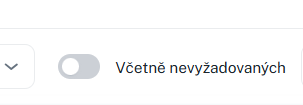
• Including expired non-required – toggle switch; by default, expired non-required trainings are hidden; use the toggle to display them.
• Training filter (filter above the list) – allows you to limit the overview to selected trainings only.

Additionally, you can use quick search and standard filtering by individual columns.

Example of use: You want to check who has expired first aid training. In the Validity filter, select "Expired only" and in the Training filter, choose "First Aid". The overview will display only individuals with expired first aid training.
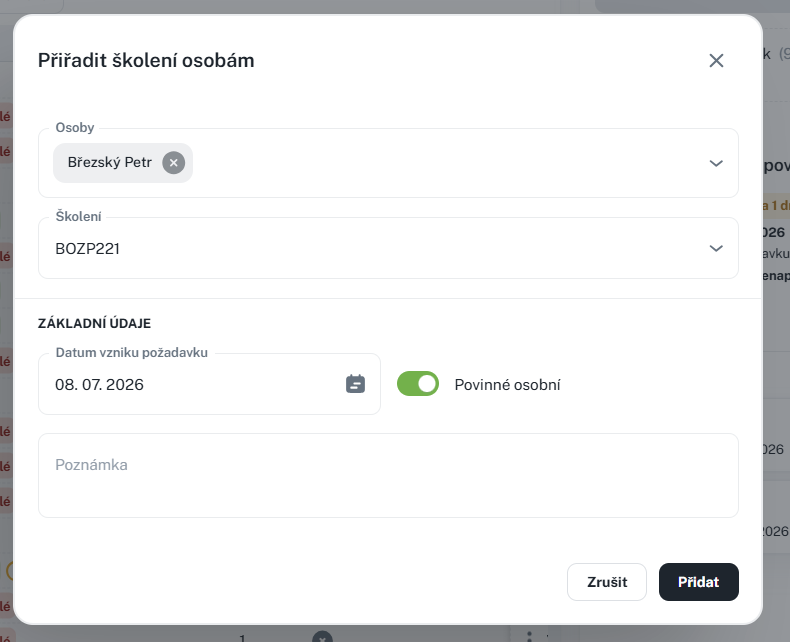
You can assign new training to individuals using the action above the overview (button to add a training plan). A form will open where you select the training and the individuals to whom it should be assigned. This creates a new training plan (qualification requirement).
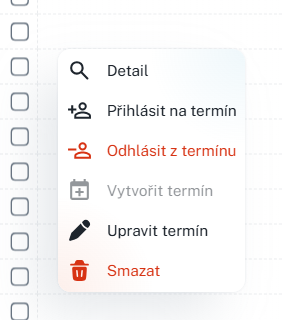
The following actions are available for individual rows (via context menu or row actions) and in bulk (after selecting multiple rows):
• Training plan details – opens the details of the selected training plan.
• Register for a date – registers a person for an existing available date of the given training. This action is available only if a free date exists for the training and the person is not yet registered for it.
• Unregister from a date – unregisters a person from the date they are registered for.
• Create a date – creates a new date for the given training (and immediately assigns the person to it).
• Edit a date – opens the nearest scheduled date of the person for editing.
• Delete – removes the training plan.

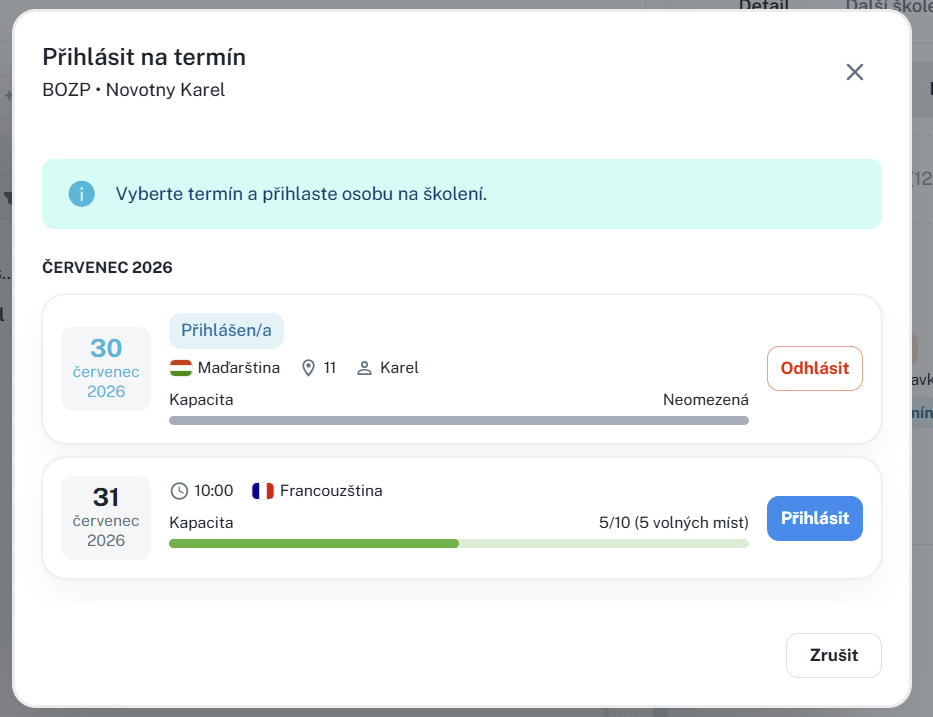
1. For the individual's row, select the Register for Date action.
2. In the dialog, select a specific date from the list of available dates.
3. Confirm the registration.
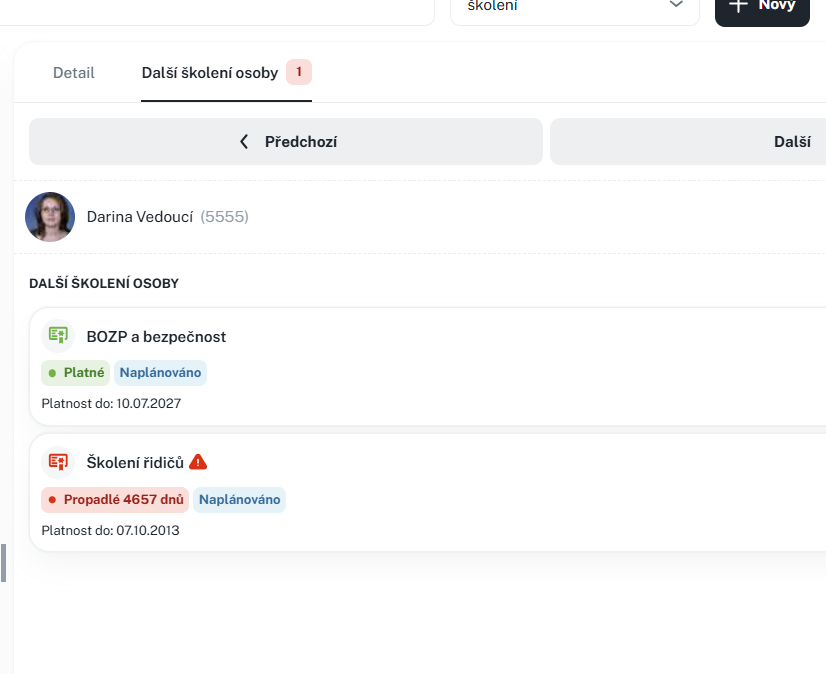
When a row is selected, the Training Plan Details panel appears on the right side, displaying an overview of information about the selected plan and its scheduled dates. From here, you can also initiate actions with the scheduled dates.
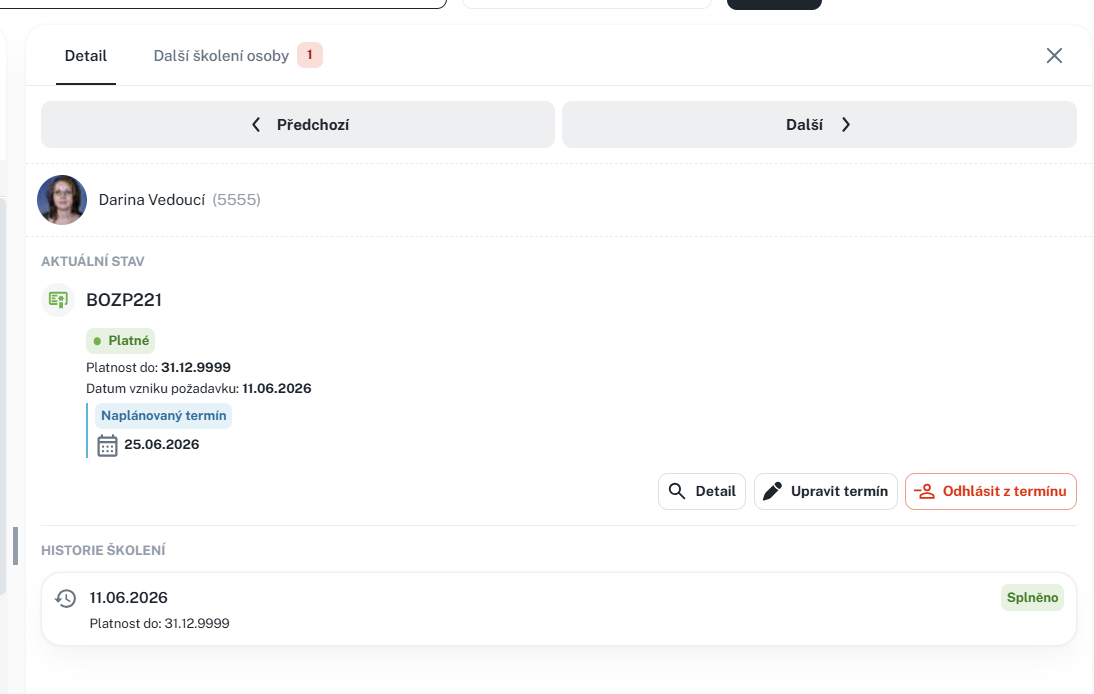
It also displays other training courses for the individual
• Displaying the Individuals Overview tab requires read permission for the training plan agenda.
• Registering and unregistering individuals from scheduled dates requires the Register for Training permission (or alternatively, edit permission). Additionally, permission for the specific individual is verified.
• Creating a new scheduled date requires permission to create a training date.
Depending on your assigned permissions, some actions may not be displayed to you.
This part builds on Part 1 – Overview of Persons and focuses on the Dates tab in the Training Overview agenda. It explains how to create and manage training dates (training events), how to register participants, and how to enter training results.
You can find the agenda in the left menu under Training Overview (certificate icon). After switching to the Dates tab, you have two views available – list and calendar.
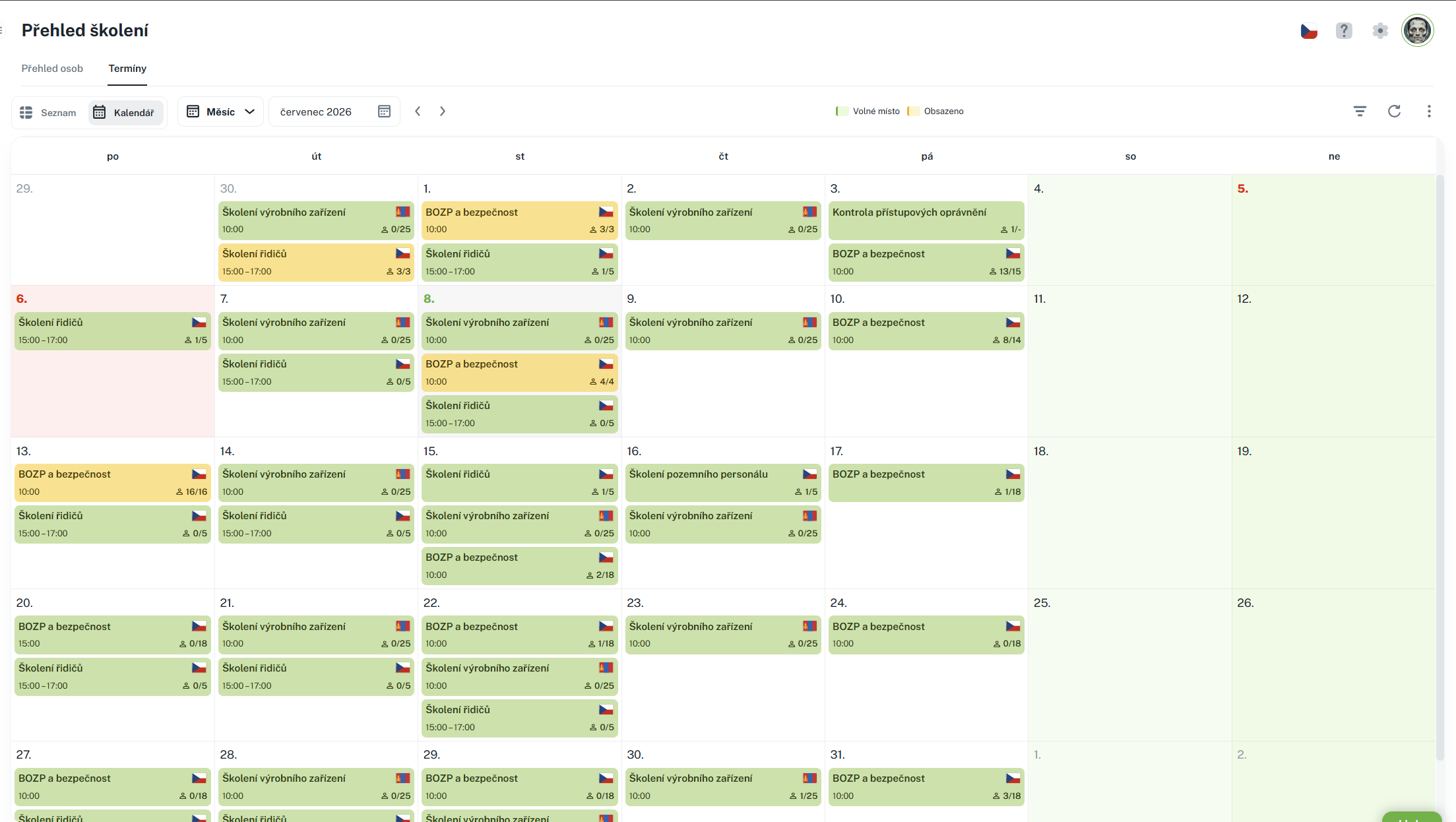
• How to navigate dates – list and calendar views and their filters.
• How to create a new date – one-time and recurring dates through a wizard.
• How to register participants – individually and in bulk.
• Jak zadat výsledky školení – označení „Proběhlo“, úspěšnost a platnost proškolených osob.
Manuál je určen pro osoby zodpovědné za organizaci školení – typicky personalisty, BOZP techniky či vedoucí pracovníky.
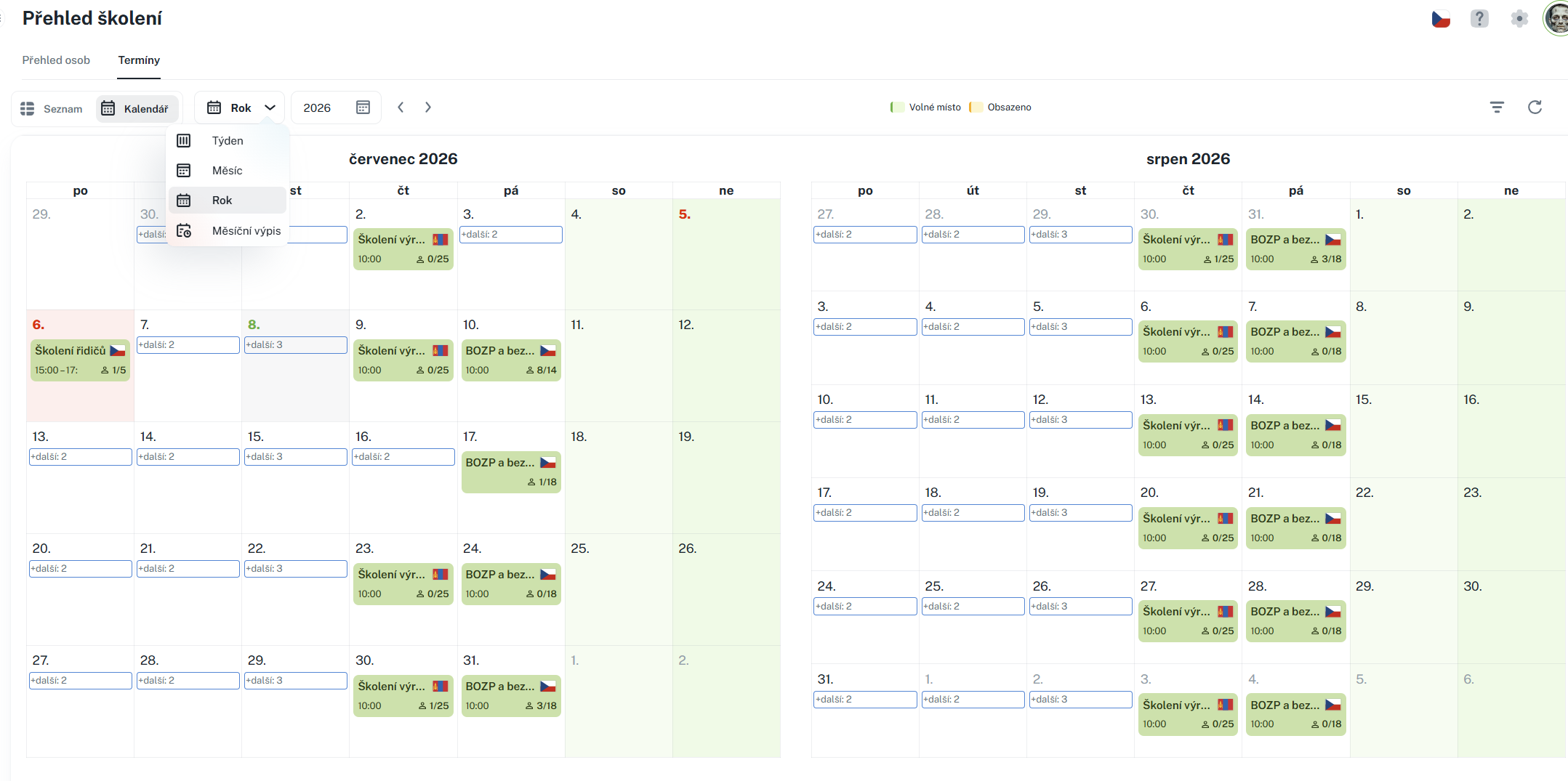
Záložka Termíny nabízí dvě zobrazení, mezi kterými se přepíná:
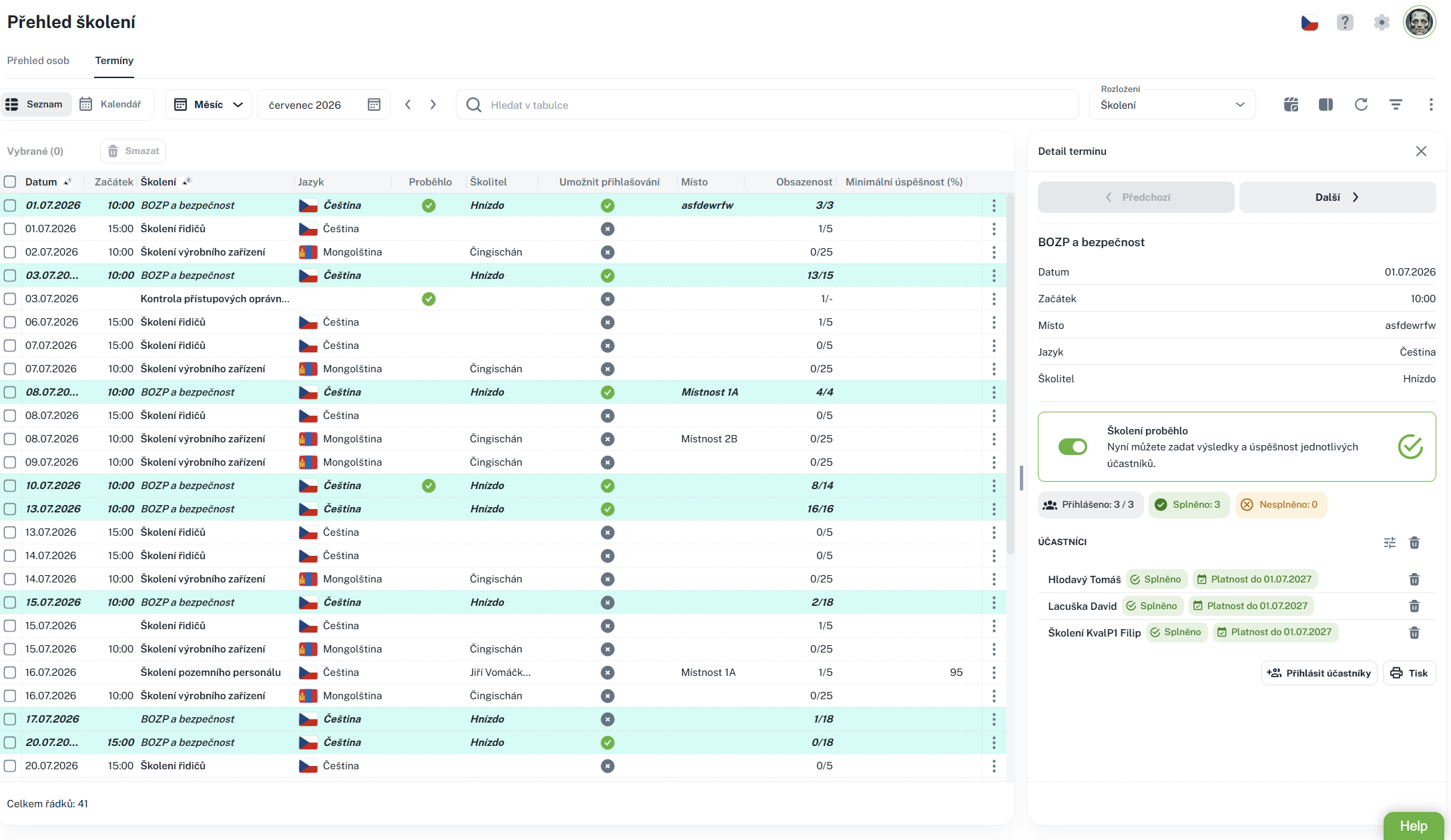
• Seznam – tabulka termínů s informacemi o školení, datu, místě, kapacitě a obsazenosti.
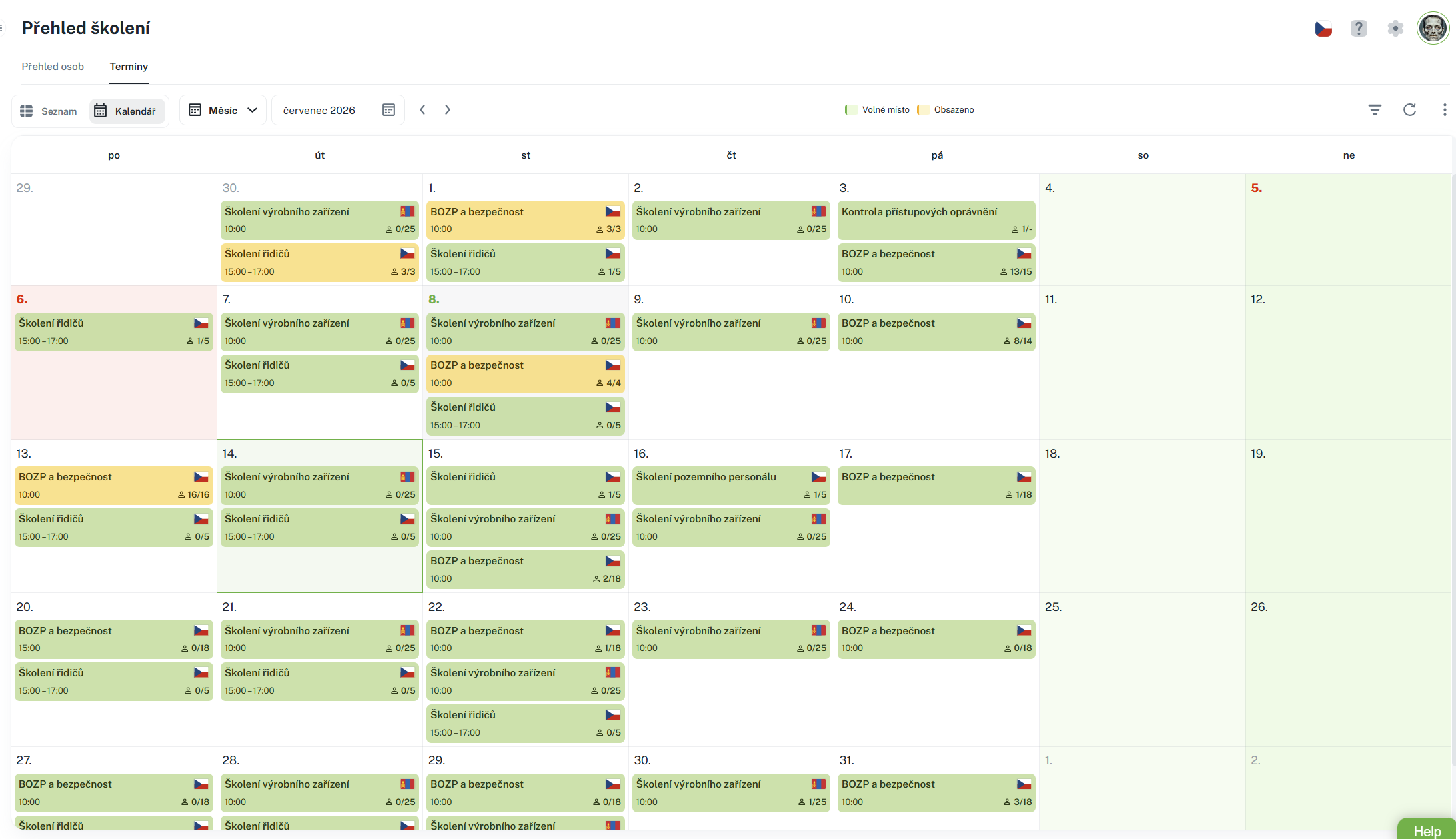
• Kalendář – termíny vynesené do kalendáře; u každého termínu je vidět štítek s obsazeností, po najetí myší se zobrazí podrobnosti a kliknutím termín otevřete.
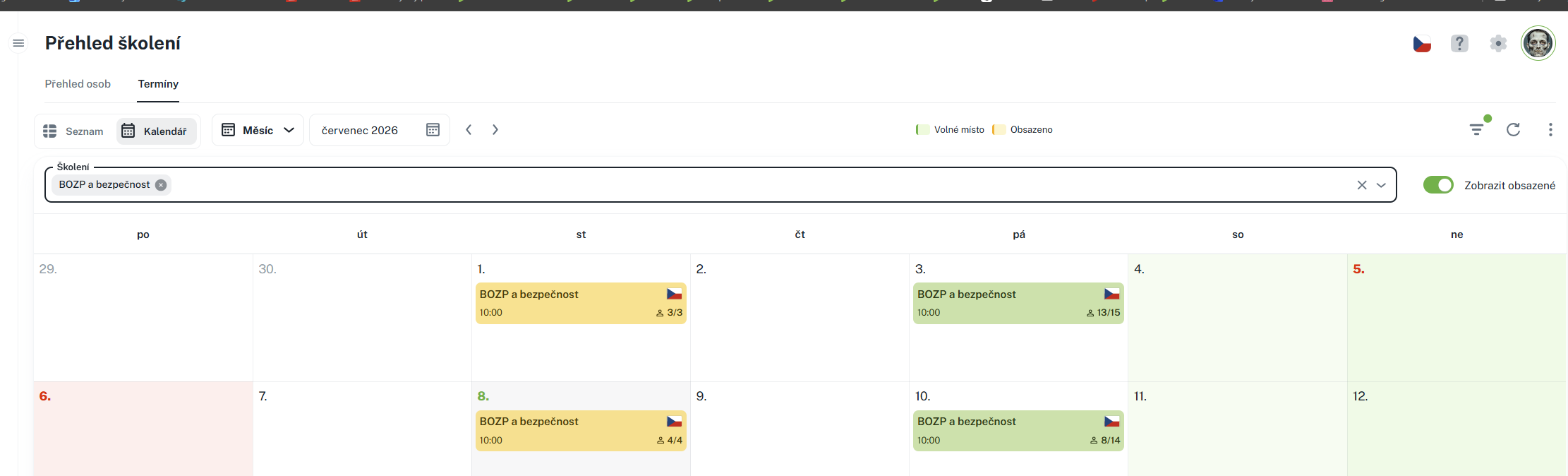
Above the display, you will find filters:
• Period – the date range in which the dates are displayed.
• Training filter (filter above the list/calendar) – limits the dates to only the selected trainings.
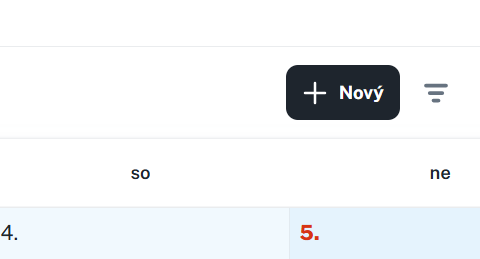
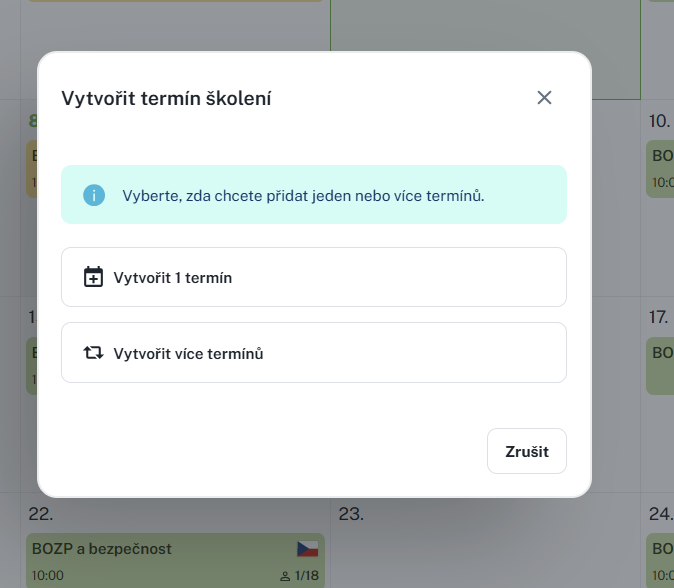
You can create a new date using the New button (add record) above the list or by selecting a cell or cells. A dialog will open in which you can choose whether to create:
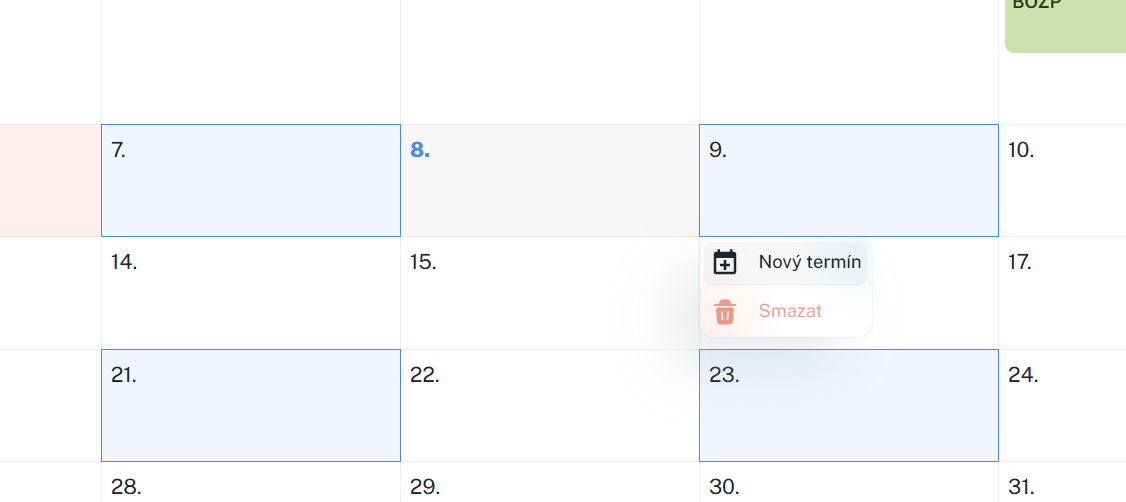
• One-time date – a single specific date.
• Recurring Term – multiple terms at once using a wizard (e.g., regular training).
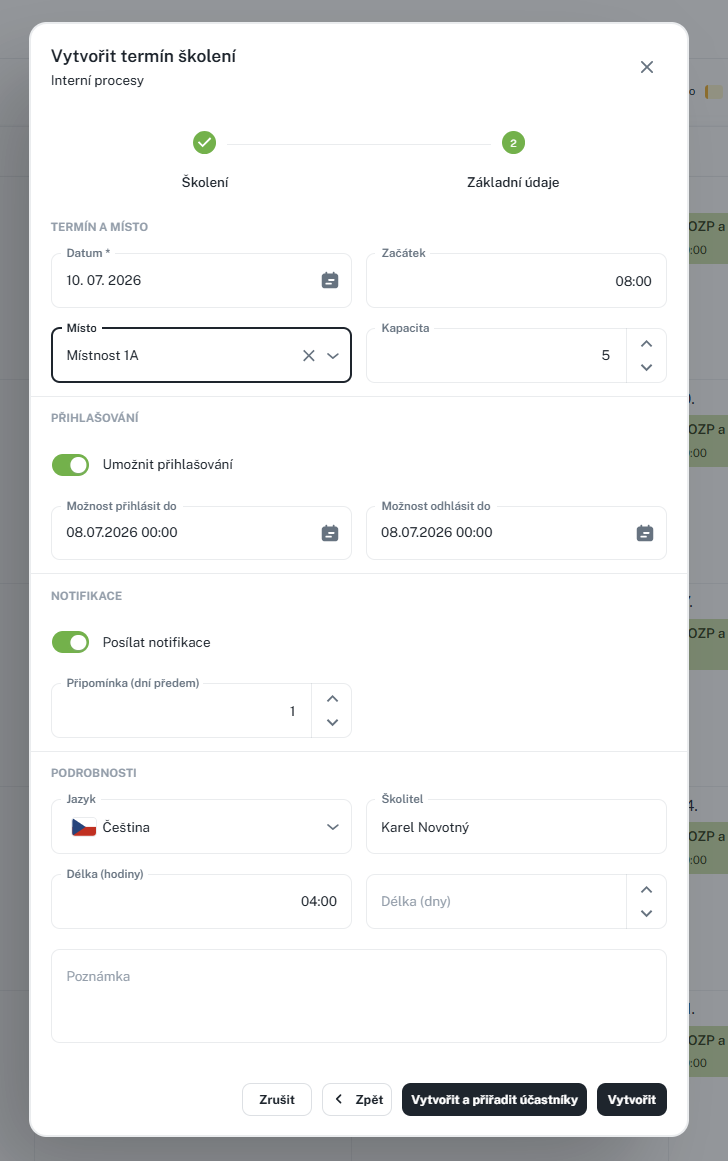
In the term form, you will primarily fill in:
• Training – from which training catalog the term originates.
• Date of the term.
• Location of the event.
• Capacity (maximum number of participants).
• Allow registration – enables the option to register/unregister for individuals who have the qualification requirement for the given training. If the option is not enabled, an administrator with sufficient permissions manages it.
• Notifications – enables sending notifications.
• Language, trainer, and any application deadline.
After saving, the date is created and you can register participants for it.
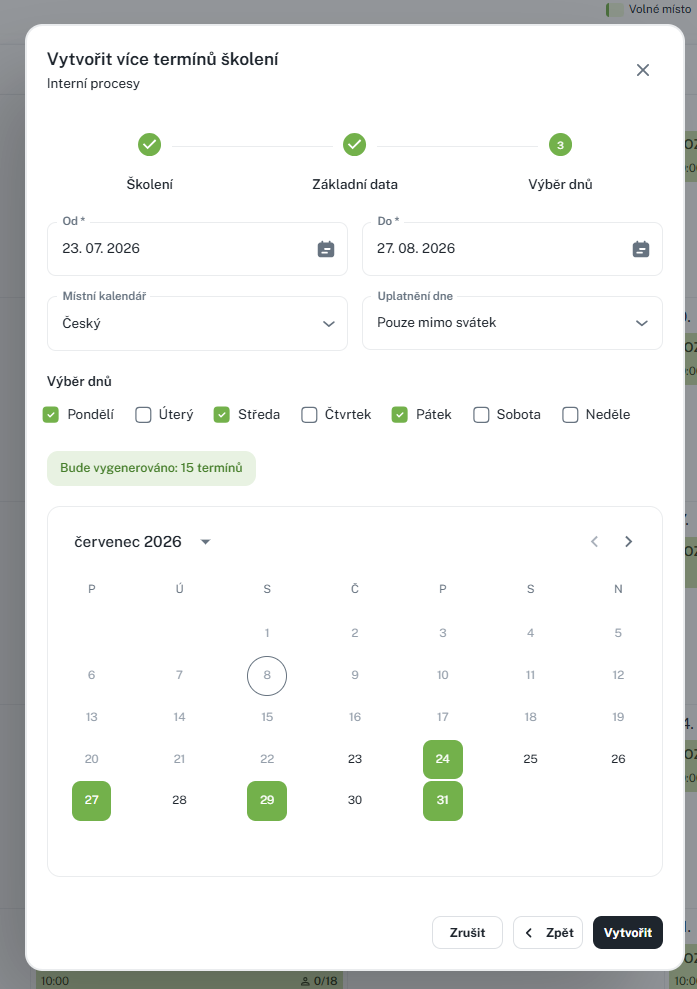
The wizard will guide you step by step through creating a series of dates – you select the training, recurrence rule, locations, and other parameters. At the end, all dates are created at once.
They are enabled either for the training or when creating dates; you cannot limit which notifications to send – either all notifications will be sent globally for the date or none will be.
Notifications are sent to
Registration for training
Cancellation of training registration
Modification of training (location, start time, date)
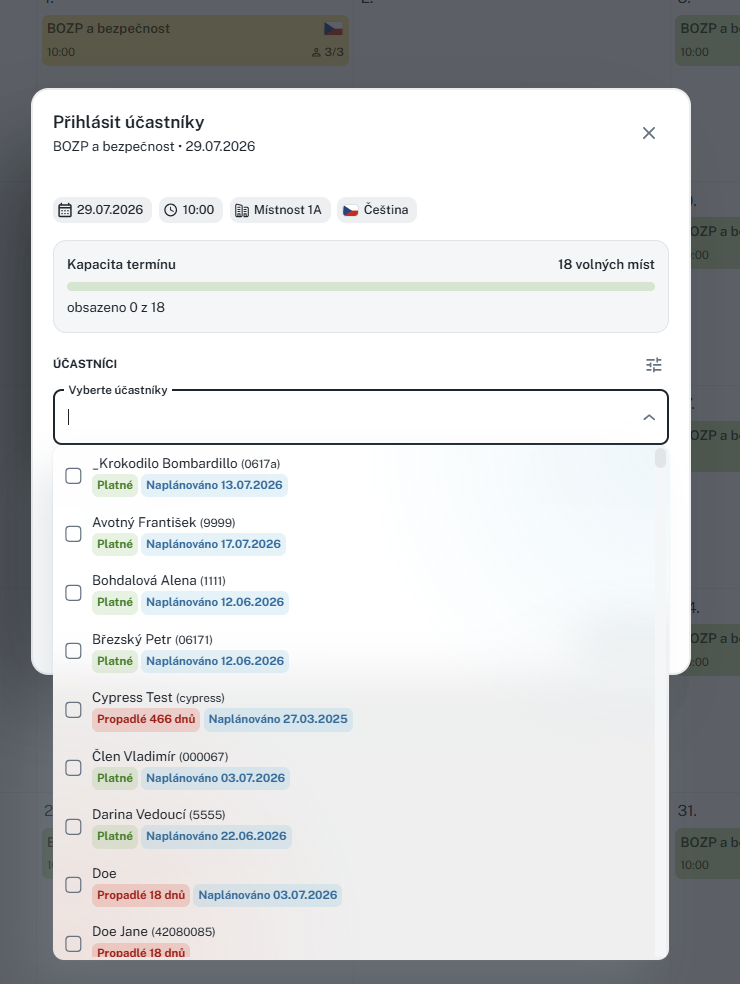
You can register participants for a date in several ways:
• In the in-person training if the date "allows registration"
• In the date details, click the Register Participants button.
In the dialog, select the persons who will attend the date and confirm your selection.
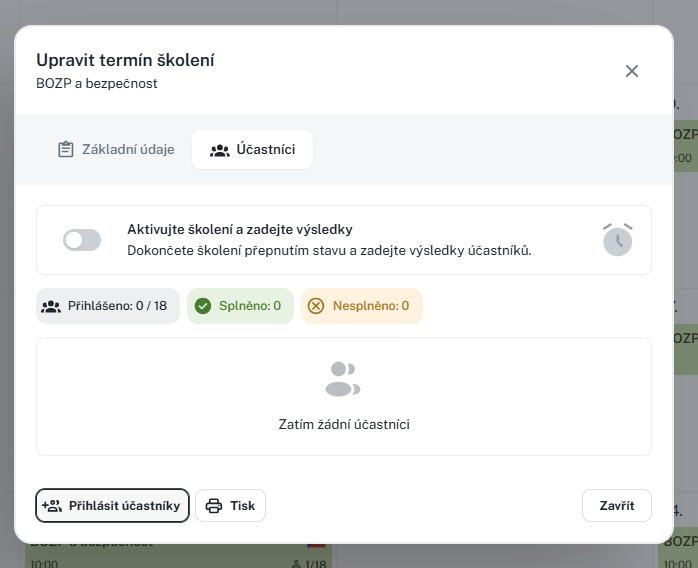
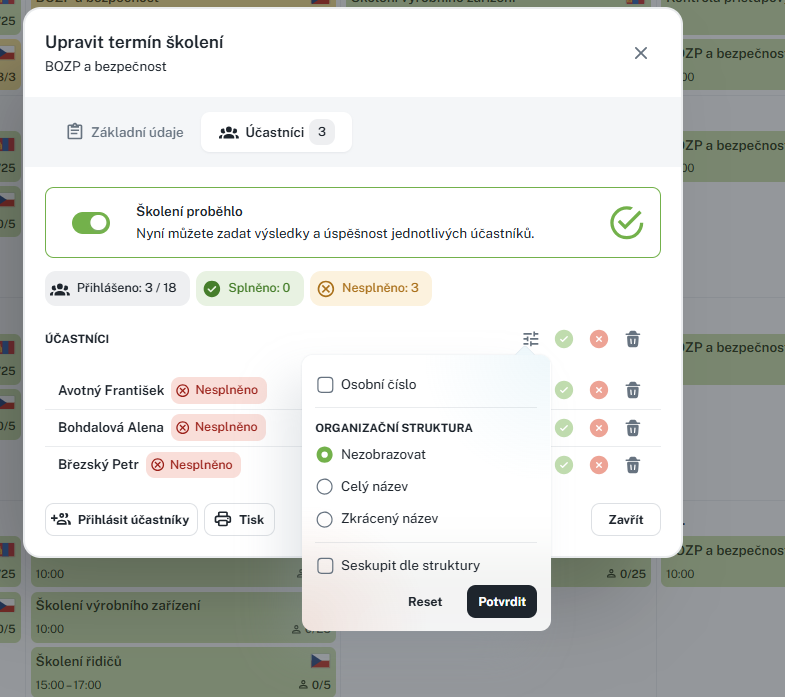
Upon opening a training session (by clicking on the training name in the list, via the Session Details side panel, or from the calendar), you will see the session details with a list of participants.
At the top of the details, you will find an overview showing how many people are registered, the session capacity, and how many people have completed the training.
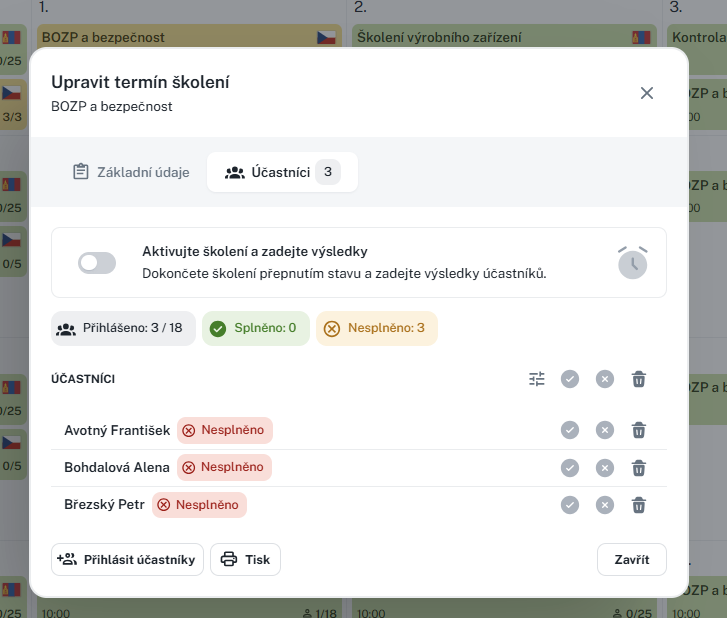
Use the Completed toggle to indicate that the training session has already taken place. Only after this can you meaningfully enter the results for individual participants.
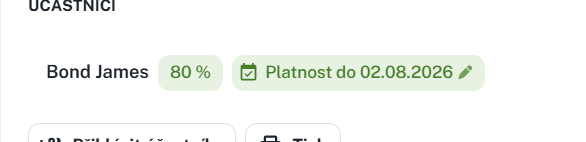
For each participant, you can enter:
• Passed / Failed or %, or the success percentage (if the training in the catalog has a minimum success rate configured).
• Validity of completed training (until when it is valid).
A participant can also be removed from the scheduled date.
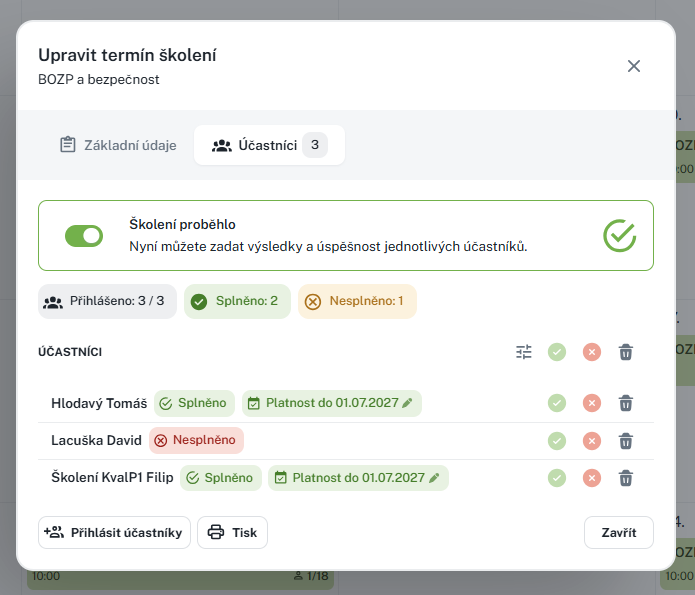
For faster work, bulk actions are available:
• Mark all as successful / unsuccessful.
• Set success percentage for all at once.
• Reset entered results.
• Remove all participants (action requires confirmation and is irreversible).
• Filter by structure
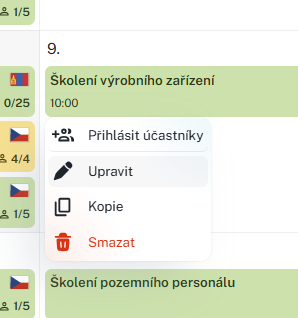
• Edit event – allows you to change event parameters (date, location, capacity, etc.). You can start editing from the event details using the Edit event button or from the row action menu.
• Delete event – removes the event; you must confirm this action.
• Displaying the Events tab requires read permission for the training event schedule agenda.
• Creating and editing events require corresponding permissions for this agenda.
• Registering and unregistering participants requires the right to Register for training (or alternatively the right to edit); for individual persons, authorization for the specific person is additionally verified.
Depending on the rights assigned to you, some actions and columns may not be displayed.
