• How to read your training overview – summary tiles and color-coded validity statuses.
• How to filter quickly – display only expired, expiring soon, valid, or new trainings.
• How to register for a training session – and how to unregister from a session.
This manual is intended for employees who view and manage their own trainings.
This manual will guide you through the Personal Training page, where you have an overview of all your trainings. At a glance, you will see which trainings are valid, which are expiring soon, which have expired, and which sessions you can register for.
You will find this page in the left menu under the Personal group in the Training item. The screen has two tabs – My Trainings and Sessions (the second is described in Part 2). If you have access to only one of them, its content will be displayed directly without tabs.
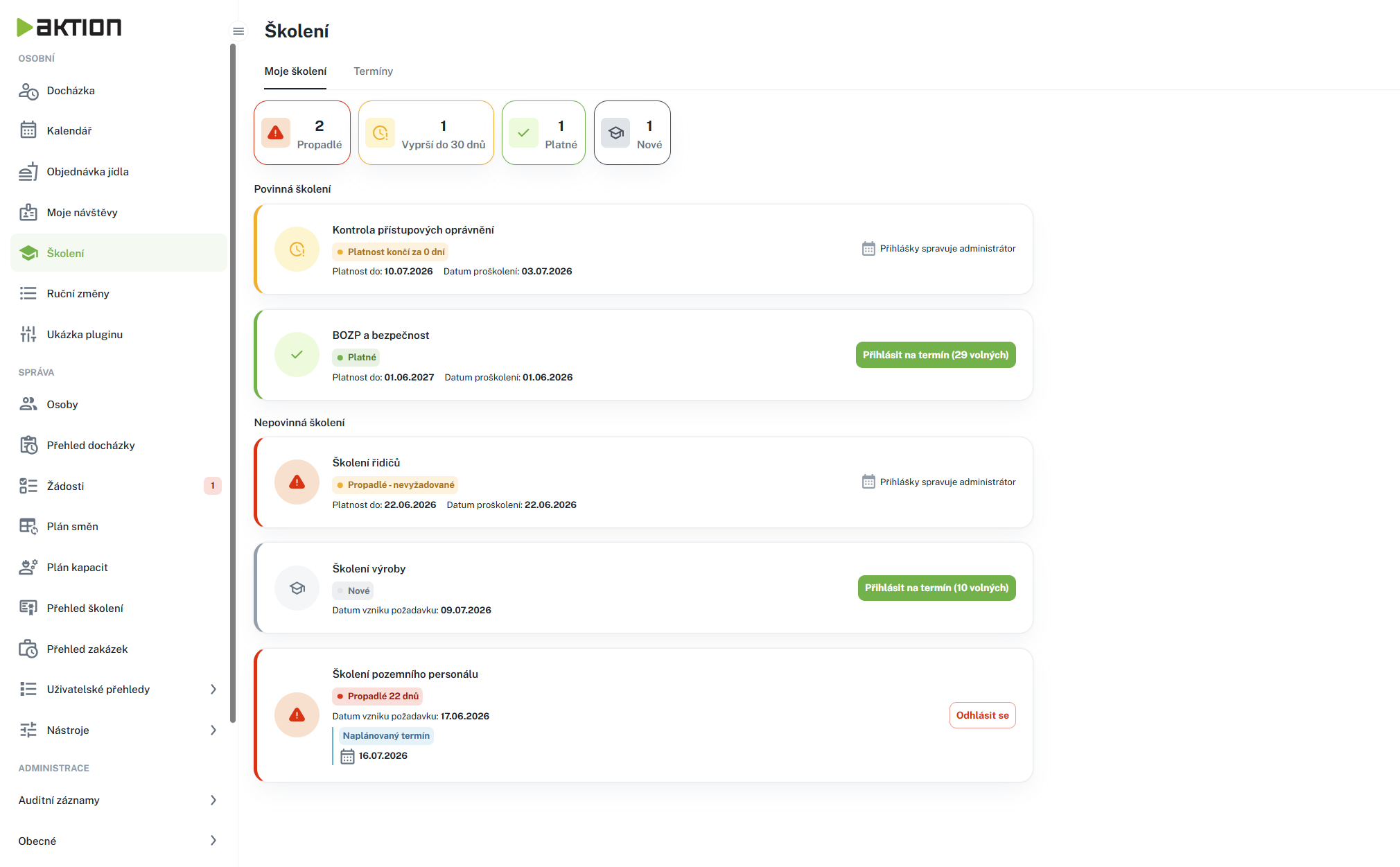
V horní části stránky jsou barevné dlaždice s počty školení v jednotlivých stavech:
• Propadlé (červená) – školení, kterým skončila platnost.
• Vyprší do 30 dnů (oranžová) – platnost brzy skončí, je vhodné se přihlásit na termín.
• Platné (zelená) – školení v platnosti.
• Nové – nově přiřazená školení, která jste zatím neabsolvovali.
Kliknutím na dlaždici zobrazíte pouze školení dané skupiny. Pod dlaždicemi je vidět, co je právě zobrazeno („Zobrazeno: … (počet)“), a tlačítkem Zrušit filtr se vrátíte k zobrazení všech školení.

Below the tiles, your training courses are organized into three sections:
• Mandatory Training – training courses that you must complete.
• Optional Training
Each training course is displayed as a card with a title, colored status labels, and an expiration date. On the right side of the card is an action button (see below).
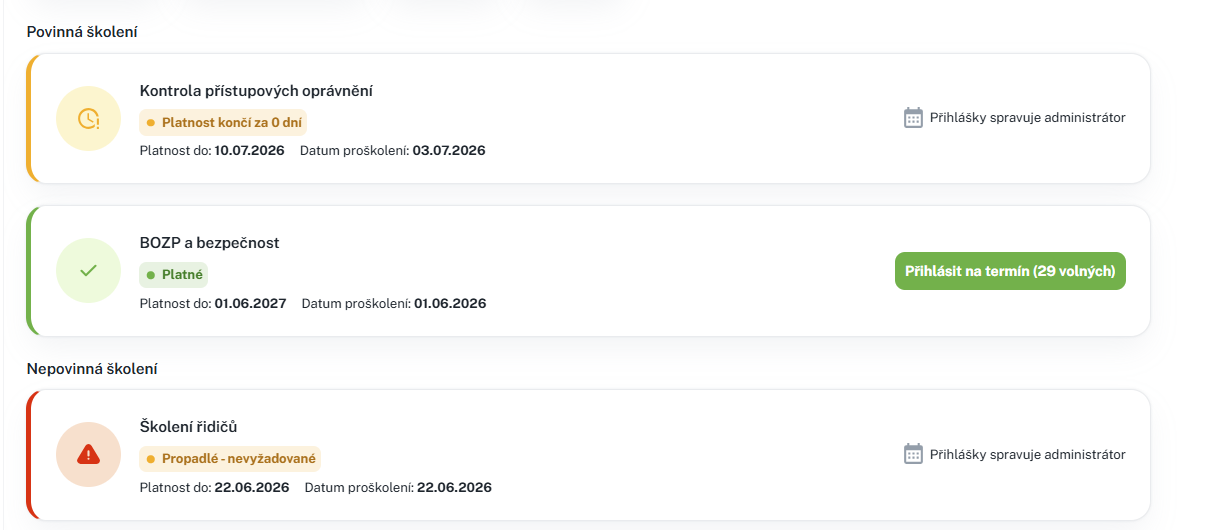
• Valid (green) – the training course is completed and current.
• Expires Soon (orange) – validity will expire within 30 days.
• Expired (red) – validity has expired.
• New – you have not yet completed the training.
The button on the training card changes depending on the situation:
• Register for Date (number) – available dates are listed; click to select a specific date and register.
• Date Scheduled – you are already registered for the date.
• Unregister – you are registered and can unregister from the date.
• Administrator manages registrations – deadlines exist, but the administrator handles your registration.
• No deadlines have been announced yet – no deadline has been scheduled for this training.



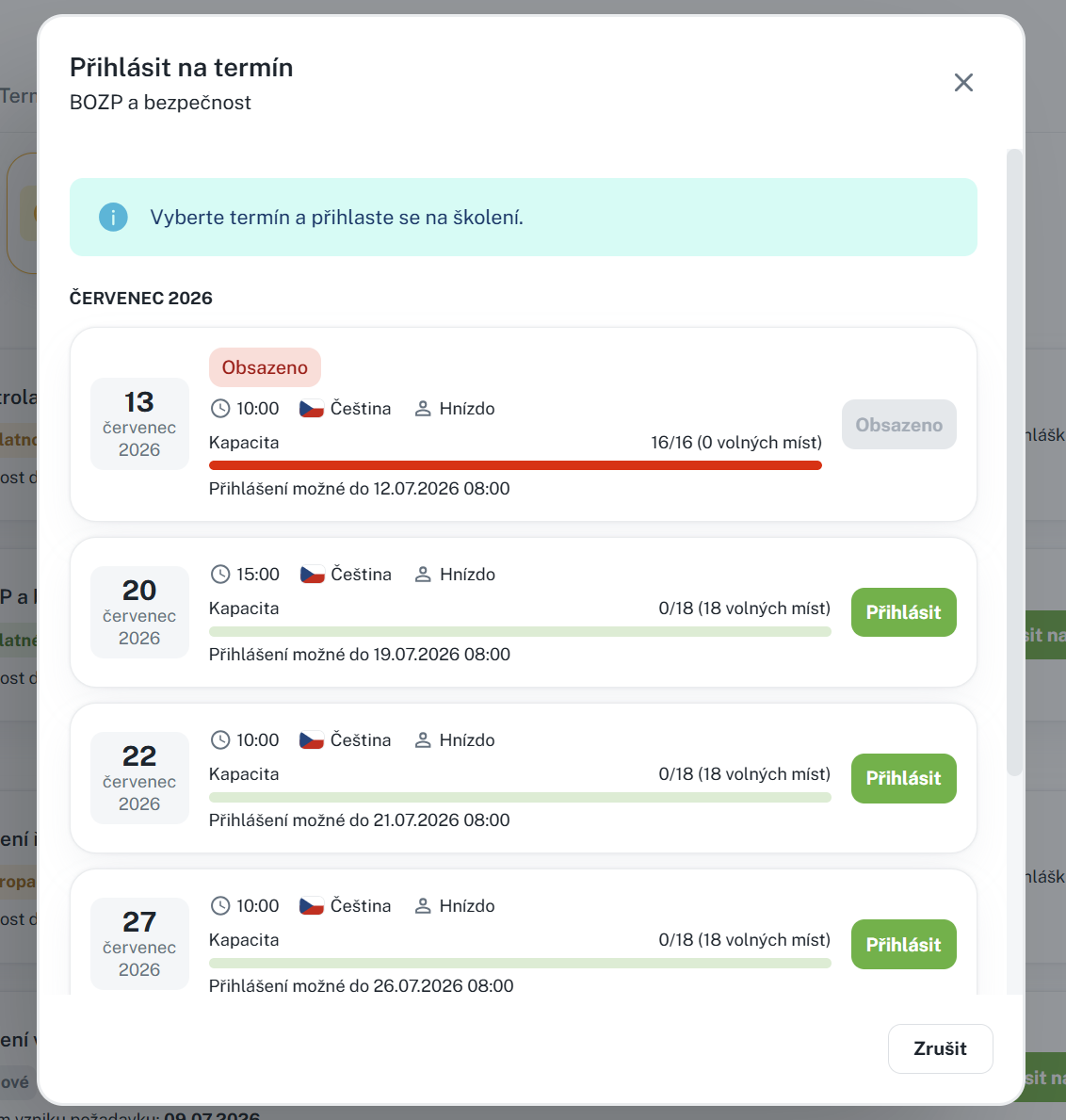
1. On the training card, click the Register for deadline button.
2. In the dialog, select a specific deadline from the list.
3. Confirm your registration by clicking the Register button.
If you are registered for a session, the card displays an Unregister button. Upon clicking, a confirmation dialog will appear with the session details; confirm the unregistration by clicking the Unregister button.
If no trainings are assigned to you, the message "You have no trainings assigned." will be displayed. When no training matches the selected filter, you will see "No trainings match the selected filter." – in this case, clear the filter by clicking Clear Filter.
The Sessions tab displays the available sessions for your trainings. You can view them in a clear list or in a calendar and register or unregister directly from them.
You can find this page in the left menu under the Personal group in the Trainings item, Sessions tab.
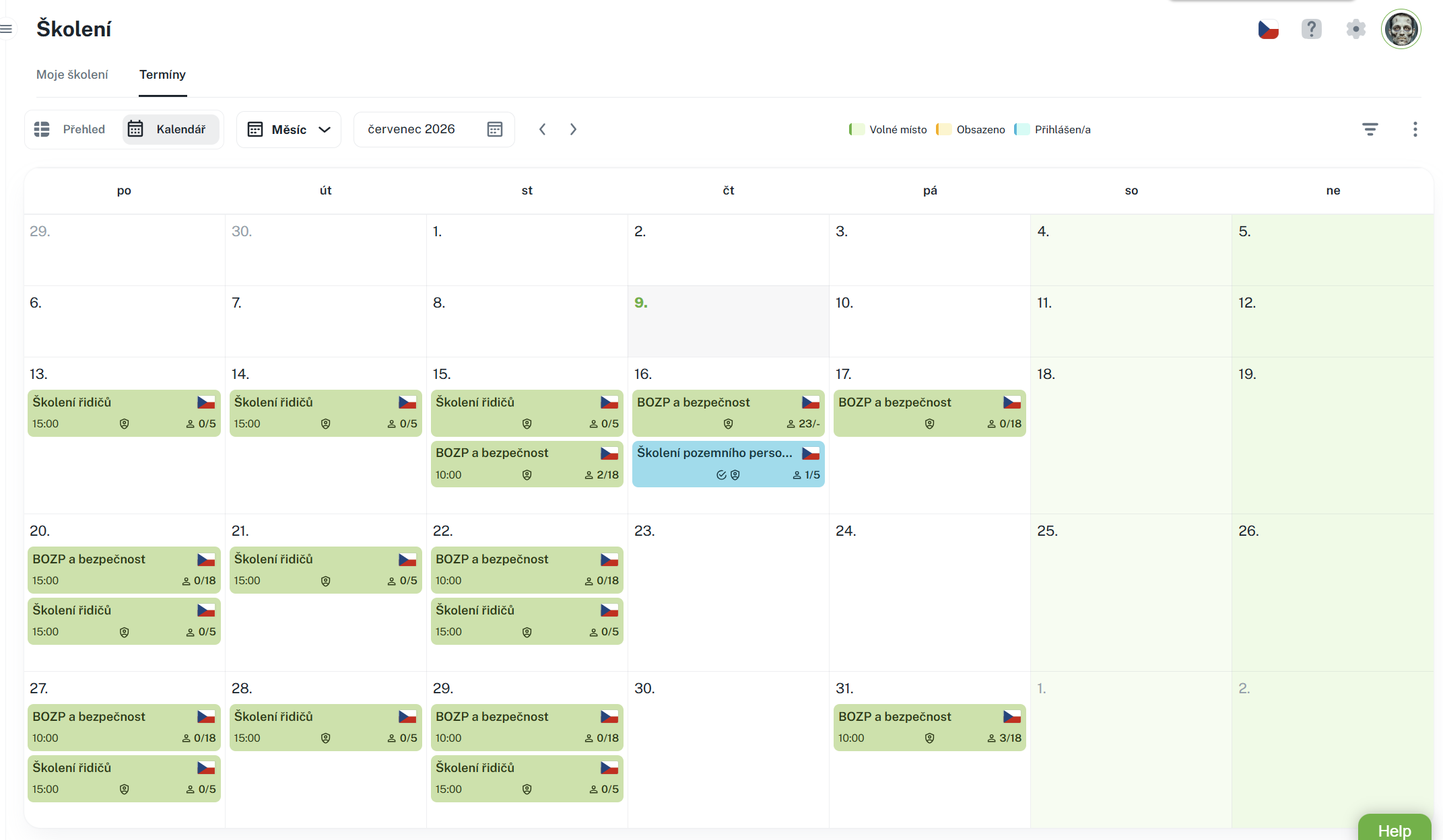
In the upper left corner, you switch between two views:
• Overview – appointments displayed as cards grouped by month.
• Calendar – appointments displayed in a calendar view.
Each appointment is displayed as a card containing the date, time, location, instructor, and availability. The card includes a button for registration or cancellation. Longer lists are divided into pages.
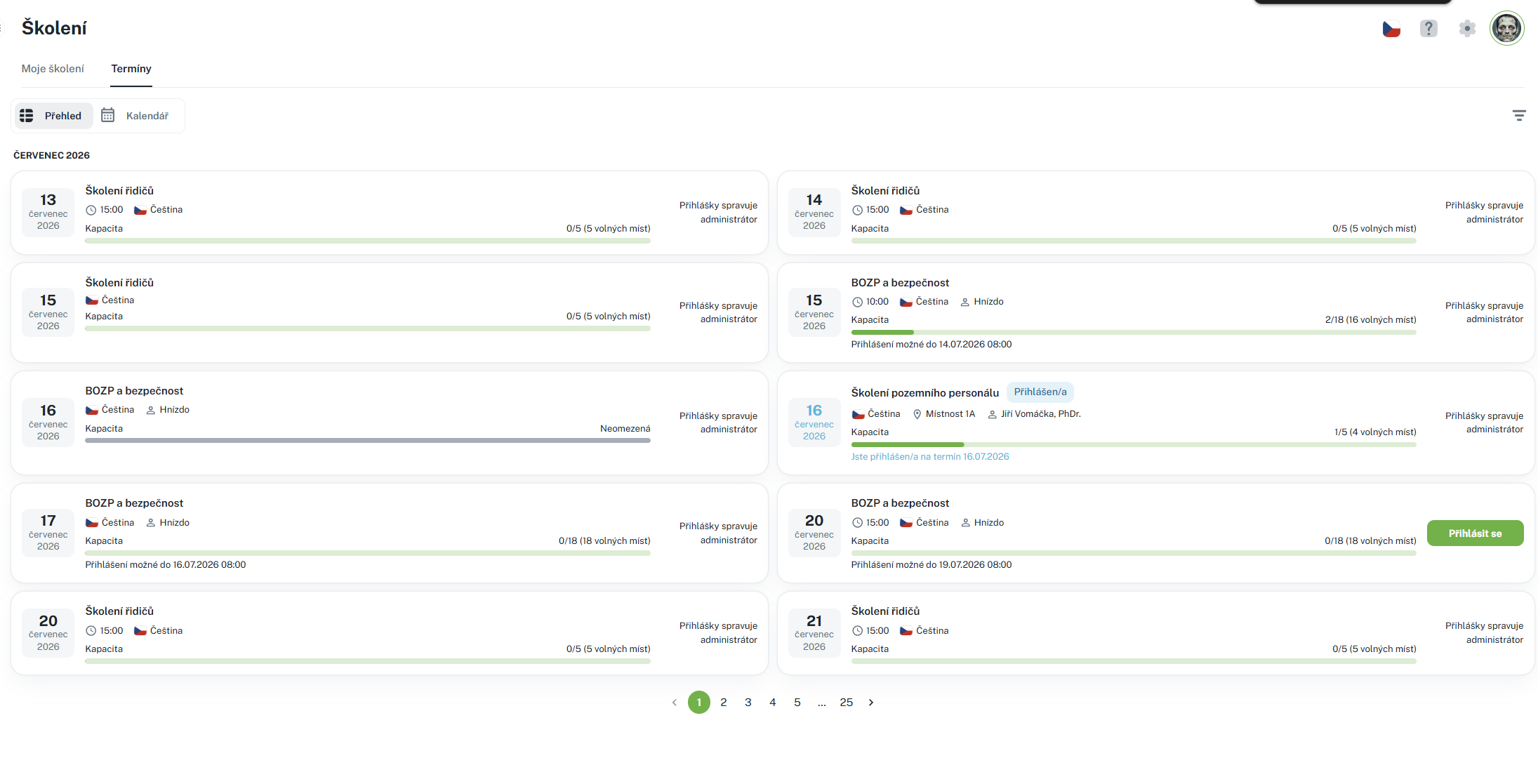
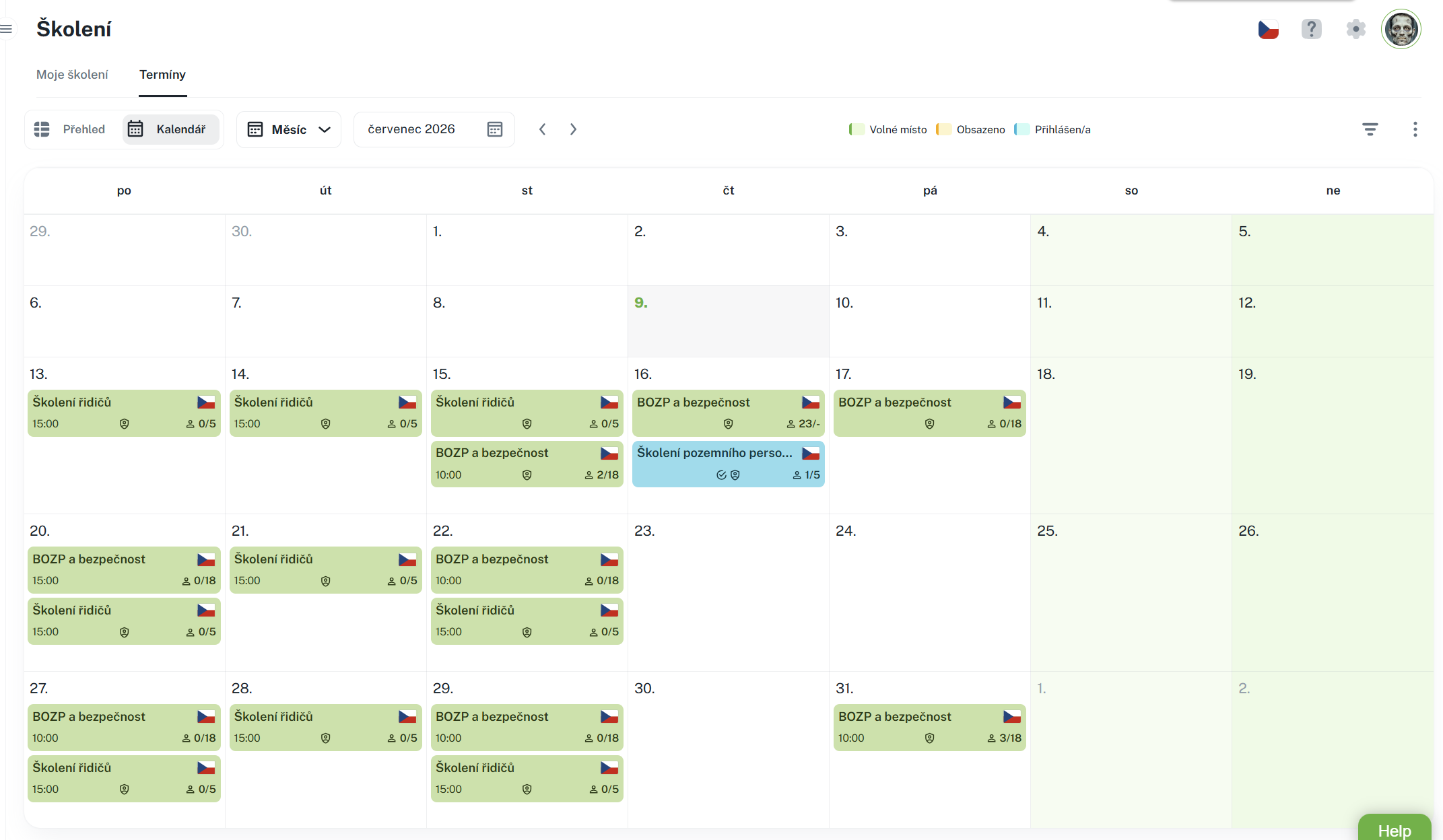
In the calendar, appointments are color-coded according to availability (the legend explains the color meanings). Hovering over an appointment displays the offered event; clicking allows you to register or cancel. You can switch between views (month/week) and navigate through time. The menu with three dots allows you to export appointments to PDF.
Click the filter button (funnel icon) to open the filter panel:
• Training Filter – displays only terms for selected trainings.
• Availability – allows you to display fully booked terms as well.
By default, fully booked terms are hidden (except those you are already registered for).

Example of use: You want to see only terms for occupational safety training, including booked ones. In the Training Filter, select "Occupational Safety" and enable the display of booked terms in Availability.
1. At the scheduled time, click Sign Up (in the list on the tab, in the calendar on the given date).
2. The appointment details will be displayed – training name, date, time, location, and trainer.
3. Confirm your registration by clicking the Sign Up button. Upon successful registration, a confirmation will be displayed..
For the appointment you are registered for, click Unregister and confirm the unregistration.
Which tabs and actions you see depends on the permissions assigned to you. Registration and unregistration from appointments requires the "Register for Training" permission. If the buttons are not active, contact your supervisor or administrator.
Serves to quickly display my training with a link to personal training (available in sizes S and M)
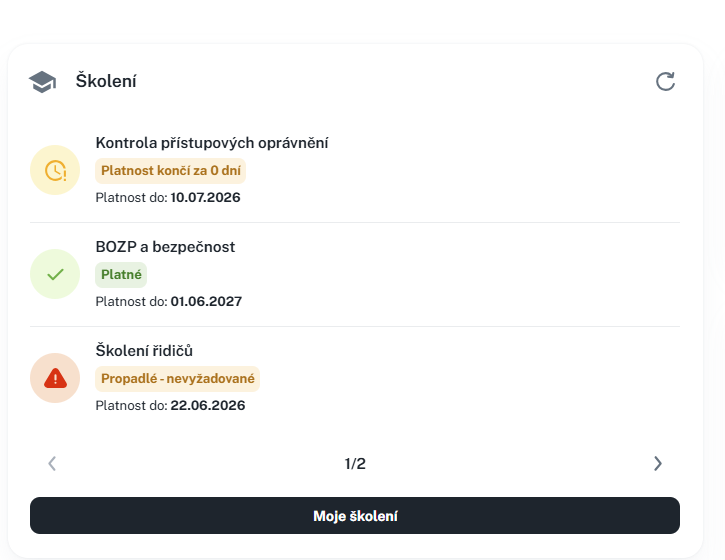
Training Overview
This manual describes working with the Training Overview agenda and its tabs Overview of Persons and Dates. It introduces an overview of training validity, filtering records, assigning training to persons, managing dates, registering participants, and recording results of completed training. It also includes information about permissions for individual actions and recommended procedures for efficient training management in the system.
