How to add entries for persons – entering reported work on projects, selecting items, cost centres, methods of payment, and project participants.
How to monitor the progress of projects and items – planned and reported work, percentage of completion, important deadlines, and a quick overview of responsible persons.
How to use the By Person tab – overview of individual persons’ entries, comparison with shifts and planned activities, clear display of time from–to.
How to manage views and filters – adjusting the display, filtering by roles, project statuses and record types, quick navigation in the data.
How to work with side panels and record details – additional information, quick review of entries, possibility to edit and delete records.
Before you start working with the agenda, please check whether you have projects set up; the relevant manuals are:
Types of projects
Order types
This part of the manual briefly describes the meaning of the order type, which serves to make orders in the system more transparent and structured. It explains that the order type is a mandatory piece of information, enables filtering and management of user rights, and must always be set when creating a new order.
Items
Items
The manual explains the principle of working with order items, their definition, and their repeated use across multiple orders without the need to create them repeatedly. The user will learn how to assign items to a specific order, how to set the planned duration of work, and how to continuously monitor the consumption of time with regard to the budget, whereby these values are for information purposes only. It also includes a description of the participant settings for individual items, which determines who can record work on the given item and who will see it in the mobile or web application. The manual further explains in detail the meaning of individual item parameters, such as code, name, units, price levels, and rules for rounding quantities and prices, and their impact on the reporting and evaluation of orders.
Method of payment
Method of payment
This part of the manual describes how methods of payment are used to distinguish performances according to the manner in which they are reimbursed. It explains where the methods of payment are configured, how they are assigned to specific orders, and how they are subsequently available when work is completed or when entering performances manually.
Orders
Orders
The manual describes the complete process of working with orders – from their creation and entering of basic data (code, name, type, responsible person, solver, notes), through setting deadlines and fulfillment limitations, up to the management of participants and their rights. It also addresses working with order items, their planned time, quantity, prices and notes, and options for recording work in the mobile and web application. It further includes the setup of payment methods, cost centers, and attaching documents or photographs, which support clarity and management of the order.
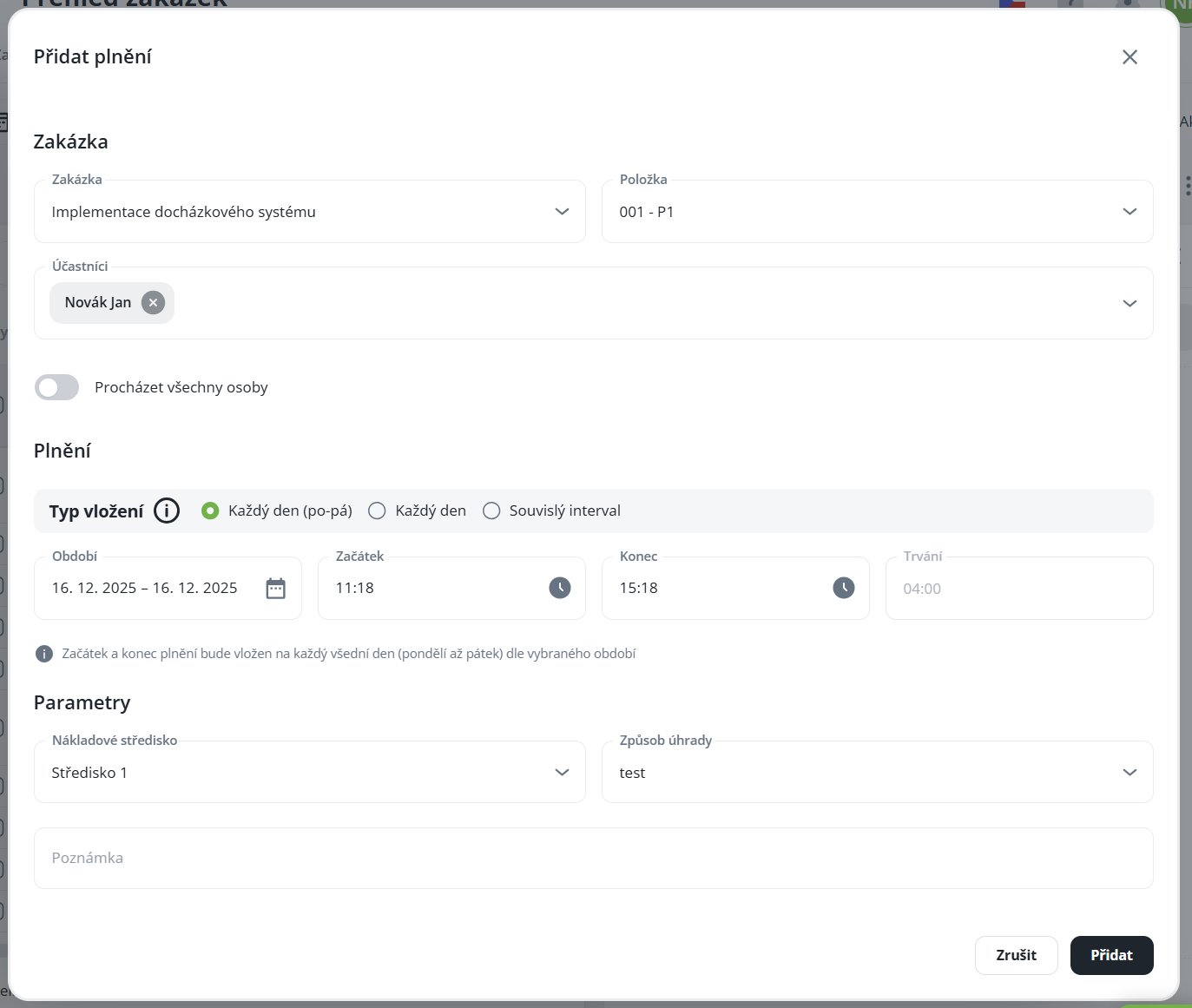
Used for manual entry of reported work for a specific person on a selected order.
The following are available when entering data:
order items according to the selected order,
cost centers, according to which calculations in attendance records are subsequently divided,
payment methods,
participants of the order.
If a person has the right to enter fulfilment also for other participants, they can record work also for persons who are not assigned directly to the order. Otherwise, fulfilment can only be entered for assigned participants. This option is enabled and disabled by the option to browse all participants.
Fulfilment can be entered for various periods: every day, Mon–Fri, or one specific day. After saving, the record is automatically added to the person’s list of fulfilments.
If transfer of time punches is enabled, the fulfilment record is also displayed in attendance. For this function to work, it is necessary in Aktion.NEXT – Configuration → Application configuration → Order configuration to activate one of the two modes:
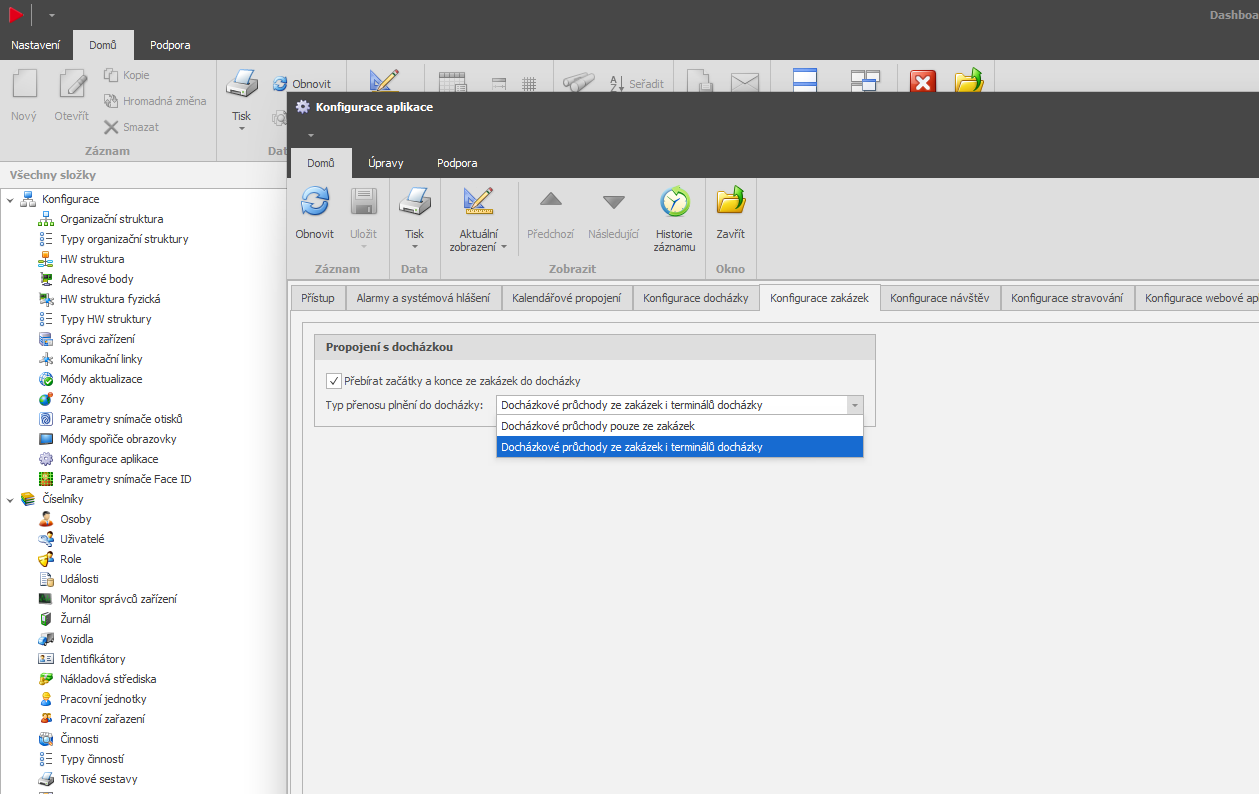
Attendance time punches only from orders - adds the start/end of the order according to the entered fulfilment

Attendance passages from jobs and attendance terminals - adds the same times to the start/end of work

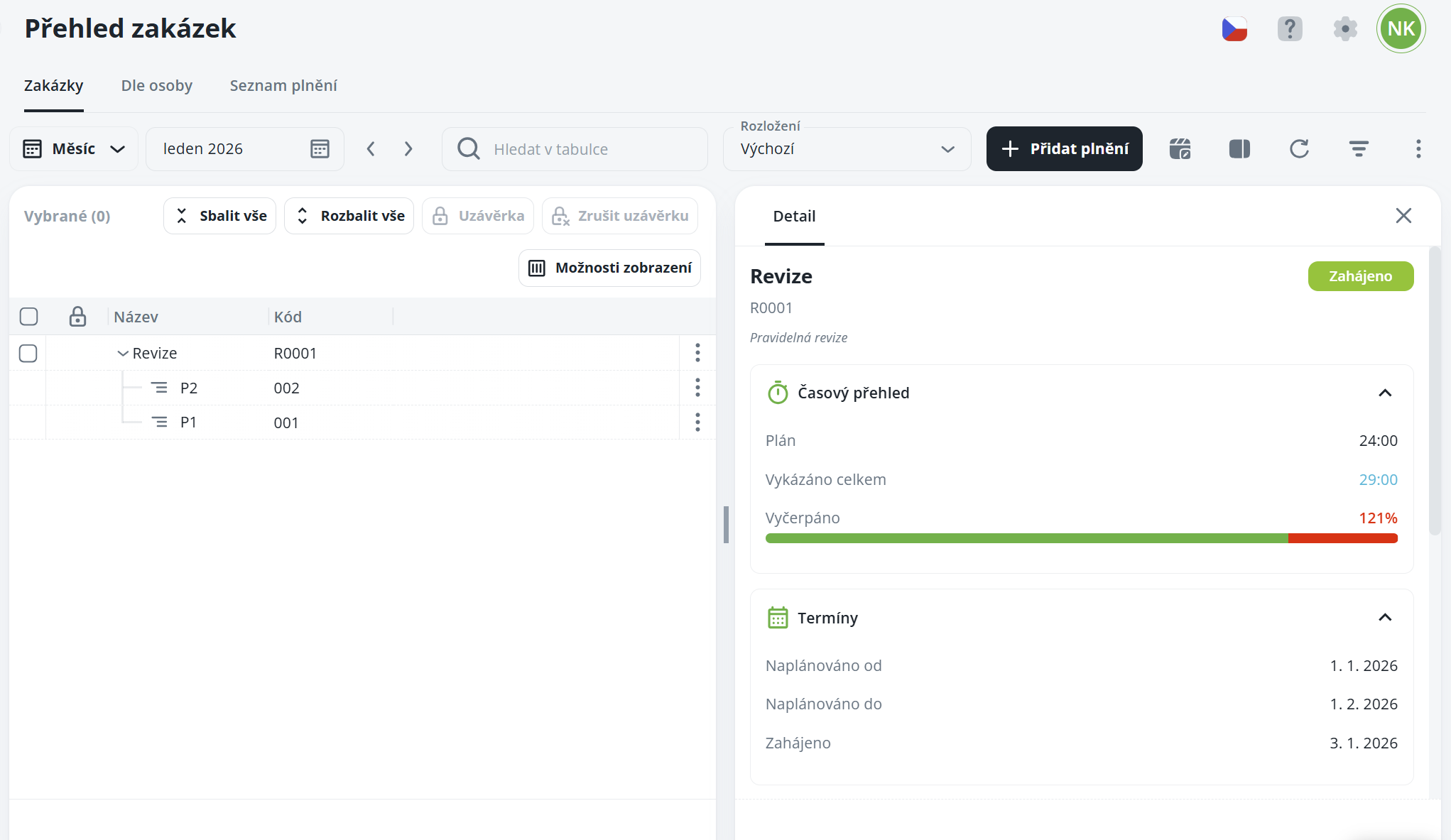
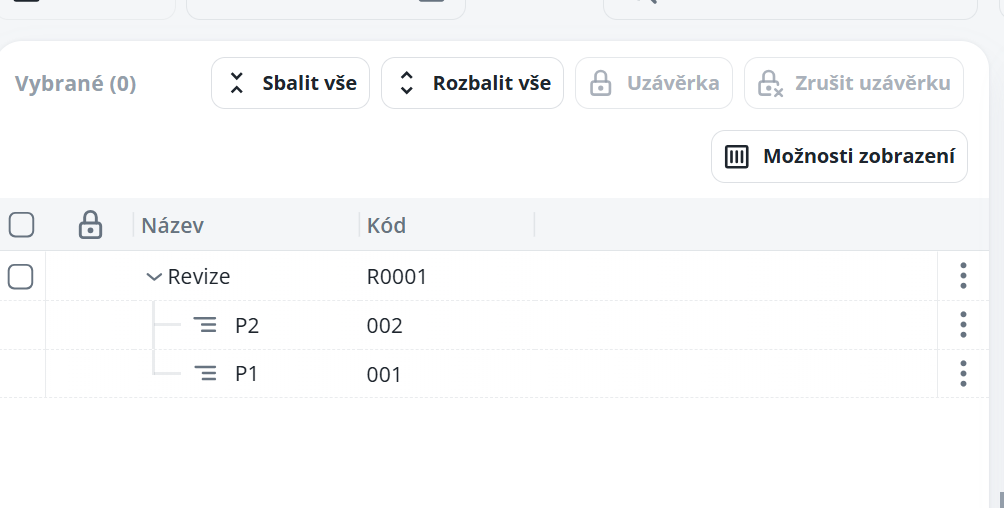
The Jobs tab serves as an overview of all jobs and their items. It allows you to create job closures and provides a quick overview of their progress. In the job detail, the side panel displays the planned duration or quantity of the job, including the percentage of plan fulfilment and an overview of responsible persons. In the item detail, the side panel then offers a summary of all performance entries issued for the given item, including the plan and its percentage fulfilment.
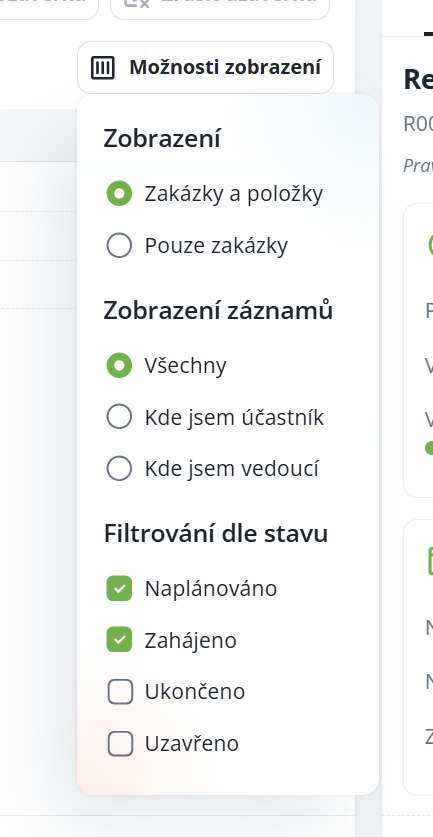
The function is available above the list and allows you to adjust how the information is displayed.
Display
Orders and items - orders with items
Orders only - orders only
Record display
All - all orders for which I have authorization
Where I am a participant - only orders where I am listed as a participant
Where I am a manager - only orders where I am listed as a manager
Filtering by status
Planned - the order is planned but not started
Started - started orders
Completed - completed orders
Closed - closed orders
It is used to display supplementary information and previews for the selected record. It provides a quick overview of related data and helps the user to better navigate the current context of the displayed information.
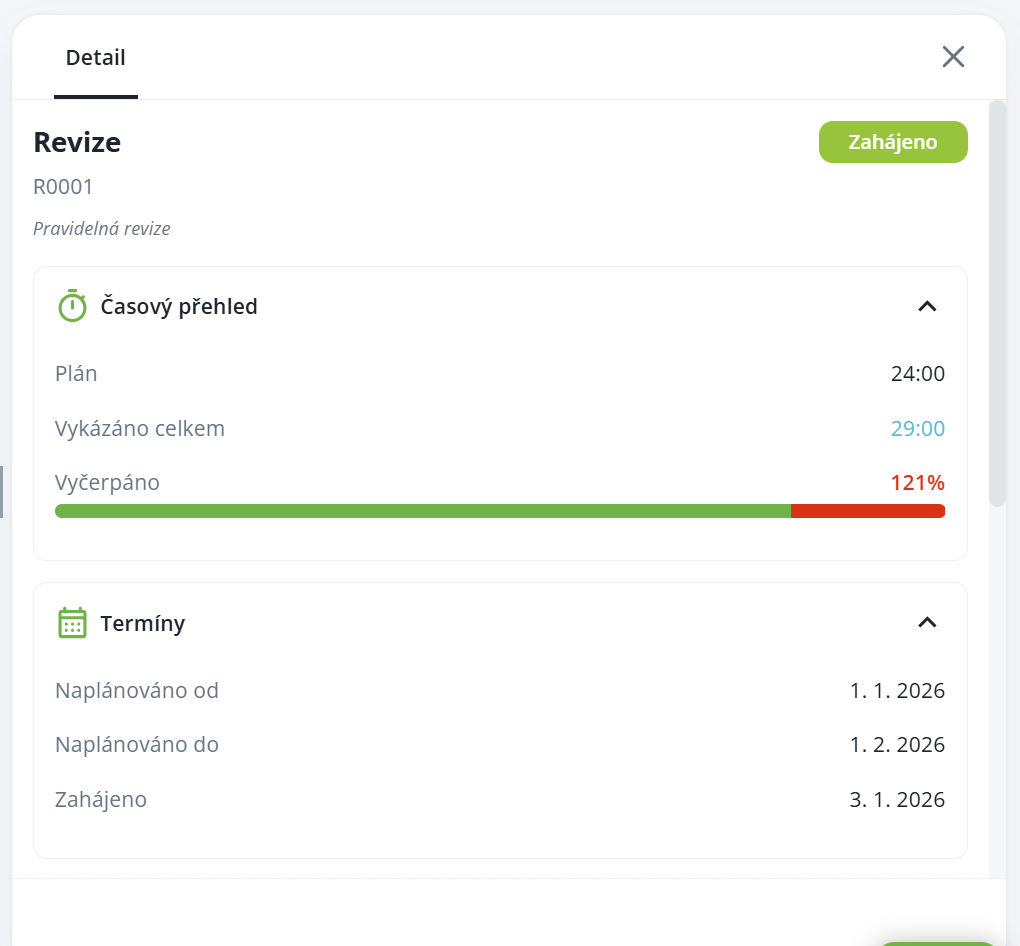
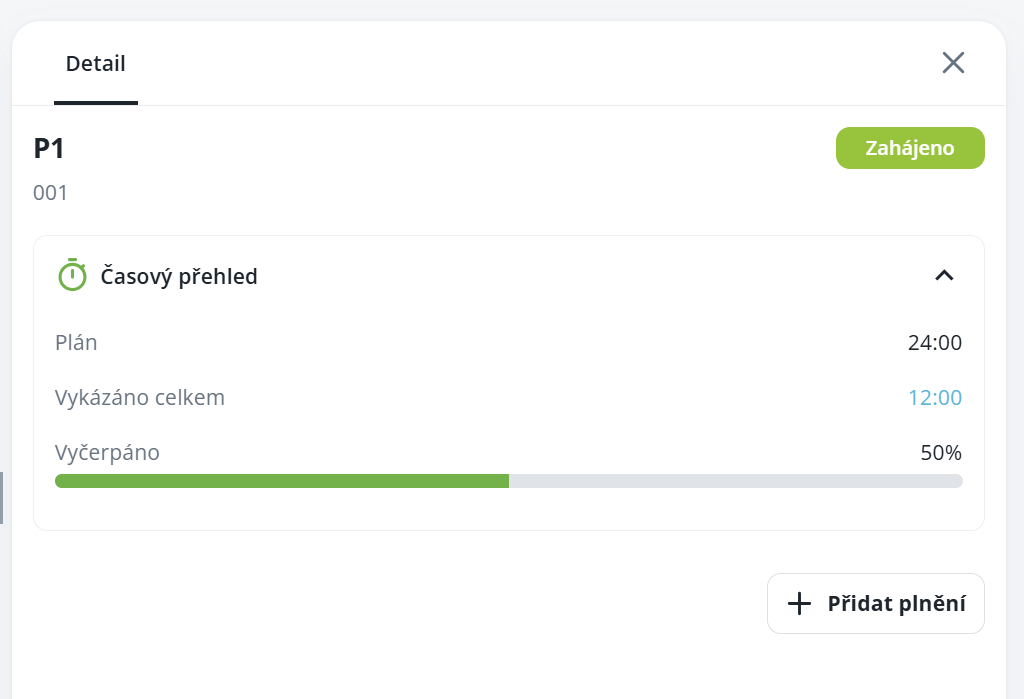
Order details
Displays the note for the order, the order status (started, planned), a time overview of the order and related information. It includes planned work, reported work and important deadlines relating to the given order.
Item detail
Displays similar information as the order detail, with the difference that it relates specifically to the selected item. From this window you can also add fulfilment; in the form you will have the given order with the given fulfilment preselected.
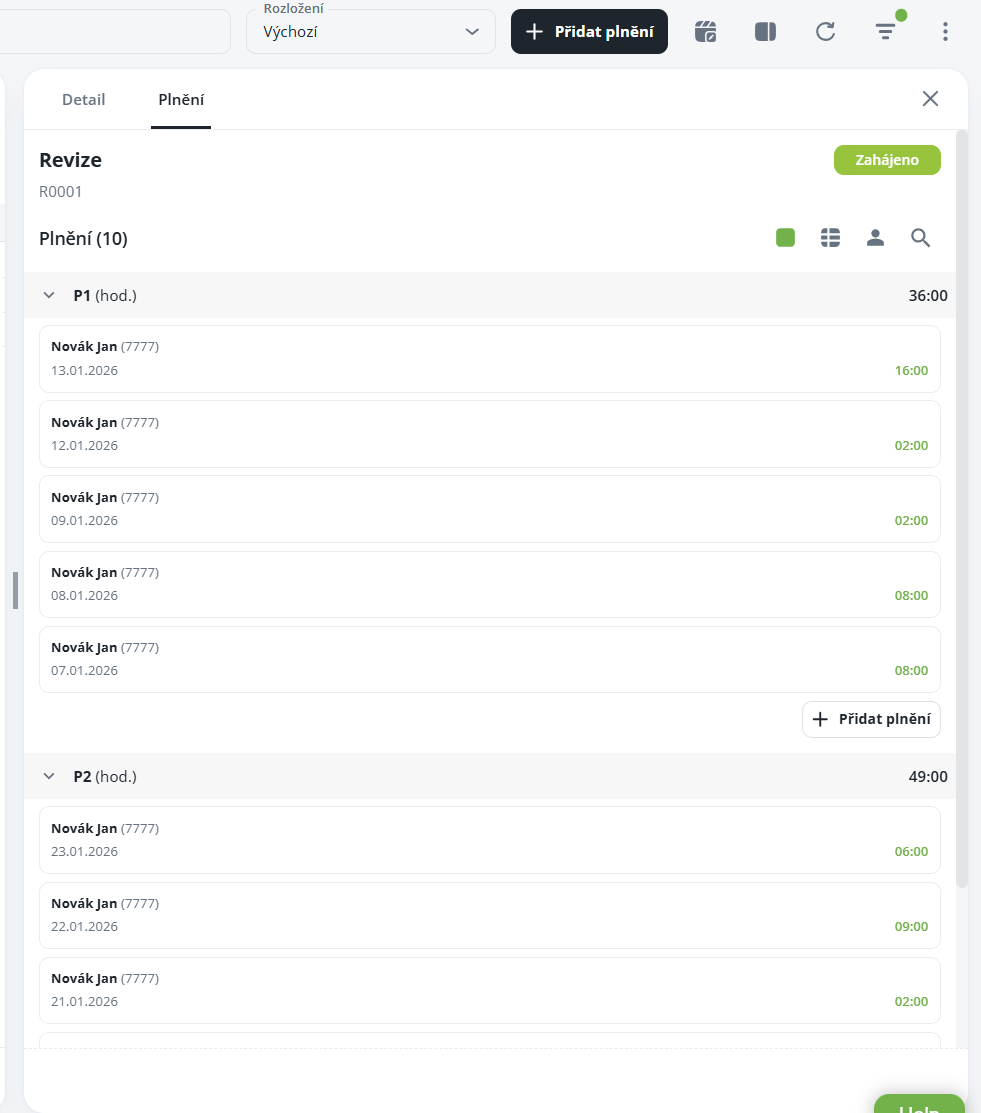
Fulfilment
Displays a summary of a person’s fulfilment, either at the order level or for a specific item. It enables filtering by person, targeted search for specific records and, in the case of a more compact display, also switching to a row list.
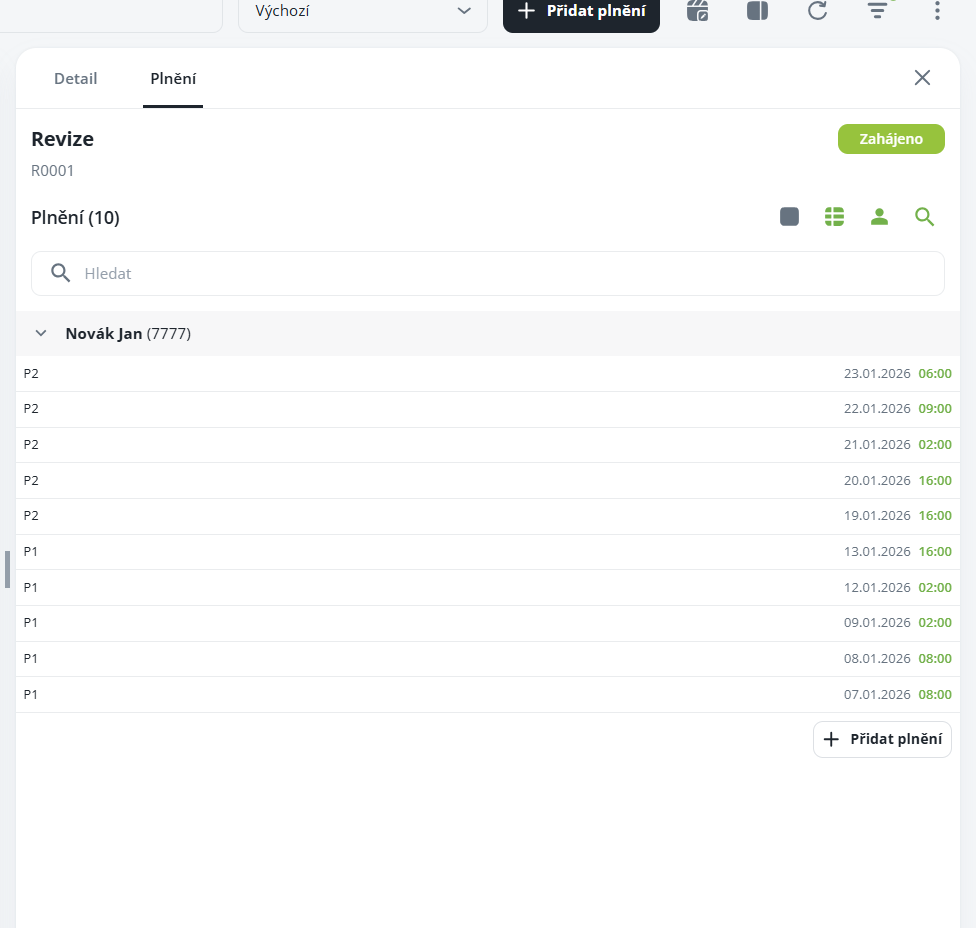
After switching to the row list, grouping by person and enabling the search panel.
If necessary, it is possible to add fulfilment for a specific item here. The form is automatically prefilled according to the selected order and item.
It is used for the review and closure of individual orders; the functionality is similar to the Capacity Planning module.
Inspection
Used to verify the correctness of data before final closure. Once the structure has been checked, it is marked with the respective flag.
As in the attendance module, it is also possible to perform partial closures, i.e., to check only selected parts of the structure or a selected period.
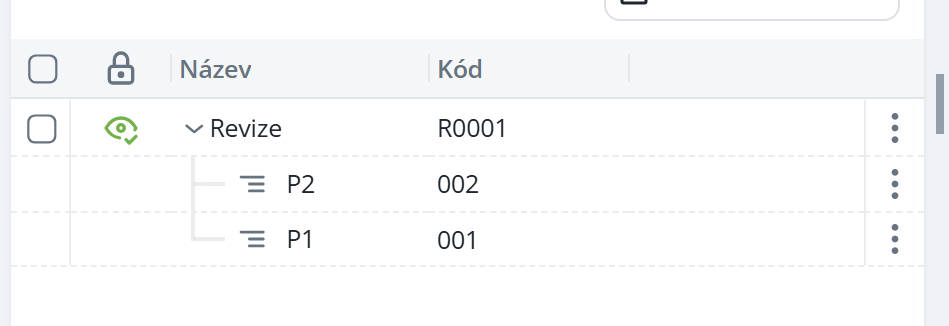
Closure
After the closure has been performed, no further changes can be made in the Capacity Planning module – it is not possible to add performance data or modify existing entries. Closed orders are again marked with the respective flag.
Here as well, it is possible to perform partial closures, similarly to the Attendance module.
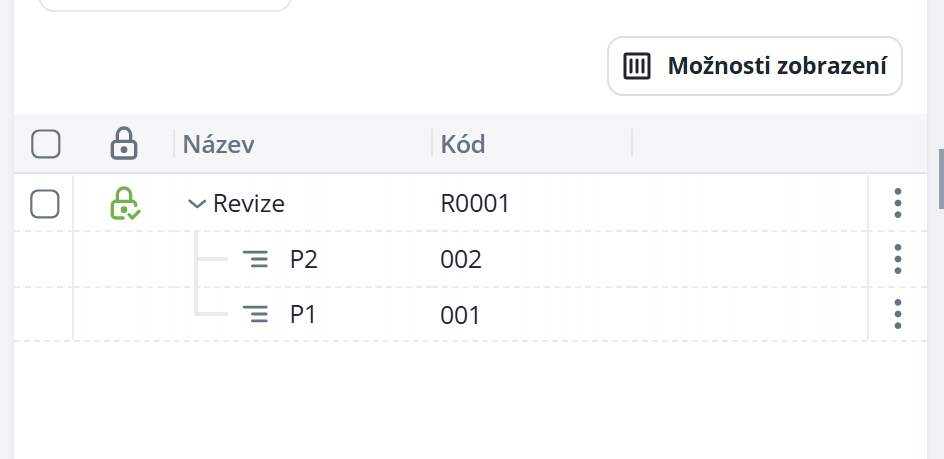
Cancellation of closure
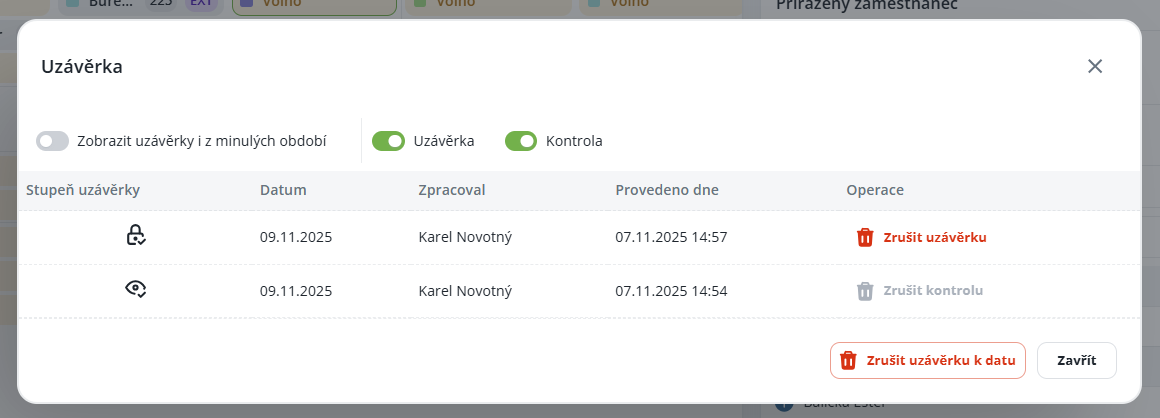
The cancellation of a closure is carried out using the “Cancel closure” button.
After opening it, you have two options:
Cancel a specific closing – select exactly the structure or level for which you want to remove the closing.
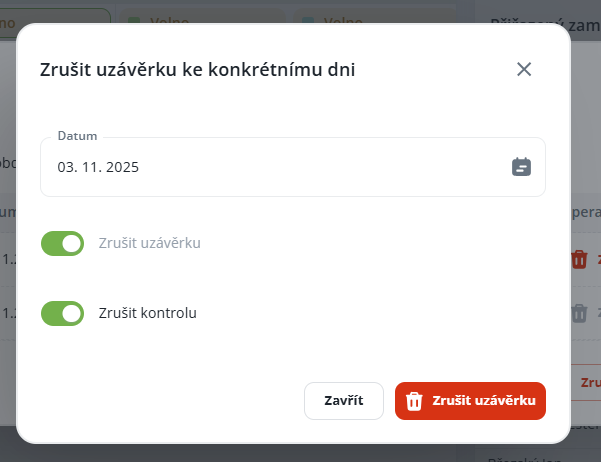
Cancel all closings as of a date – works similarly as in the attendance module and enables you to remove in bulk all closings created on a specified day.
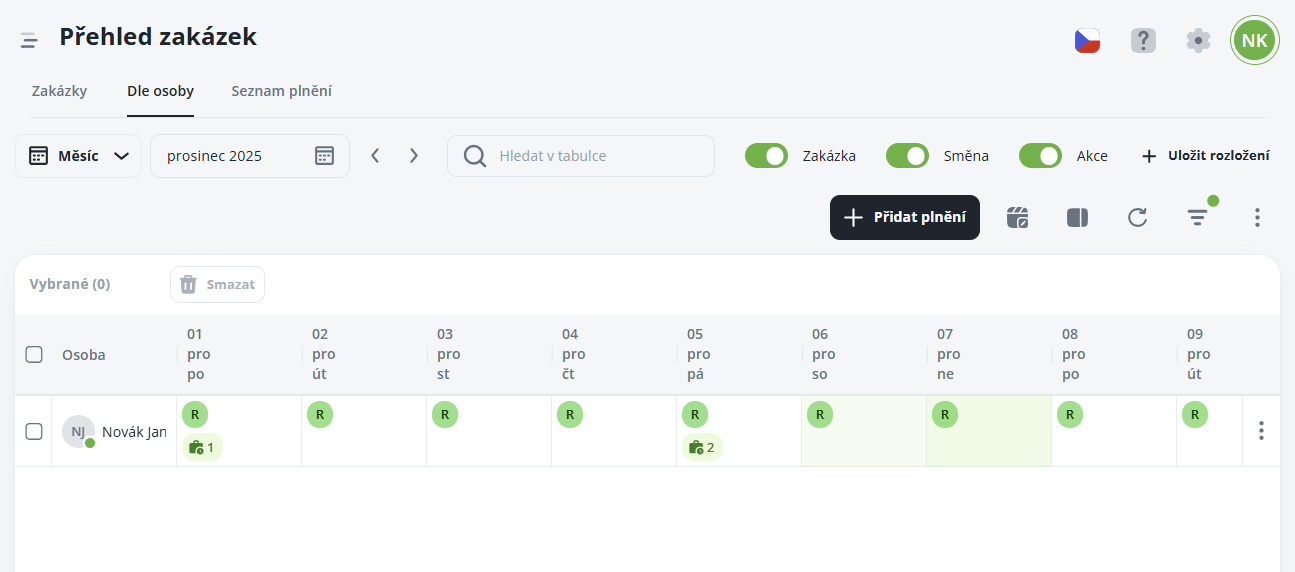
It serves as a clear calendar of persons, in which all performance entries for individual days are displayed, divided according to specific employees. The user thus has an immediate overview of who worked when and on what within the scope of orders.
By using checkboxes it is also possible to include shifts and planned events, which makes it possible to compare actual performance with the plan.

The tab also includes a side panel, which clearly displays detailed information about individual performance entries (details are described in the following chapter).
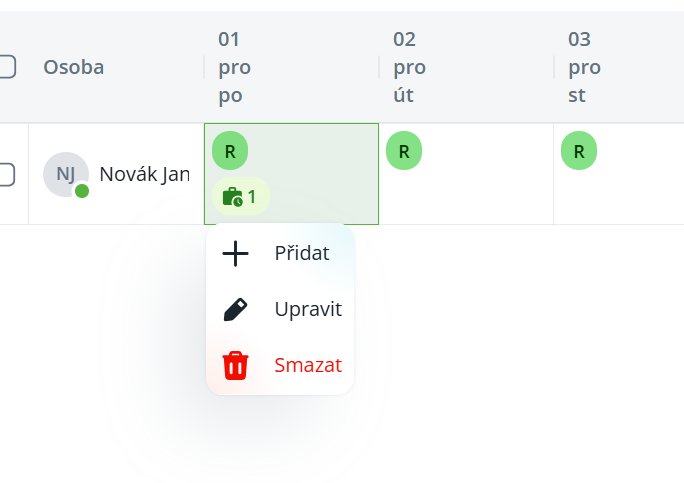
Directly from the list, it is possible, via the context menu:
Add - enter a new performance entry for the selected day and person
Edit - edit an existing performance entry
Delete - delete a performance entry
The overall view is similar to the shift plan, but it is specialized in data related to orders and work records, thereby providing a quick and comprehensible overview of the reported activities.
The function is available above the list and allows you to adjust how the information is displayed.
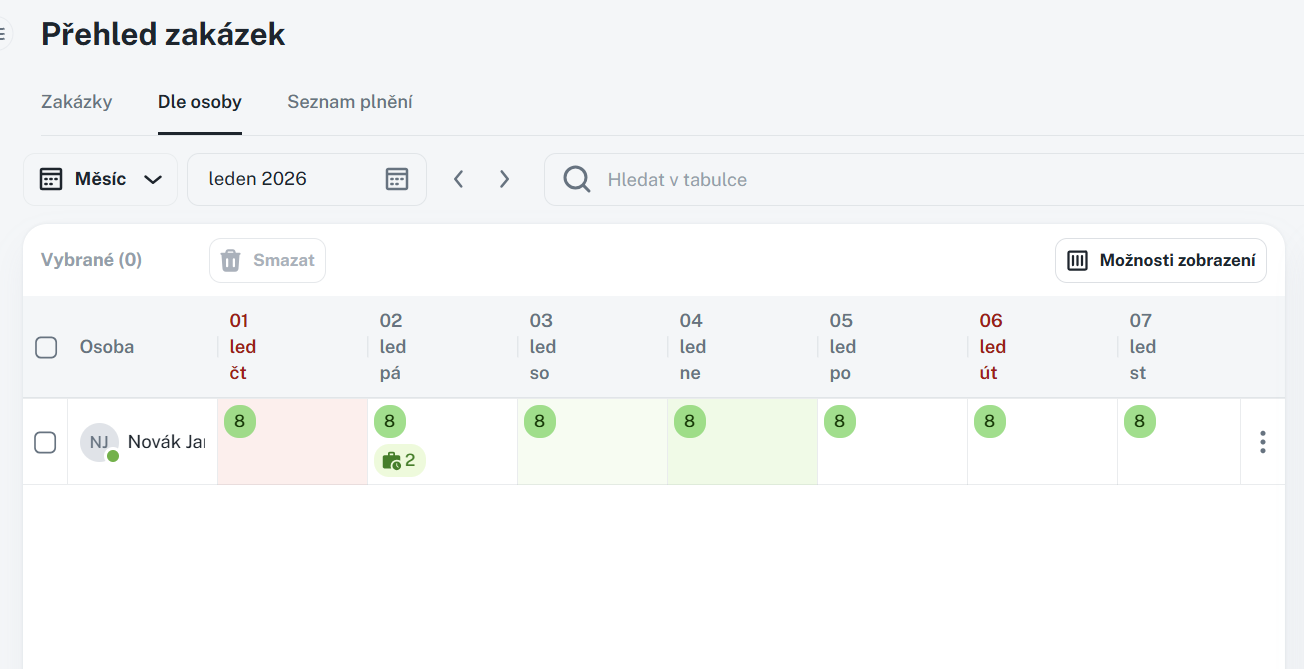
Display
Orders - order chips
Shift - shift chips
Actions - chips of planned actions/requests
Display of records
All persons - displays all persons to whom the user has rights
Only participants of my projects - displays only persons who are participants in projects where the user is a Manager and has Report to participants
Participants and deliverables of my projects - the same case as the previous item, plus persons who have assigned deliverables and the person is simultaneously a Manager and has Report to participants
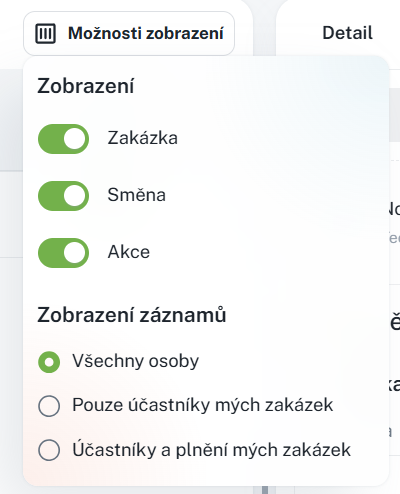
It is used to display supplementary information and previews for the selected record. It provides a quick overview of related data and helps the user better orient themselves in the current context of the displayed information.
You can find the sidebar under the icon

where you can quickly display the details of individual entries and edit or delete them
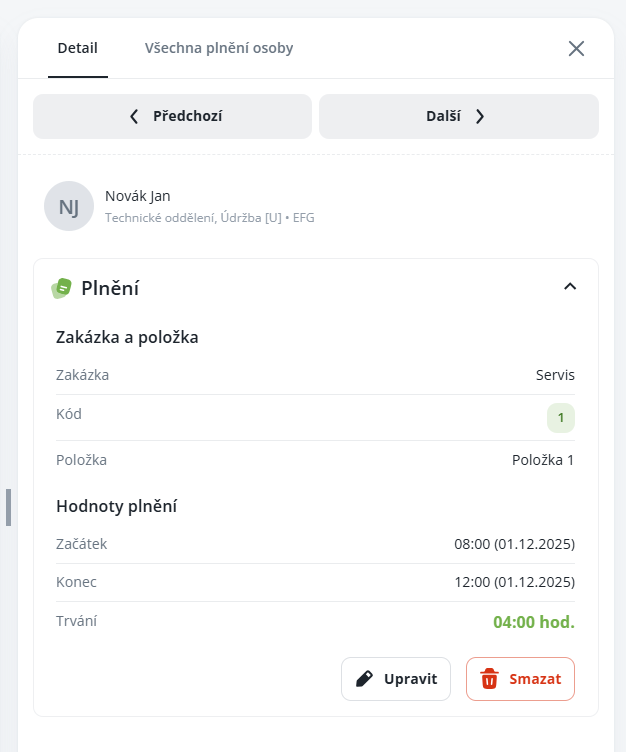
Detail
Displays detailed information about a specific entry on the selected day. It is used for thorough verification of individual records of work performed and at the same time enables their management.
The entry details clearly display in particular:
project including its code,
fulfilled project item,
date and time from–to,
total time spent on the project.
From this tab you can also edit or delete the entry, which allows for quick corrections or removal of incorrectly entered records.
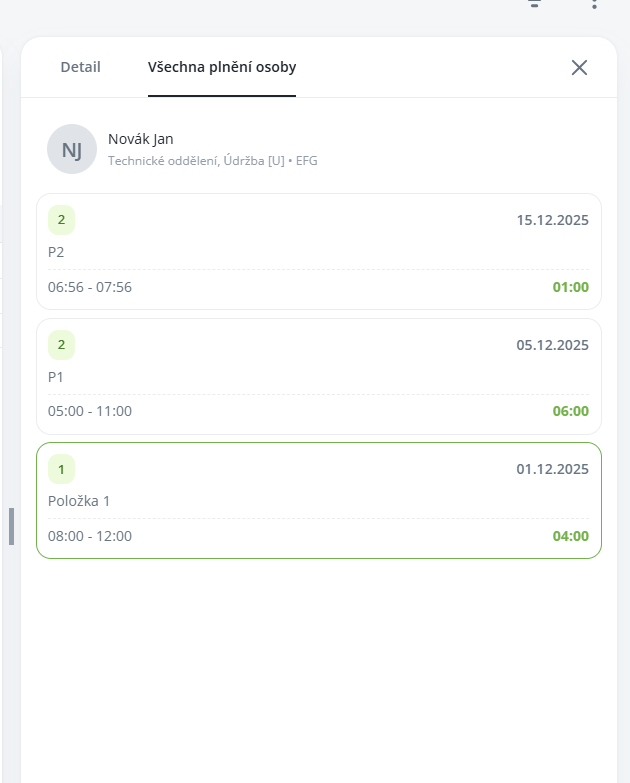
All fulfilments
Displays a complete overview of all fulfilments of the selected person for the chosen period. It serves for quick inspection and management of recorded work without the need to switch between individual projects.
For each record, the overview provides:
a quick preview of the fulfilment item and the related project,
time from–to and total time spent on the project,
clear sorting according to the selected period.
The tab also includes the option of bulk deletion of the currently displayed fulfilments.
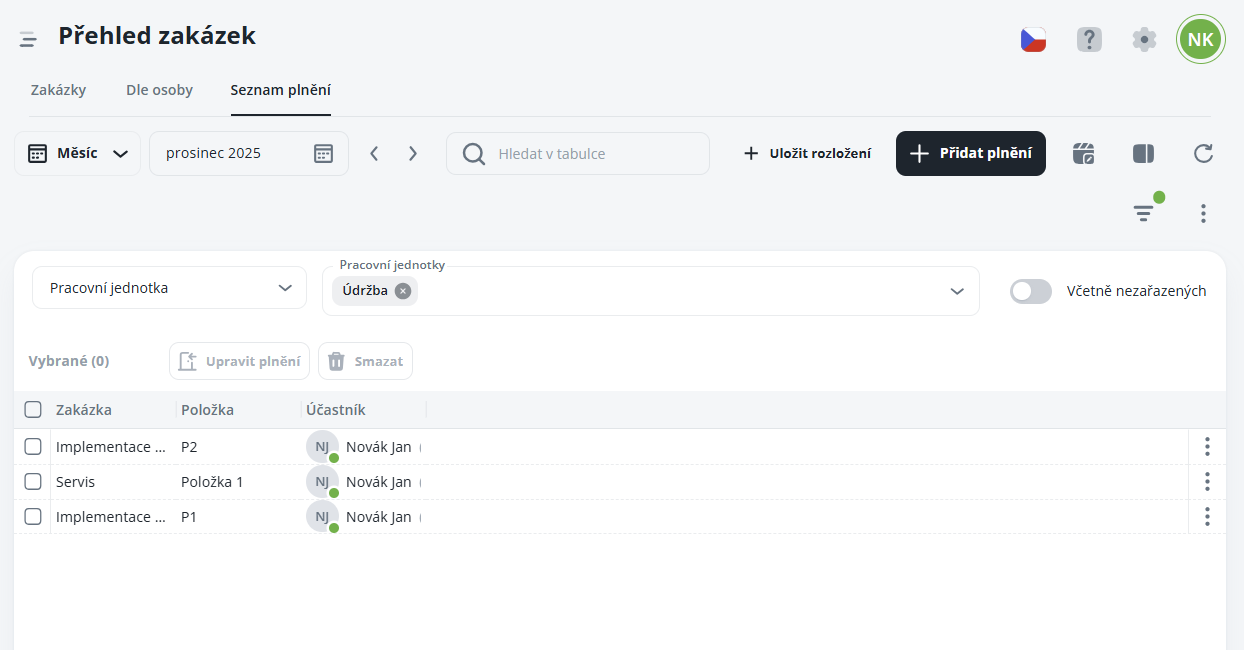
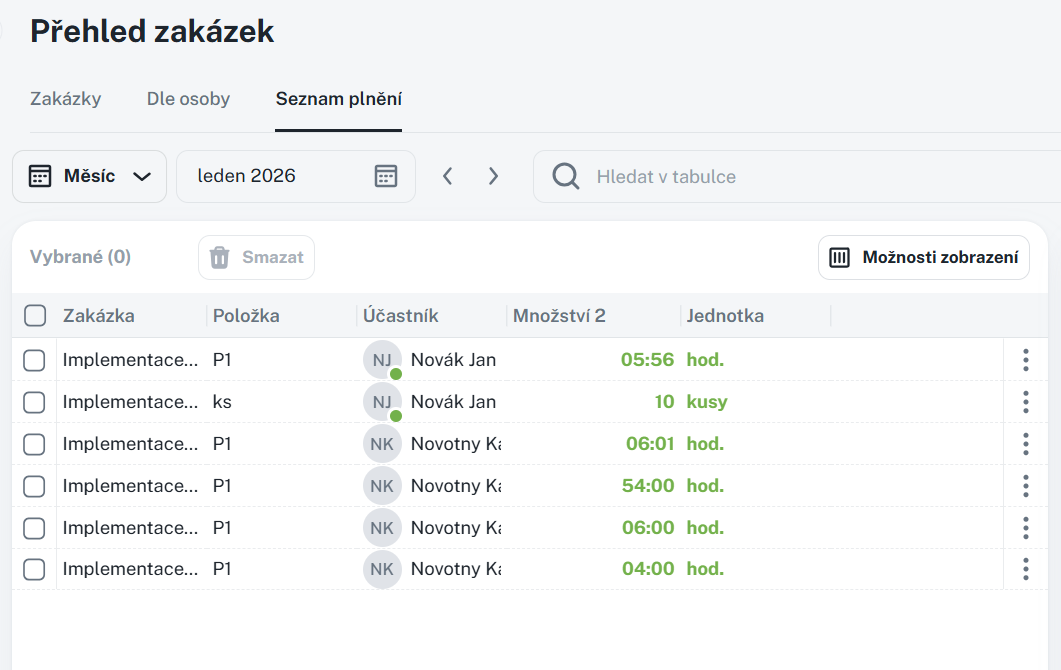
Displays individual performance records of all persons for the selected period and serves as an overall overview of the reported work.
From the list, it is possible to edit or delete performance records, which simplifies the management of incorrectly entered records. For more efficient work, it is recommended to filter the list by work unit/organizational structure or search for a specific person to make data orientation and management more transparent.
The function is available above the list and allows you to adjust the display of information.
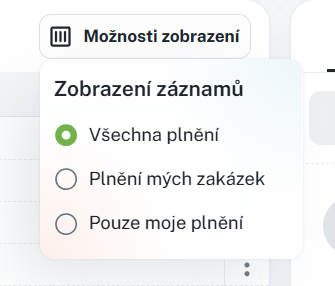
Display of records
All entries - displays all entries of persons for whom the user has permission
Entries of my orders - displays only entries from orders where the user is a participant or a Manager or has the permission to Report for others
Only my entries - displays exclusively the user's own entries for ordersof other persons
It serves to display supplementary information and previews for the selected record. It provides a quick overview of related data and helps the user to better navigate within the current context of the displayed information.
You can find the sidebar under the icon
where you can quickly display details of individual entries and access their editing or deletion
Detail
Displays detailed information about a specific entry on the selected day. It is used for a thorough review of individual records of work performed and also enables their management.
The detail view of an entry clearly displays in particular:
order including its code,
fulfilled item of the order,
date and time from–to,
total time spent on the order.
From the tab, the entries can also be edited or deleted, which allows for quick corrections or removal of incorrectly entered records.
All entries
Displays a complete overview of all entries of the selected person for the chosen period. It is used for quick verification and management of reported work without the need to switch between individual projects.
For each record in the overview, the following is available:
a quick view of the entry item and the related project,
time from–to and total time spent on the project,
clear sorting according to the selected period.
The tab also includes the option to bulk delete the currently displayed entries.
